

About buttons
Buttons are most commonly associated with forms, but you can add them to any document. Buttons can open a file, play a sound or movie clip, submit data to a web server, and much more. When deciding on how to initiate an action, remember that buttons offer the following capabilities that links and bookmarks do not:
- A button can activate a single action or a series of actions.
- A button can change appearance in response to mouse actions.
- A button can be easily copied across many pages.
- Mouse actions can activate different button actions. For example, Mouse Down (a click), Mouse Up (releasing after a click), Mouse Enter (moving the pointer over the button), and Mouse Exit (moving the pointer away from the button) can all start a different action for the same button.Buttons are an easy, intuitive way to let users initiate an action in PDF documents. Buttons can have a combination of labels and icons to lead users through a series of actions or events by changing as the mouse is moved. For example, you can create buttons with “Play,” “Pause,” and “Stop” labels and appropriate icons. Then you can set actions for these buttons to play, pause, and stop a movie clip. You can select any combination of mouse behaviors for a button and specify any combination of actions for a mouse behavior.
 in the toolbar. Your curser becomes a cross hair.
-
Click the Appearance tab, and then specify options to determine the button appearance on the page. Remember, if you select a background color, you are not able to see through to any images behind the button. The text options affect the label you specify in the Options tab, not the button name in the General tab.
Note:
If Enable Right-To-Left Language Options is selected in the International panel of the Preferences dialog box, the Appearance tab includes options for changing the digit style and text direction for buttons.
When you distribute a form, Acrobat automatically checks the form. If it doesn’t find a submit button, it adds a Submit Form button to the document message bar. Users can click the Submit Form button to send completed forms back to you. If you don’t plan to use the Submit Form button created by Acrobat, you can add a custom submit button to your form.
-
- To collect form data on a server, type the location in the Enter a URL for this link box. For example, http://www.[domain]/[folder]/[subfolder]/ for an Internet address or \\[server]\[folder]\[subfolder]\ for a location on a local network.
- To collect form data as attachments to email, type mailto: followed by the email address. For example, mailto:nobody@adobe.com.
Note:
If the data returns in FDF or XFDF format, the server URL must end with the #FDF suffix—for example, http://myserver/cgi-bin/myscript#FDF.
FDF
Returns the user input without sending back the underlying PDF file. You can select options to include Field Data, Comments, and Incremental Changes To The PDF.
Note:
Selecting the option for incremental changes is useful for receiving digital signatures in a way that is easily read and reconstructed by a server.
XFDF
Returns the user input as an XML file. You can include Comments with the field data or just the field data.
Field Selection
Specifies what fields are returned. To receive only some of the completed field data, select Only These, click Select Fields, and select which fields to include or exclude in the Field Selection dialog box.
For example, you might use this to exclude some calculated or duplicate fields that appear in the form for the user’s benefit but which do not add new information.
A button can have a label, an icon, or both. You can change how the button appears in each mouse state (Up, Down, and Rollover). For example, you could create a button that has a “Home” label until the pointer is moved over the button, when it might have a “Click to return to home page” label.
You can make button icons from any file format that Acrobat can display, including PDF, JPEG, GIF, and other image formats. For whichever format you select, the entire page is used, so if you want to use only a portion of a page as an icon, you need to crop the image or page before carrying out this procedure. The smallest allowable PDF page size is 1-by-1 inch (2.54-by-2.54 cm). If you want the icon to appear smaller than 1-by-1 inch, scale it to fit the size of the box drawn with the button tool. Clicking Advanced in the Options tab of the Button Properties dialog box lets you determine how a button icon is scaled to fit inside a button.

A. Label only B. Icon only C. Icon top, label bottom D. Label top, icon bottom E. Icon left, label right F. Label left, icon right G. Label over icon
-
- To edit the properties for the button field, double-click the button.
- To change the appearance of buttons, use the appearance options in the Appearance tab of the Button Properties dialog box.
- To align, center, or distribute the button with other form fields, or to resize or duplicate the button, right-click the button, and then choose an option from the context menu.
Push
Specifies appearances for the Up, Down, and Rollover states of the mouse. Select an option under State, and then specify a label or icon option:
Down
Determines what the button looks like when the mouse is clicked on the button, but before it’s released.
-
To define where the icon is placed inside the button, drag the slider arrows. Icon placement is defined according to the percentage of space preserved between the icon and the left field boundary, and between the icon and the bottom field boundary. The default setting (50, 50) places the icon in the middle of a field. You can click Reset at any time to revert to the default placement setting.
In some cases, you may want the button area to be invisible until the pointer moves over it. By alternately showing and hiding a button, you can create interesting visual effects in a document. For example, when you move a pointer over a city on a map, a detail map of the city could be displayed, and the detail map could disappear when the pointer moves away from the city.
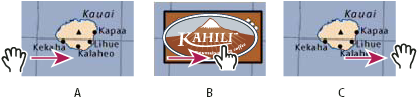
A. Pointer not over button area B. Pointer enters button area C. Pointer exits button area
-
If you are in the edit mode, click Preview. The image field you defined appears as the pointer rolls over the button area and disappears when it exits.
Note:
If you want the image to be larger than the rollover area, or if you want the image to be in a different location than the image button that pops up, use the Show/Hide A Field action. First, you specify an icon for the button that will be shown and hidden. Next, you create a second button that acts as a hot spot when the mouse rolls over it. You do not assign an icon for the appearance of the second button. Instead, you use the Actions tab to show the first button when the pointer enters the second button, and hide the first button when the pointer exits.

