Introduction
SPSS dataset logic is not always logical. However, for working proficiently with datasets, just a handful of basics is sufficient. These are explained in this tutorial.
This tutorial focuses on working with SPSS datasets. For a definition and some background on datasets, see SPSS Datasets.
Working with SPSS Datasets
- It is recommended you follow along with the steps in this tutorial. You can copy-paste-run the syntax we’ll use on idols.sav and service_provider.sav.
- We’ll first set our CD to the folder where the files are located. Next, we’ll open one of them and compute some test variable.
*Set working directory and open data file.
cd ‘d:/downloads’.
get file ‘idols.sav’.
cd ‘d:/downloads’.
get file ‘idols.sav’.
Untitled Datasets
 An Untitled Dataset in SPSS
- Note the empty square brackets in the left top corner. These mean that this is an untitled dataset. This is because we haven’t assigned a name to it.
- Something specific to an untitled dataset is that it is closed as soon as another dataset is opened. Any changes made to it are discarded.
- For a quick demonstration, run
GET FILE 'service_provider.sav'.. You’ll see that the previous dataset has now been replaced by a new (untitled) one.
Named Datasets
- Datasets can be prevented from being closed by naming them with
DATASET NAME. - Dataset names don’t need quotes around them and must comply with the naming rules for variables.
*Open idols.sav and apply name to dataset.
get file ‘idols.sav’.
dataset name idols_data.*Open service_provider.sav and apply name to dataset.
get file ‘service_provider.sav’.
dataset name service_data.*Compute test variable.
compute test_0 = 0.
exe.
get file ‘idols.sav’.
dataset name idols_data.*Open service_provider.sav and apply name to dataset.
get file ‘service_provider.sav’.
dataset name service_data.*Compute test variable.
compute test_0 = 0.
exe.
Now you have two open datasets. The first didn’t close upon opening the second because a name (“idols_data”) was applied to it.
The Active Dataset
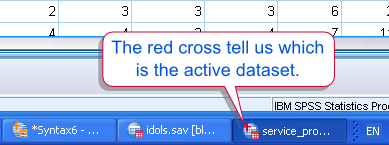 The Active Dataset in SPSS
- In the previous syntax we also computed a new variable. Upon inspection, you’ll see it’s present in service_data but not in idols_data.
- This is because service_data was the active dataset when we ran the
COMPUTEcommand. - By default, the active dataset is usually the data you opened or clicked on last. In the windows task bar, the active dataset can be recognized by a red cross in its icon.
- If we want to run syntax on one of the inactive datasets, we’ll first activate it. Don’t do this by clicking it.
*Compute test variable in idols_data.
dataset activate idols_data.
compute test_1 = 1.
exe.
dataset activate idols_data.
compute test_1 = 1.
exe.
Activating idols_data before the COMPUTE command ensures that the new variable will be created in this dataset.
Closing SPSS Datasets
- When we’re done with the data we’ll close both datasets. (We’ll usually first save them as data files. Without doing so, our changes are discarded. This is explained in SPSS Datasets.
- A peculiarity here is that the last open dataset actually stays open. However, its name is removed so it will be gone as soon as other data are opened.
- Alternatively, if you really want it closed, run
NEW FILE.after closing the dataset.
*Close datasets. Alternatively, use “dataset close all.” instead of the two lines below.
dataset close idols_data.
dataset close service_data.*Get rid of the last open dataset.
new file.
dataset close idols_data.
dataset close service_data.*Get rid of the last open dataset.
new file.