

Change the transparency of a picture
Changing transparency of a image in MS Word is a common issue for the users of Word. Hundred of questions followed by their answer are solving this issue but no one has satisfied the user. There is no any transparency option in Image/Picture Tool.
Today I will tell you a very simple method to make your image transparent in Word just in few steps.
You Can’t change the transparency of an image directly, but we should use a trick to do this. We know that we can easily change the transparency of an object/shape easily in MS Word. Let’s use shape for this purpose.
Draw the Shape first. Go to > >

Remove the Fill Color of the shape (No-Fill). Go to > >

After removing Fill Color, now also remove Shape Outline/Border. Go to > >
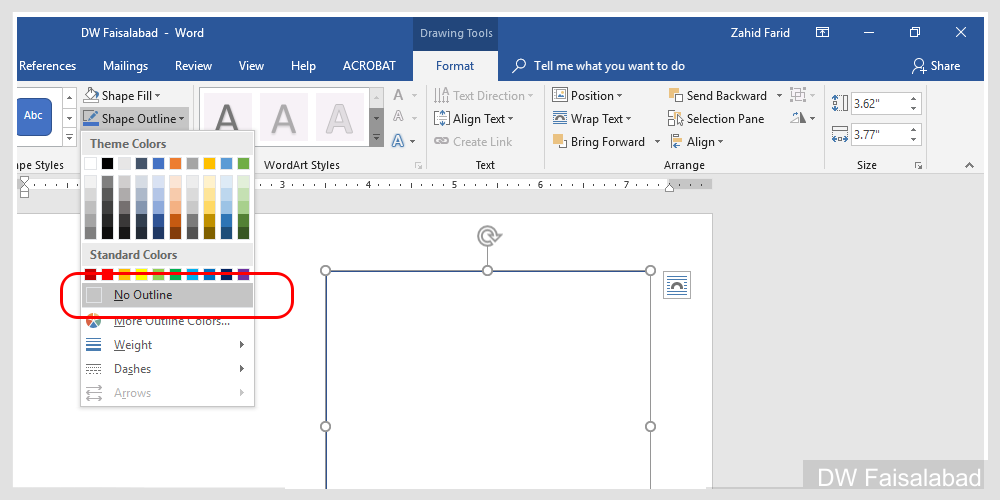
Now we have a rectangular shape but invisible.
Now we will change this Invisible shape into our picture of which transparency we want to change. In other words we will fill this invisible shape with picture. Let’s do it.
Select this invisible shape and Go to > >

After clicking on Picture you will face box asking you to word online, Click Button. If you have not click then wait for loading option and you will see the following window.

Click , A dialogue box will be opened, select picture and click Picture will be inserted in That invisible shape.
Right Click on that picture and select

A new working panel will appear on right side. Select > > > . Adjust the transparency according to your needs.
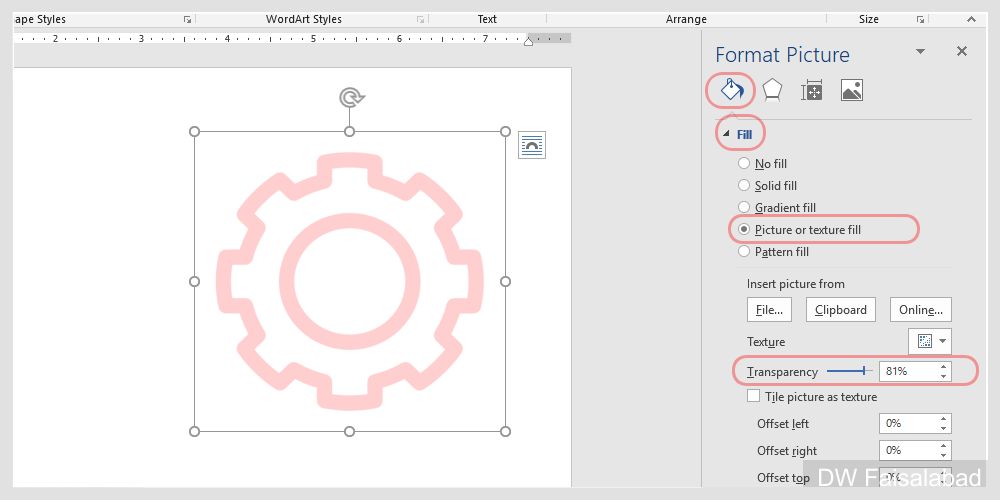
Watch this video
