Ethernet driver is necessary for Windows 11 to properly access a wired network. Problems with this driver results in errors, issues using the internet, and often no internet connection at all.
Issues with device drivers are often the cause of hardware problems because drivers are necessary components for your computer to properly communicate with hardware. Your network interface card is a physical device much like everything else used by your computer, so it, too, can run into driver issues.
Sometimes, the Ethernet driver becomes so outdated it runs into problems only an update can fix. In other cases, the driver might have become corrupted due to a software conflict or virus.
How to Fix Windows 11 Ethernet Driver Problems
It’s tempting to focus only on the Ethernet driver when troubleshooting this problem. However, since there could be slightly different reasons for the Ethernet problem which aren’t directly tied to the driver, the following are a mixture of things you can try to fix Ethernet problems.
- Restart the computer. Rebooting is a common first step for most tech issues, and it might also be all you need to do to fix the Ethernet problem. One easy way to restart Windows 11 is to right-click the Start button and go to Shut down or sign out > Restart.
- Switch to Wi-Fi, if possible. If your computer can access the wireless network, then it makes sense to continue with these steps to address an Ethernet-only issue. If you can’t reach the Wi-Fi network either, then there are likely broader problems at play. Continue with the relevant steps below that don’t apply to just a wired network, but then also troubleshoot Wi-Fi problems.
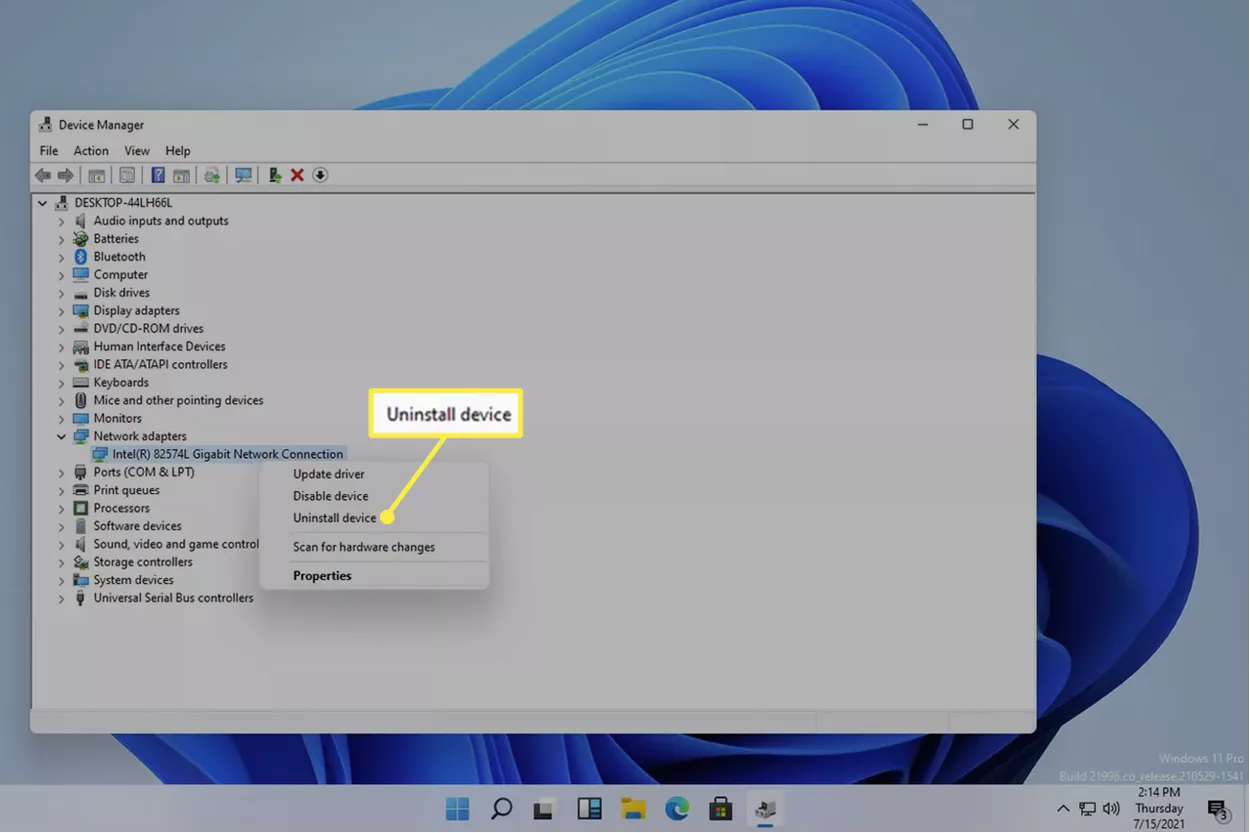
- Force Windows to reinstall the Ethernet driver. To do this, open Device Manager (right-click Start to find it), expand the Network adapters group, right-click the Ethernet device, and go to Uninstall device > Uninstall. After a reboot, Windows will automatically identify the device and install the driver again.
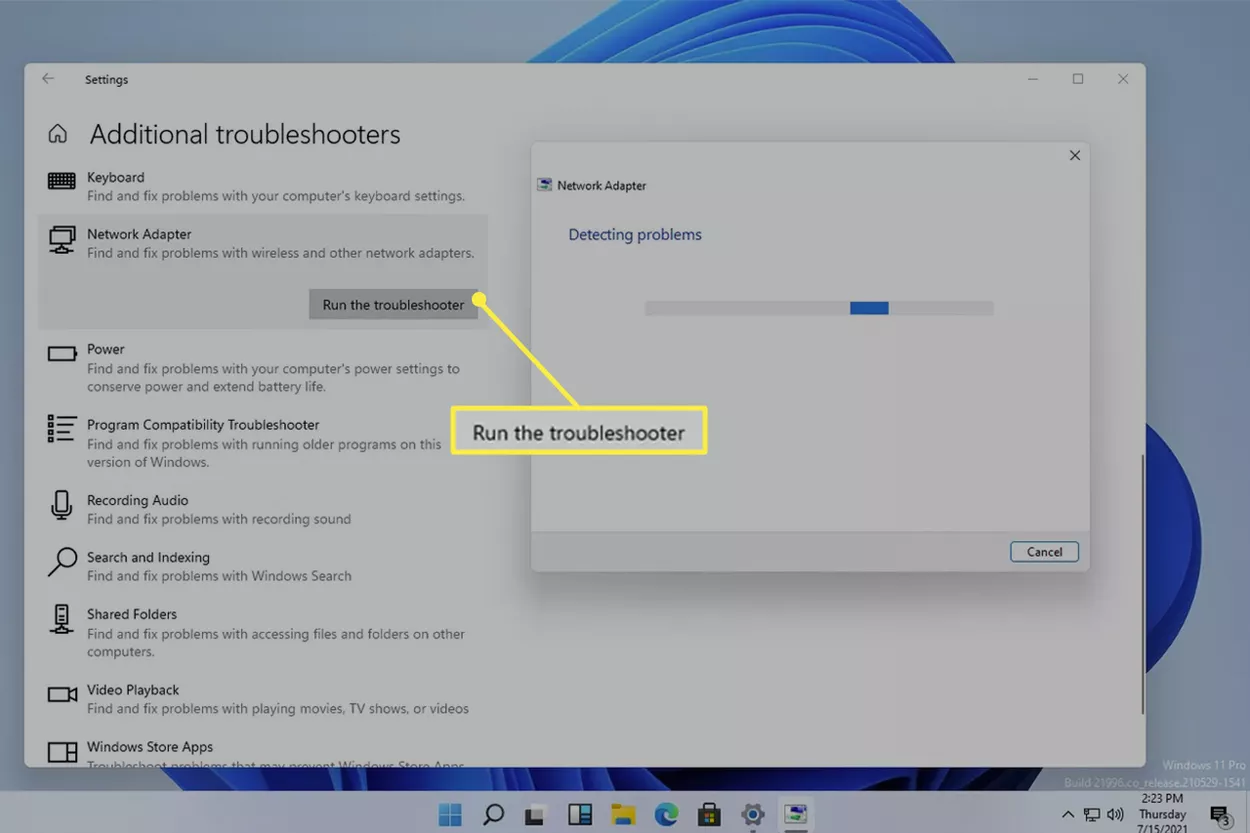
- Run the built-in network troubleshooter, located here: Settings > Update & Security > Troubleshoot > Additional troubleshooters > Network Adapter. Select Run the troubleshooter to have Windows attempt to identify and fix the issue.
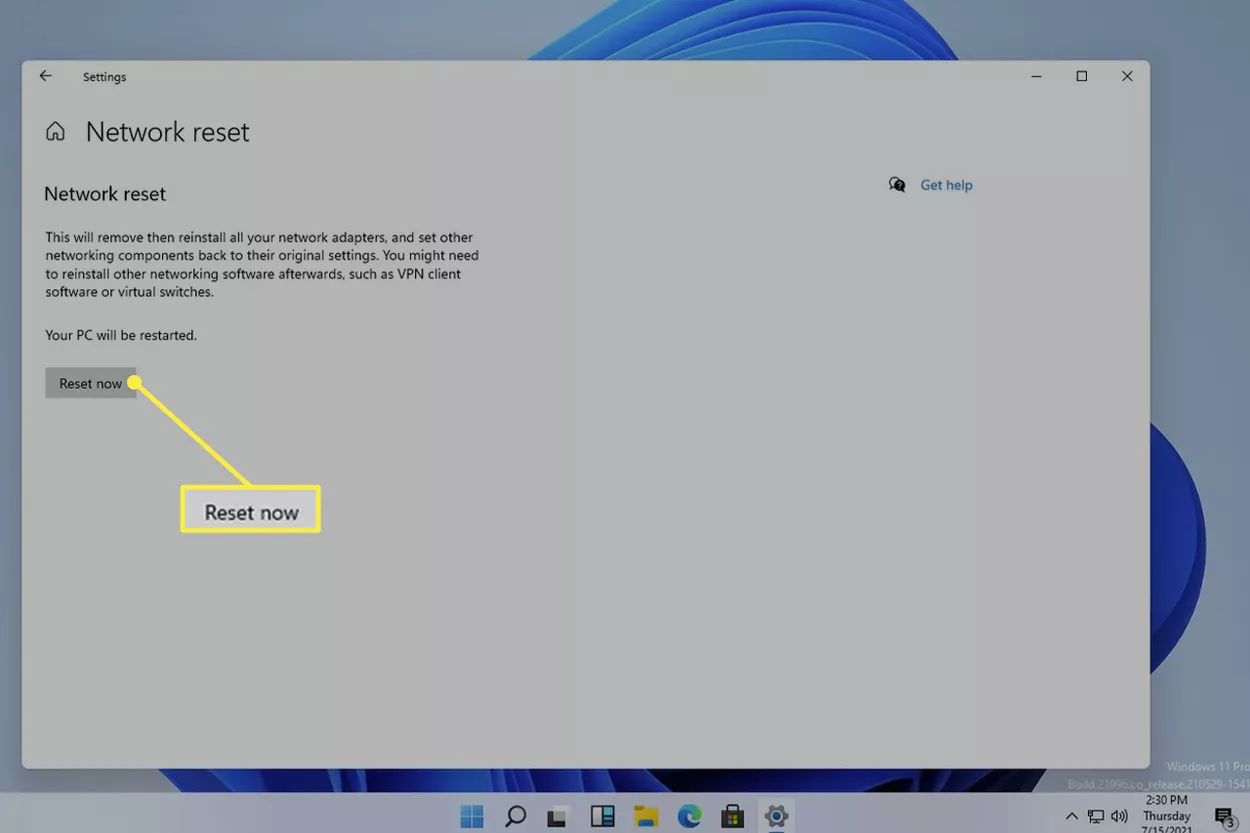
- Reset the Windows 11 network settings. Doing this will delete and then reinstall the Ethernet adapter, and reset various network settings to their defaults. This tool is in Settings as well: Network & Internet > Status > Network reset.
- Run a driver updater tool to check for Ethernet driver updates. The existing driver might be missing entirely, or corrupted or outdated, and that could be causing the Ethernet problem.
- Perform a netsh Winsock reset. This isn’t directly related to the Ethernet driver, but it can be helpful for general network connection issues. Follow that link to learn more about what this does and how to do it. If you’re already comfortable using the Command Prompt, run this command and then restart your PC:
netsh winsock reset
- Plug the cable into a different Ethernet port on the router, and ensure both ends, including the one attached to your computer, are secure. Again, this has nothing to do with the device driver, but it could be the fix for a general issue of there being no wired internet.
You don’t need to buy a new router if just one port is bad, since most people can live with a non-working port, so long as there are others which can be used instead.