Site icon DW Faisalabad

Access OneDrive files in Acrobat

You can easily store and access files from your OneDrive consumer or business file storage account when you’re working in Acrobat or Acrobat Reader on your desktop.

Add your OneDrive account and access files
  • Choose Home > Add Account, and then click the Add button for OneDrive. (Alternatively, you can also add an account from the custom open/save dialog.)

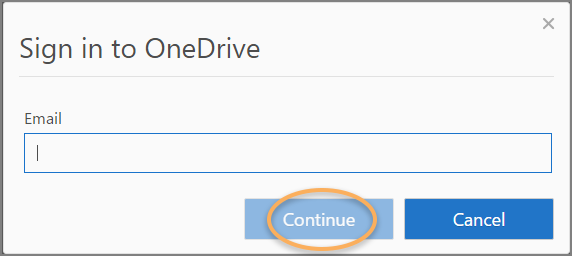
    The Sign In dialog box is displayed.


  • Provide your OneDrive account’s email address and click Continue.

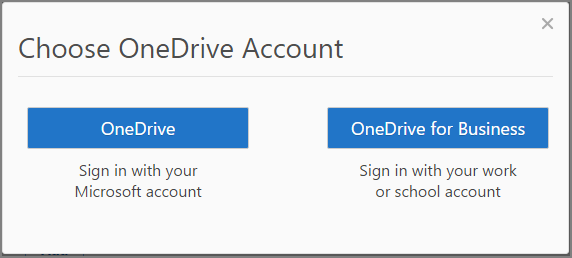
  • You may be prompted to choose your account type – personal or business. Click the appropriate button.


  • Provide username and password, and then click Sign in.


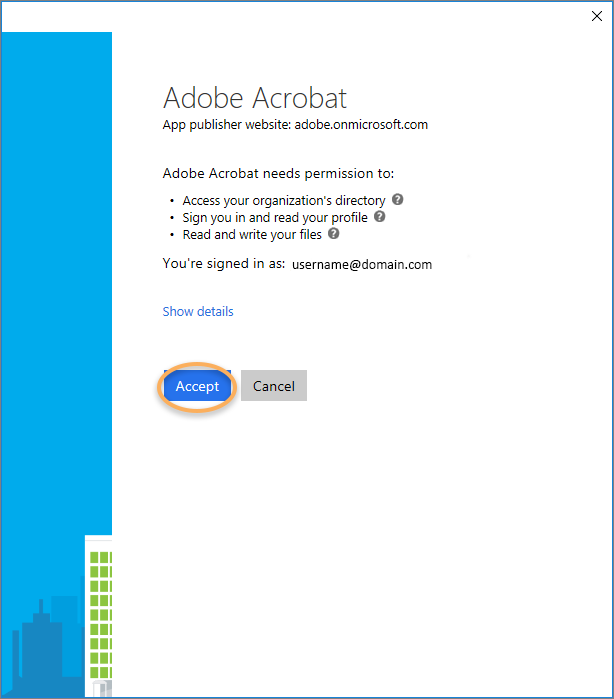
  • Click Accept in the confirmation dialog box.


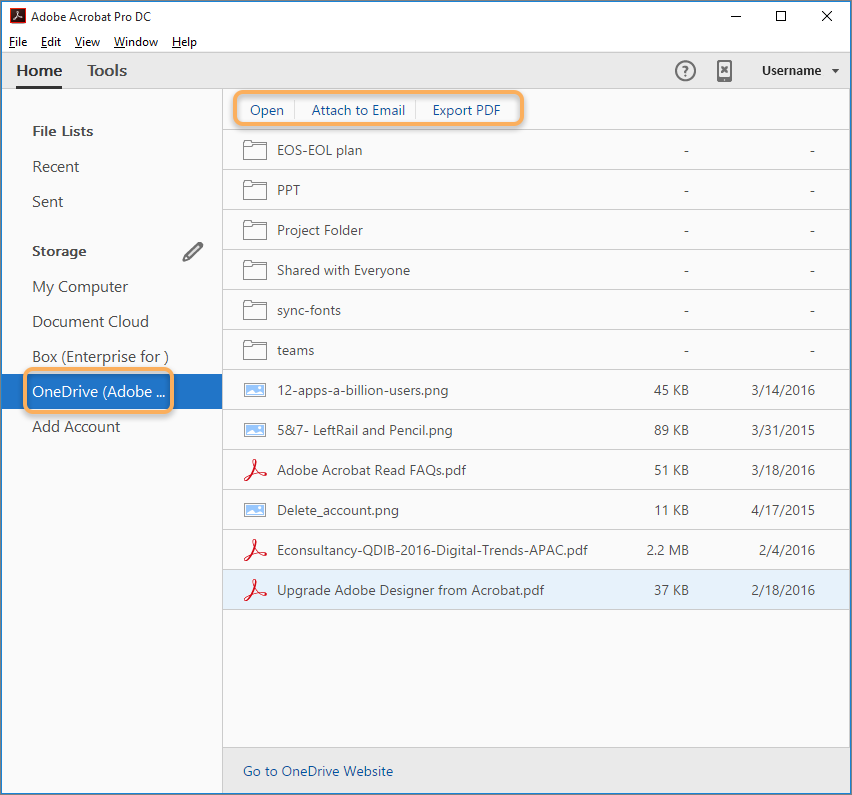
    The account is added in the left pane under the Storage section, and listing of files/folders is displayed in the right pane. Now all the actions specific to the selected file type are available for you from here, and also from a custom open/save dialog box.


Note:

Search, sort, and filter commands are yet not available in the Home view for OneDrive files.

Remove your OneDrive account

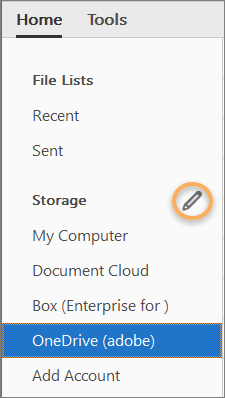
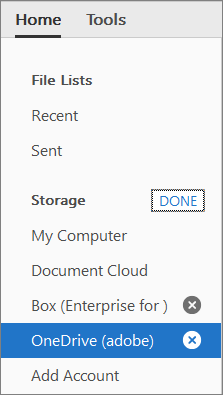
  • In the Home view, click the Edit/Pencil icon next to Storage.


  • Click the cross icon next to the account you want to remove, and then click Done next to Storage.

Exit mobile version