

About advanced print settings
If normal print settings don’t produce the results you expect, you may need to specify options in the Advanced Print Setup dialog box. For example, if your printed output doesn’t match the document’s onscreen appearance, you may need to try printing the document as an image (PostScript printers only). Or, if a PDF uses fonts that aren’t embedded, you must download the fonts to the printer when you print the document.
Other advanced printing options in Acrobat Pro let you add printer marks to your printed output and choose how to handle color.
Print settings are preserved until you change them. When you change an option, the Settings value automatically updates from Acrobat Default to Custom, and the new settings are preserved. You can also save custom settings using a unique name.
-
Select any of the panels on the left side of the Advanced Print Setup dialog box, and set options for either composite or separations output.
Note:
Some options in the general Print dialog box affect settings in the Advanced Print Setup dialog box. For example, selecting the Print Color As Black option (Windows) affects color settings in Advanced Print Setup.
- Set color and other output conditions. See Output options below.
- Set options for printer marks. See Include marks and bleeds below.
- Set options for PostScript printers. See PostScript options below.
Note:
Acrobat sets the PostScript level automatically, based on the selected printer.
Use the PostScript Options panel of the Advanced Print Setup dialog box to set options for a particular PostScript printer. These options include how to handle nonresident printer fonts and whether to download Asian fonts. If a PDF contains device-dependent settings, such as halftones and transfer functions, these settings can be sent in the PostScript output to override the default settings in the printer. To use these options, you must be connected to a PostScript printer or have a PostScript printer driver installed with a PPD file selected.
Font And Resource Policy
Specifies how fonts and resources in the document are sent to a printer when those fonts and resources aren’t present on the printer.
Send By Range
Downloads fonts and resources before printing the first page that uses them, and then discards them when they are no longer needed. This option uses less printer memory. However, if a PostScript processor reorders the pages later in the workflow, the font downloading can be incorrect, resulting in missing fonts. This option does not work with some printers.
Print Method (Acrobat Pro)
Specifies the level of PostScript to generate for the pages. Choose the level of PostScript appropriate for your printer.
Language (Acrobat Pro)
Specifies the level of PostScript to generate for the pages. Choose the level of PostScript appropriate for your printer.
Download Asian Fonts
Prints documents with Asian fonts that aren’t installed on the printer or embedded in the PDF. The Asian fonts must be present on the system.
Emit Undercolor Removal/Black Generation (Acrobat Pro)
Black Generation calculates the amount of black to be used when reproducing a particular color. Undercolor removal (UCR) reduces cyan, magenta, and yellow components to compensate for the black added by the black generation. Because it uses less ink, UCR is used for newsprint and uncoated stock.
Emit Halftones (Acrobat Pro)
Allows you to emit the embedded halftones instead of using the halftones in the output device. Halftone information controls how much ink is deposited at a specific location on the paper. Varying the dot size and density creates the illusion of variations of gray or continuous color. For a CMYK image, four halftone screens are used: one for each ink used in the printing process.
Emit Transfer Functions (Acrobat Pro)
Emits embedded transfer functions. Transfer functions are traditionally used to compensate for dot gain or dot loss that occurs when an image is transferred to film. Dot gain occurs when the ink dots that make up a printed image are larger (for example, due to spreading on paper) than in the halftone screen. Dot loss occurs when the dots print smaller. With this option, the transfer functions are applied to the file when the file is output.
Emit Flatness (Acrobat Pro)
allows you to use the flatness value of the PDF if the PDF already has flatness settings. If the PDF doesn’t have any flatness settings, Acrobat controls it for the PostScript printing. The flatness value sets the limit for how much Acrobat can approximate a curve.
Emit PS Form Objects (Acrobat Pro)
Emits PostScript form objects for Form XObjects within the PDF. Selecting this option reduces the overall size of the print job, but it could increase the printer memory that is used. A form XObject is a container of graphics objects (including path objects, text objects, and sampled images) within the PDF.Form XObjects create a single description for complex objects that can appear many times in a single document, such as background images or company logos.
Discolored Background Correction
Prevents printing problems like red boxes over graphics, or pages printing mirrored or upside down. These problems can occur when Acrobat or Reader cannot use the default Color Rendering Dictionaries (CRDs) on some PostScript printers.
Always Use Host Collation (Acrobat Pro)
Specifies if you want Acrobat to always use host collation for printing without checking the printer driver. Acrobat uses printer collation by default. Printer collation sends the print jobs separately to the printer and allows the printer to figure out how to collate the pages. For example if you send out two copies of a two page job, the printer receives two jobs of two pages. Host collation figures out how to collate the pages in Acrobat and then sends that job to the printer. For example if you send out two copies of a two page job, the printer receives a single rearranged job of four pages.
Print As Image
Prints pages as bitmap images. Select this option if normal printing doesn’t produce the desired results, and specify a resolution. This option is available only for PostScript printers.
Select the Download Asian Fonts option in the Advanced Print Setup dialog box if you want to print a PDF with Asian fonts that aren’t installed on the printer or embedded in the document. Embedded fonts are downloaded whether or not this option is selected. You can use this option with a PostScript Level 2 or higher printer. To make Asian fonts available for downloading to a printer, be sure you have downloaded the fonts to your computer using the Custom or Complete installation option during installation of Acrobat.
If Download Asian Fonts is not selected, the PDF prints correctly only if the referenced fonts are installed on the printer. If the printer has similar fonts, the printer substitutes those. If there are no suitable fonts on the printer, Courier is used for the text.
If Download Asian Fonts does not produce the results you want, print the PDF as a bitmap image. Printing a document as an image may take longer than using a substituted printer font.
Note:
Some fonts cannot be downloaded to a printer, either because the font is a bitmap or because font embedding is restricted in that document. In these cases, a substitute font is used for printing, and the printed output may not match the screen display.
Color
Presents composite and separations options. Other options become available in the Output panel depending on your selection in this menu. For more information about color composite and separations, see Printing color.
Flip
Specifies if the orientation of the page on the media. Flip horizontal for wrong-reading documents, flip vertical to change vertical orientation. This option is only enabled for separations and disabled for composites.
Negative
Select this option to print the document reversed. For example, black appears as white on the resulting output. This option is only enabled for separations and disabled for composites.
Simulate Overprinting
Simulates the effects of overprinting spot inks in composite output and converts spot colors to process colors for printing; the document itself is unchanged. This option is useful for printing devices that don’t support overprinting and is available only if you choose Composite from the Color menu. If you intend to use a file for separations on a RIP (raster image processor) or for final output, don’t select this option.
Note:
When printing to a printer that supports overprinting, make sure that this option is unselected, so the native overprinting capabilities of the printer are used.
Use Maximum Available JPEG2000 Image Resolution
Controls how resolution progression information, if present, is used when generating PostScript. When selected, the maximum resolution data contained in the image is used. When unselected, the resolution data is consistent with the resolution settings on the Transparency Flattening panel.
Ink Manager
Modifies the way inks are treated while the current PDF is open. See below Ink Manager overview.
In commercial printing, continuous tone is simulated by dots (called halftone dots) printed in rows (called lines or line screens). Lines are printed at different angles to make the rows less noticeable. The Screening menu in the Output section of the Print dialog box displays the recommended sets of line screens in lines per inch (lpi), and resolution in dots per inch (dpi), based on the currently selected PPD. As you select inks in the ink list, the values in the Frequency and Angle boxes change, showing you the halftone screen frequency and angle for that ink.
A high line-screen ruling (for example, 150 lpi) spaces the dots closely together to create a finely rendered image on the press; a low line-screen ruling (60 lpi to 85 lpi) spaces the dots farther apart to create a coarser image. The size of the dots is also determined by the line screen. A high line-screen ruling uses small dots; a low line-screen ruling uses large dots. The most important factor in choosing a line-screen ruling is the type of printing press your job will use. Ask your service provider how fine a line screen its press can hold, and make your choices accordingly.
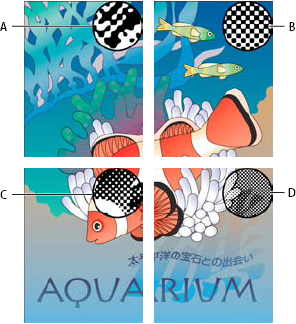
A. 65 lpi: Coarse screen for printing newsletters and grocery coupons B. 85 lpi: Average screen for printing newspapers C. 133 lpi: High-quality screen for printing four-color magazines D. 177 lpi: Very fine screen for printing annual reports and images in art books
The PPD files for high-resolution imagesetters offer a wide range of possible screen frequencies, paired with various imagesetter resolutions. The PPD files for low-resolution printers typically have only a few choices for line screens, usually coarser screens of between 53 lpi and 85 lpi. The coarser screens, however, give optimum results on low‑resolution printers. Using a finer screen of 100 lpi, for example, actually decreases the quality of your image when you use a low-resolution printer for final output.
Follow these steps to specify halftone screen frequency:
-
- To select one of the preset screen frequencies and printer resolution combinations, choose an option from the Screening menu.
- To specify a custom halftone screen frequency, in the ink list, select the plate to be customized, and then enter the lpi value in the Frequency box and a screen angle value in the Angle box.
Note:
Before creating your own halftone screens, check with your print service provider for the preferred frequencies and angles. Also, be aware that some output devices override the default frequencies and angles.
Depending on the type of printing press used and how information is transferred from the film to the printing plates, you may need to give your service provider film negatives or positives, with emulsion side up or down. Emulsion refers to the photosensitive layer on a piece of film or paper. Typically, print service providers require negative film in the United States and positive film in Europe and Japan. Check with your service provider to determine which emulsion direction they prefer.
To tell whether you are looking at the emulsion side or the nonemulsion side (also referred to as the base), examine the final film under a good light. One side appears shinier than the other. The dull side is the emulsion side; the shiny side is the base.
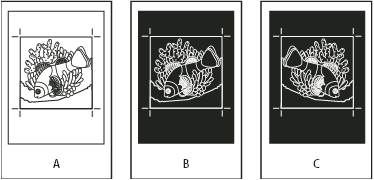
A. Positive image B. Negative C. Negative with emulsion side down
Note:
The emulsion and image exposure settings in the Print dialog box override any conflicting settings in the printer driver. Always specify print settings using the Print dialog box.
You can place printer marks on the page to indicate the boundaries of document boxes supported by Adobe PDF, such as trim boxes and bleed boxes. These marks are not added as page content; however, they are included in the PostScript output.
The options in the Marks And Bleeds panel are unavailable under these circumstances:
- The PDF includes printer marks added using a different Acrobat feature, the Add Printer Marks tool.
- The crop, bleed, and trim boxes are all the same size. The crop box is defined in the Crop Box dialog box (choose Tools > Print Production > Set Page Boxes). If the artwork contains a bleed, make sure that the crop box is big enough to accommodate the bleed box and other printer marks.
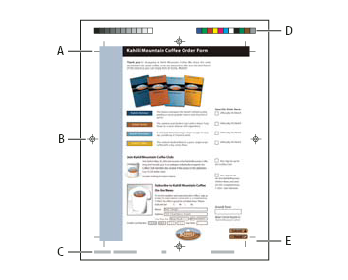
A. Trim marks B. Registration marks C. Page information D. Color bars E. Bleed marks
Style
Determines the appearance of the marks. You can choose default InDesign marks, or marks from other applications as listed.
Bleed Marks
Places a mark at each corner of the bleed box to indicate the PDF bleed box boundaries. A bleed box defines the amount of extra area to image outside the defined page size.
Registration Marks
Places marks outside the crop area for aligning the different separations in a color document.
Color Bars
Adds a small square of color for each grayscale or process color. Spot colors converted to process colors are represented using process colors. Your service provider uses these marks to adjust ink density on the printing press.
Page Information
Places page information outside the crop area of the page. Page information includes the filename, page number, current date and time, and color separation name.
Use the Color Management panel of the Advanced Print Setup dialog box to set options for printing color. For more information about printing color, see Printing color.
Color Handling
Determines if color management is used and whether it happens in the application or at the printing device.
Output Color
Displays the output color based on the settings in the Output panel of the Advanced Print Setup dialog box.
Treat grays as K-only grays
Select this option to ensure that any grayscale as well as RGB graphical objects for which R, G, B have equal values, are printed using only the black (K) when you enable color management and specify a CMYK profile printing to a PostScript printer
Preserve Black
Specifies that pure K-based CMYK colors are preserved as K-based in CMYK to CMYK conversions that may occur when you enable color management and specify a CMYK profile printing to a PostScript printer.

