One-dimensional Array | Two-dimensional Array
An array is a group of variables. In Excel VBA, you can refer to a specific variable (element) of an array by using the array name and the index number.
One-dimensional Array
To create a one-dimensional array, execute the following steps.
Place a command button on your worksheet and add the following code lines:
Dim Films(1 To 5) As String
Films(1) = “Lord of the Rings”
Films(2) = “Speed”
Films(3) = “Star Wars”
Films(4) = “The Godfather”
Films(5) = “Pulp Fiction”MsgBox Films(4)
Result when you click the command button on the sheet:
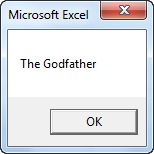

Explanation: the first code line declares a String array with name Films. The array consists of five elements. Next, we initialize each element of the array. Finally, we display the fourth element using a MsgBox.
Two-dimensional Array
To create a two-dimensional array, execute the following steps. This time we are going to read the names from the sheet.
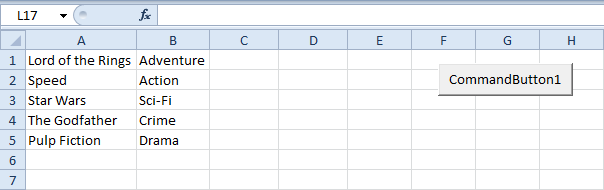

Place a command button on your worksheet and add the following code lines:
Dim Films(1 To 5, 1 To 2) As String
Dim i As Integer, j As IntegerFor i = 1 To 5
For j = 1 To 2
Films(i, j) = Cells(i, j).Value
Next j
Next iMsgBox Films(4, 2)
Result when you click the command button on the sheet:
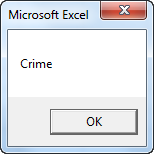
Explanation: the first code line declares a String array with name Films. The array has two dimensions. It consists of 5 rows and 2 columns. Tip: rows go first, then columns. The other two variables of type Integer are used for the Double Loop to initialize each element of the array. Finally, we display the element at the intersection of row 4 and column 2.
Dynamic Array
If the size of your array increases and you don’t want to fix the size of the array, you can use the ReDim keyword. Excel VBA then changes the size of the array automatically.
Add some numbers to column A.
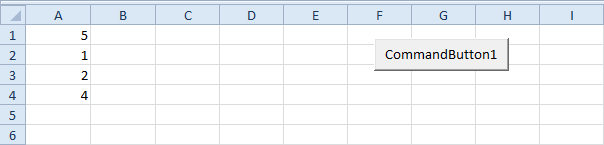

Place a command button on your worksheet and add the following code lines:
1. First, we declare the array named numbers. Also declare two variables of type Integer. One named size and one named i.
Dim numbers() As Integer, size As Integer, i As Integer
Note: the array has no size yet. numbers, size and i are randomly chosen here, you can use any names. Remember to refer to these names in the rest of your code.
2. Next, we determine the size of the array and store it into the variable size. You can use the worksheet function CountA for this. Add the following code line:
size = WorksheetFunction.CountA(Worksheets(1).Columns(1))
3. We now know the size of the array and we can redimension it. Add the following code line:
ReDim numbers(size)
4. Next, we initialize each element of the array. We use a loop.
For i = 1 To size
numbers(i) = Cells(i, 1).Value
Next i
5. We display the last element of the array using a MsgBox.
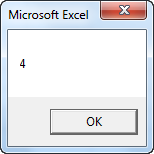
MsgBox numbers(size)
6. Exit the Visual Basic Editor and click the command button on the sheet.
Result:
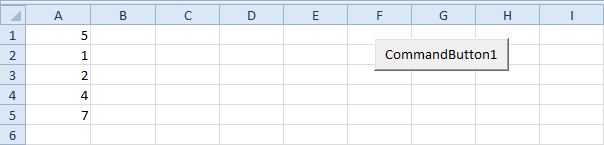
7. Now to clearly see why this is called a dynamic array, add a number to column A.
8. Click the command button again.
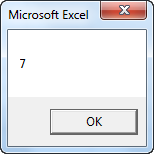
Conclusion: Excel VBA has automatically changed the size of this dynamic array.
9. When you use the ReDim keyword, you erase any existing data currently stored in the array. For example, add the following code lines to the previously created code:
ReDim numbers(3)
MsgBox numbers(1)
Result:
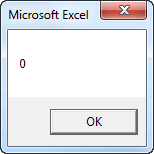
The array is empty.
10. When you want to preserve the data in the existing array when you redimension it, use the Preserve keyword.
ReDim Preserve numbers(3)
MsgBox numbers(1)
Result:
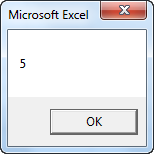
Array Function
The Array function in Excel VBA can be used to quickly and easily initialize an array. Place a command button on your worksheet and add the following code lines:
1. First, create a variable named departments of type Variant.
Dim departments As Variant
2. Use the Array Function to assign an array to the variable departments. Add the following code line:
departments = Array(“Sales”, “Production”, “Logistics”)
3. To show the element with index 1, add the following code line:
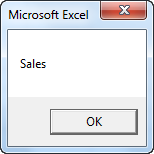
MsgBox departments(1)
Result:
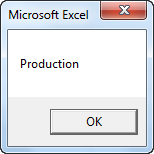
By default, the element’s index of the array starts from 0.
4. Add Option Base 1 to the General Declarations section if you want the index to start from 1.
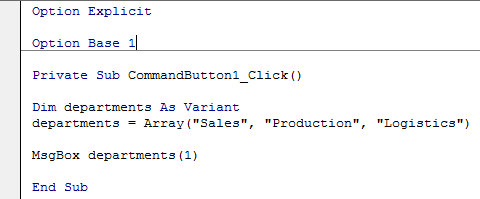

Result when you click the command button again.
For a practical example of the Array function, see our example program Month Names.
Month Names
Below we will look at a program in Excel VBA which creates a User Defined Function that uses the Array function to return the names of the months.
User defined functions need to be placed into a module.
1. Open the Visual Basic Editor and click Insert, Module.
2. Add the following code line:
Function MONTHNAMES()
The name of our Function is MONTHNAMES. The empty part between the brackets means we give Excel VBA nothing as input.
3. The Array function allows us to assign values to a Variant array in one line of code.
MONTHNAMES = Array(“Jan”, “Feb”, “Mar”, “Apr”, “May”, “Jun”, “Jul”, “Aug”, “Sep”, “Oct”, “Nov”, “Dec”)
4. Don’t forget to end the function.
End Function
5. Now you can use this function, just like any other Excel function, to return the names of the months. Select twelve horizontal cells, enter the function =MONTHNAMES() and press CTRL + SHIFT + ENTER.
Result:


Note: you cannot delete a single month. To delete the months, select the range A1:L1 and press Delete. This function is only available in this workbook.
Size of an Array
To get the size of an array in Excel VBA, you can use the UBound and LBound functions.
Place a command button on your worksheet and add the following code lines:
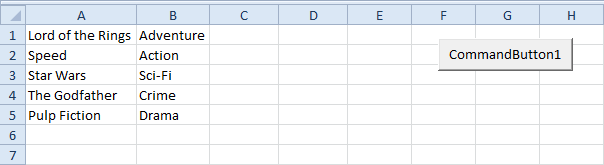
1. First, we need to declare the array. Our array has two dimensions. It consists of 5 rows and 2 columns. Also declare two variables of type Integer.
Dim Films(1 To 5, 1 To 2) As String, x As Integer, y As Integer
The array may look like this.
2. Next, we get the size of the array. Add the following code lines:
x = UBound(Films, 1) – LBound(Films, 1) + 1
y = UBound(Films, 2) – LBound(Films, 2) + 1
UBound(Films, 1) gives the upper limit of the first dimension, which is 5.
LBound(Films, 1) gives the lower limit of the first dimension, which is 1.
UBound(Films, 2) gives the upper limit of the second dimension, which is 2.
LBound(Films, 2) gives the lower limit of the second dimension, which is 1.
As a result, x equals 5 and y equals 2.
3. We use a MsgBox to display the number of elements of the array.
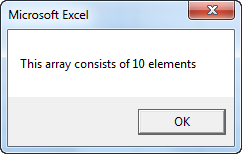
MsgBox “This array consists of ” & x * y & ” elements”
Result: