

Troubleshooting
Do you know what to do if your screen goes blank? What if you can’t seem to close an application, or can’t hear any sound from your speakers? Whenever you have a problem with your computer, don’t panic! There are many basic troubleshooting techniques you can use to fix issues like this. In this lesson, we’ll show you some simple things to try when troubleshooting, as well as how to solve common problems you may encounter.
General tips to keep in mind
There are many different things that could cause a problem with your computer. No matter what’s causing the issue, troubleshooting will always be a process of trial and error—in some cases, you may need to use several different approaches before you can find a solution; other problems may be easy to fix. We recommend starting by using the following tips.
- Write down your steps: Once you start troubleshooting, you may want to write down each step you take. This way, you’ll be able to remember exactly what you’ve done and can avoid repeating the same mistakes. If you end up asking other people for help, it will be much easier if they know exactly what you’ve tried already.
- Take notes about error messages: If your computer gives you an error message, be sure to write down as much information as possible. You may be able to use this information later to find out if other people are having the same error.
- Always check the cables: If you’re having trouble with a specific piece of computer hardware, such as your monitor or keyboard, an easy first step is to check all related cables to make sure they’re properly connected.
- Restart the computer: When all else fails, restarting the computer is a good thing to try. This can solve a lot of basic issues you may experience with your computer.
Using the process of elimination
If you’re having an issue with your computer, you may be able to find out what’s wrong using the process of elimination. This means you’ll make a list of things that could be causing the problem and then test them out one by one to eliminate them. Once you’ve identified the source of your computer issue, it will be easier to find a solution.
Scenario:
Let’s say you’re trying to print out invitations for a birthday party, but the printer won’t print. You have some ideas about what could be causing this, so you go through them one by one to see if you can eliminate any possible causes.
First, you check the printer to see that it’s turned on and plugged in to the surge protector. It is, so that’s not the issue. Next, you check to make sure the printer’s ink cartridge still has ink and that there is paper loaded in the paper tray. Things look good in both cases, so you know the issue has nothing to do with ink or paper.
Now you want to make sure the printer and computer are communicating correctly. If you recently downloaded an update to your operating system, it might interfere with the printer. But you know there haven’t been any recent updates and the printer was working yesterday, so you’ll have to look elsewhere.
You check the printer’s USB cord and find that it’s not plugged in. You must have unplugged it accidentally when you plugged something else into the computer earlier. Once you plug in the USB cord, the printer starts working again. It looks like this printer issue is solved!
This is just one example of an issue you might encounter while using a computer. In the rest of this lesson, we’ll talk about other common computer problems and some ways to solve them.
Simple solutions to common problems
Most of the time, problems can be fixed using simple troubleshooting techniques, like closing and reopening the program. It’s important to try these simple solutions before resorting to more extreme measures. If the problem still isn’t fixed, you can try other troubleshooting techniques.
Problem: Power button will not start computer
- Solution 1: If your computer does not start, begin by checking the power cord to confirm that it is plugged securely into the back of the computer case and the power outlet.
- Solution 2: If it is plugged into an outlet, make sure it is a working outlet. To check your outlet, you can plug in another electrical device, such as a lamp.
Solution 3: If the computer is plugged in to a surge protector, verify that it is turned on. You may have to reset the surge protector by turning it off and then back on. You can also plug a lamp or other device into the surge protector to verify that it’s working correctly.


- Solution 4: If you are using a laptop, the battery may not be charged. Plug the AC adapter into the wall, then try to turn on the laptop. If it still doesn’t start up, you may need to wait a few minutes and try again.
Problem: An application is running slowly
- Solution 1: Close and reopen the application.
- Solution 2: Update the application. To do this, click the Help menu and look for an option to check for Updates. If you don’t find this option, another idea is to run an online search for application updates.


Problem: An application is frozen
Sometimes an application may become stuck, or frozen. When this happens, you won’t be able to close the window or click any buttons within the application.
Solution 1: Force quit the application. On a PC, you can press (and hold) Ctrl+Alt+Delete (the Control, Alt, and Delete keys) on your keyboard to open the Task Manager. On a Mac, press and hold Command+Option+Esc. You can then select the unresponsive application and click End task (or Force Quit on a Mac) to close it.
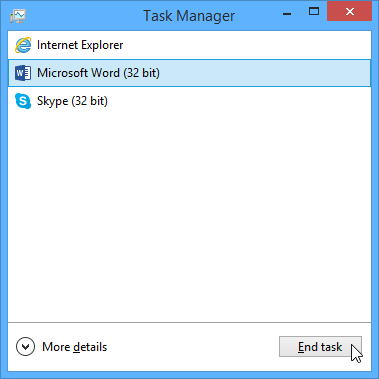

- Solution 2: Restart the computer. If you are unable to force quit an application, restarting your computer will close all open apps.
Problem: All programs on the computer run slowly
- Solution 1: Run a virus scanner. You may have malware running in the background that is slowing things down.
- Solution 2: Your computer may be running out of hard drive space. Try deleting any files or programs you don’t need.
- Solution 3: If you’re using a PC, you can run Disk Defragmenter. To learn more about Disk Defragmenter, check out our lesson on Protecting Your Computer.
Problem: The computer is frozen
Sometimes your computer may become completely unresponsive, or frozen. When this happens, you won’t be able to click anywhere on the screen, open or close applications, or access shut-down options.
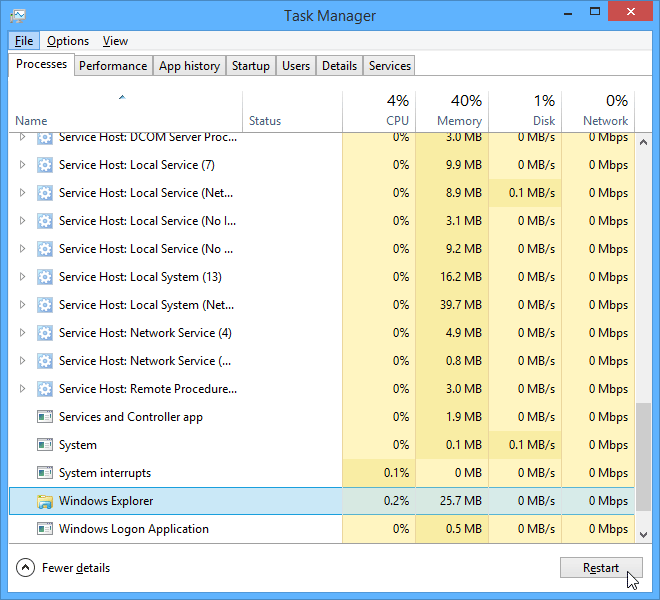
Solution 1 (Windows only): Restart Windows Explorer. To do this, press and hold Ctrl+Alt+Delete on your keyboard to open the Task Manager. Next, locate and select Windows Explorer from the Processes tab and click Restart. You may need to click More Details at the bottom of the window to see the Processes tab.

Solution 2 (Mac only): Restart Finder. To do this, press and hold Command+Option+Esc on your keyboard to open the Force Quit Applications dialog box. Next, locate and select Finder, then click Relaunch.


- Solution 3: Press and hold the Power button. The Power button is usually located on the front or side of the computer, typically indicated by the power symbol. Press and hold the Power button for 5 to 10 seconds to force the computer to shut down.
- Solution 4: If the computer still won’t shut down, you can unplug the power cable from the electrical outlet. If you’re using a laptop, you may be able to remove the battery to force the computer to turn off. Note: This solution should be your last resort after trying the other suggestions above.
Problem: The mouse or keyboard has stopped working
- Solution 1: If you’re using a wired mouse or keyboard, make sure it’s correctly plugged into the computer.
- Solution 2: If you’re using a wireless mouse or keyboard, make sure it’s turned on and that its batteries are charged.
Problem: The sound isn’t working
- Solution 1: Check the volume level. Click the audio button in the top-right or bottom-right corner of the screen to make sure the sound is turned on and that the volume is up.
Solution 2: Check the audio player controls. Many audio and video players will have their own separate audio controls. Make sure the sound is turned on and that the volume is turned up in the player.


- Solution 3: Check the cables. Make sure external speakers are plugged in, turned on, and connected to the correct audio port or a USB port. If your computer has color-coded ports, the audio output port will usually be green.
- Solution 4: Connect headphones to the computer to find out if you can hear sound through the headphones.
Problem: The screen is blank
- Solution 1: The computer may be in Sleep mode. Click the mouse or press any key on the keyboard to wake it.
- Solution 2: Make sure the monitor is plugged in and turned on.
- Solution 3: Make sure the computer is plugged in and turned on.
- Solution 4: If you’re using a desktop, make sure the monitor cable is properly connected to the computer tower and the monitor.
Solving more difficult problems
If you still haven’t found a solution to your problem, you may need to ask someone else for help. As an easy starting point, we’d recommend searching the Web. It’s possible that other users have had similar problems, and solutions to these problems are often posted online. Also, if you have a friend or family member who knows a lot about computers, they may be able to help you.


Keep in mind that most computer problems have simple solutions, although it may take some time to find them. For difficult problems, a more drastic solution may be required, like reformatting your hard drive or reinstalling your operating system. If you think you might need a solution like this, we recommend consulting a professional first. If you’re not a computer expert, it’s possible that attempting these solutions could make the situation worse.