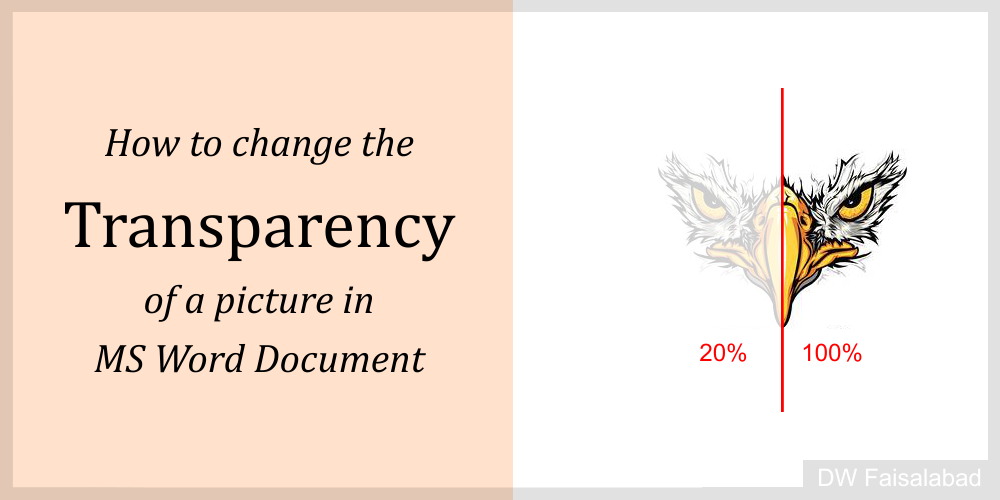
Change the transparency of a picture

How to change the transparency of a picture in a MS Word Document

Change the transparency of a picture Changing transparency of a image in MS Word is a common issue for the users of Word. Hundred of questions followed by their answer are solving this issue but no one has satisfied the user. There is no any transparency option in Image/Picture Tool. Today I will tell you […]

Mail Merge

Mail Merge is a useful tool that allows you to produce multiple letters, labels, envelopes, name tags, and more using information stored in a list, database, or spreadsheet. When performing a Mail Merge, you will need a Word document (you can start with an existing one or create a new one) and a recipient list, […]

Applying and Modifying Styles in MS Word

A style is a predefined combination of font style, color, and size that can be applied to any text in your document. Styles can help your documents achieve a more professional look and feel. You can also use styles to quickly change several things in your document at the same time. To apply a style […]

Insert SmartArt Graphic in MS Word

SmartArt allows you to communicate information with graphics instead of just using text. There are a variety of styles to choose from, which you can use to illustrate many different types of ideas. To insert a SmartArt graphic: Place the insertion point in the document where you want the SmartArt graphic to appear. From the […]

Inspecting and Protecting Documents

Before sharing a document, you’ll want to make sure it doesn’t include any information you want to keep private. You may also want to discourage others from editing your file. Fortunately, Word includes several tools to help inspect and protect your document. Document Inspector Whenever you create or edit a document, certain personal information may […]

Checking Spelling and Grammar in MS Word

Worried about making mistakes when you type? Don’t be. Word provides you with several proofing features—including the Spelling and Grammar tool—that can help you produce professional, error-free documents. To run a Spelling and Grammar check: From the Review tab, click the Spelling & Grammar command. The Spelling and Grammar pane will appear on the right. […]

Inserting Charts in MS word

A chart is a tool you can use to communicate information graphically. Including a chart in your document can help you illustrate numerical data—such as comparisons and trends—so it’s easier for the reader to understand. Types of charts There are several types of charts to choose from. To use charts effectively, you’ll need to understand […]

Inserting Tables in MS Word

A table is a grid of cells arranged in rows and columns. Tables can be used to organize any type of content, whether you’re working with text or numerical data. In Word, you can quickly insert a blank table or convert existing text to a table. You can also customize your table using different styles […]

Aligning, Ordering, and Grouping Objects

There may be times when your documents have multiple objects, such as pictures, shapes, and text boxes. You can arrange the objects any way you want by aligning, grouping, ordering, and rotating them in various ways. To align two or more objects: Hold the Shift (or Ctrl) key and click the objects you want to […]

Text Boxes

Text boxes can be useful for drawing attention to specific text. They can also be helpful when you need to move text around in your document. Word allows you to format text boxes and the text within them with a variety of styles and effects. To insert a text box: Select the Insert tab, then […]

How to insert Shapes in MS Word

You can add a variety of shapes to your document, including arrows, callouts, squares, stars, and flowchart shapes. Want to set your name and address apart from the rest of your resume? Use a line. Need to create a diagram showing a timeline or process? Use flowchart shapes. While you may not need shapes in […]

Formatting Pictures

There are many ways to format pictures in Word. For instance, you can change the size or shape of an image to better suit your document. You can also enhance its appearance using Word’s image adjustment tools. To crop an image: When you crop an image, part of the picture is removed. Cropping can be […]

Pictures and Text Wrapping

Adding pictures to your document can be a great way to illustrate important information and add decorative accents to existing text. Used in moderation, pictures can improve the overall appearance of your document. To insert a picture from a file: If you have a specific image in mind, you can insert a picture from a […]

Headers and Footers

The header is a section of the document that appears in the top margin, while the footer is a section of the document that appears in the bottom margin. Headers and footers generally contain additional information such as page numbers, dates, an author’s name, and footnotes, which can help keep longer documents organized and make […]

Columns

Sometimes the information you include in your document is best displayed in columns. Not only can columns help improve readability, but some types of documents—like newspaper articles, newsletters, and flyers—are often written in column format. Word also allows you to adjust your columns by adding column breaks. To add columns to a document: Select the […]

Page Breaks

When you’re working on a multi-page document, there may be times when you want to have more control over how exactly the text flows. Breaks can be helpful in these cases. There are many types of breaks to choose from depending on what you need, including page breaks, section breaks, and column breaks. To insert […]

Printing Documents

Once you’ve created your document, you may want to print it to view and share your work offline. It’s easy to preview and print a document in Word using the Print pane. To access the Print pane: Select the File tab. Backstage view will appear. Select Print. The Print pane will appear. Click the Print […]

Page Layout

Introduction Word offers a variety of page layout and formatting options that affect how content appears on the page. You can customize the page orientation, paper size, and page margins depending on how you want your document to appear. Page orientation Word offers two page orientation options: landscape and portrait. Compare our example below to […]

Hyperlinks in Word

Adding hyperlinks to text can provide access to websites and email addresses directly from your document. There are a few ways to insert a hyperlink into your document. Depending on how you want the link to appear, you can use Word’s automatic link formatting or convert text into a link. Understanding hyperlinks in Word Hyperlinks […]

Lists

Bulleted and numbered lists can be used in your documents to outline, arrange, and emphasize text. In this lesson, you will learn how to modify existing bullets, insert new bulleted and numbered lists, select symbols as bullets, and format multilevel lists. To create a bulleted list: Select the text you want to format as a […]