

f you’ve worked with desktop publishing or word processing applications, you may be familiar with the concept of styles. Styles can be indispensable time-savers for formatting documents efficiently and consistently. They allow you to reduce setup and production time while also letting you make broad changes quickly, which can reduce pain when implementing customer-requested changes in a design.
This tip will teach you:
- about color styles in CorelDRAW
- how to create color styles
- how to edit color styles
- how to apply color styles to other objects
What are color styles in CorelDRAW®?
In CorelDRAW, a color style is a color that you save and apply to objects in a CorelDRAW design. Any time you update a color style, you also automatically update all objects using that color style. With the infinite color possibilities that CorelDRAW provides, color styles can also make it easier to ensure that you apply the exact color you want.
How to create a color style
You can create a color style from an existing object or from scratch. Once created, color styles are saved to the currently active file and to the Color Styles palette.
- Click Window > Dockers > Color Styles to open the Color Styles docker.
- Drag any color from the adjacent default color palette and drop it right into the top gray portion of the Color Styles docker, where it says “Drag here to add color style” (see Fig 1). Add some additional colors if you like. Color styles are denoted by a small white triangle in the upper left corner of each swatch.
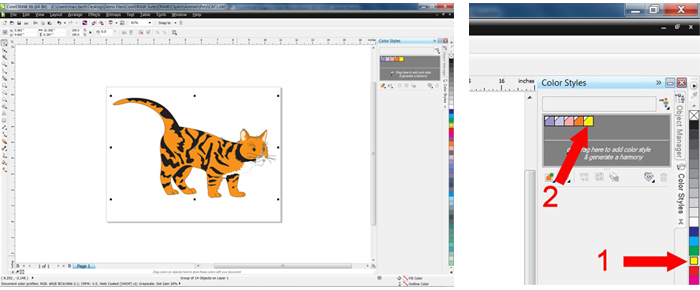
Fig. 1 - To create a color style from an existing image, open that image in CorelDRAW.
- Select any or all of the objects containing the color you want to use and simply drag them into the gray area at the top of the Color Styles docker (see Fig 2). A new Color Styles palette will then be created.

Fig. 2


How to edit a color style
When you create a color style, the Color Editor will automatically open in the Color Styles docker. Simply select any color swatch from your new Color Styles palette, and then click the Show color sliders button in the Color Editor area of the docker. You can use any combination of the color sliders, numerical color value boxes, or the Eyedropper to alter a color (see Fig 3).
- Select a color in the Color Styles palette (1)
- Adjust the color using any of the various tools in the Color Editor area of the docker (2)
- After you edit a color, the new color will replace the previous color anywhere it is used in your image (3). You will also see the new color represented next to the previous color (4) for reference.

Fig. 3You can also change any or all of the colors to a different color model by using the Color model list box, or even add Spot Colors by clicking the More color options dropdown (5).
- Once you finish editing the colors, or if you want to close the Color Styles docker, you can open the Color Styles palette so that it displays next to the Default color palette. Click Window > Color Palettes > Color Styles Palette to keep the Color Styles palette accessible and the color styles will be denoted by a small white triangle in the corner of each color swatch (see Fig. 4).

Fig. 4 - You may also select and delete all the unused colors styles in your document by clicking the Select unused button in the Color Styles docker and then clicking the Delete button (see Fig. 5).

Fig. 5


How to apply color styles to other objects
You can treat a Color Styles palette just like any other color palette. Any other object in your current CorelDRAW document can utilize color styles. The only difference between a Color Styles palette and other color palettes is that, if the color is in a Color Styles palette, you’ll need to double-click the color style swatch to apply it, rather than clicking it just once, like you would with other color palettes (see Fig. 6).

Fig. 6

Notes:
- Although you can create color palettes and color styles from a photograph, you can’t change the colors in a bitmap object on the fly by using the Color Editor like you can with vector graphics.
- Although adding any color into a CorelDRAW design will add that color to the document palette, creating a color style does not automatically add that color to the Document palette. You add the color style to the Document palette by applying the color style to an object in your document.
- As you probably noticed, your original colors can also be converted into a color style and can be used in a color harmony. This useful feature will be discussed in another tutorial, but color harmonies are used to create color palettes with colors of similar hue-based relationships to the original color. Change one color and all the other colors in the color harmony spectrum will update automatically to maintain that hue-based relationship. You can create color harmonies from groups of color styles.