Easily export or convert one or more PDFs to different file formats, including Microsoft Word, Excel, and PowerPoint. The available formats include both text and image formats. (For a full list of conversion options, see File format options.)
Note:
This document provides instructions for Acrobat DC and Acrobat 2017. If you’re using Acrobat XI, see Acrobat XI Help.
Note:
You cannot export PDF Portfolios, or PDFs within them, to other file formats.
-
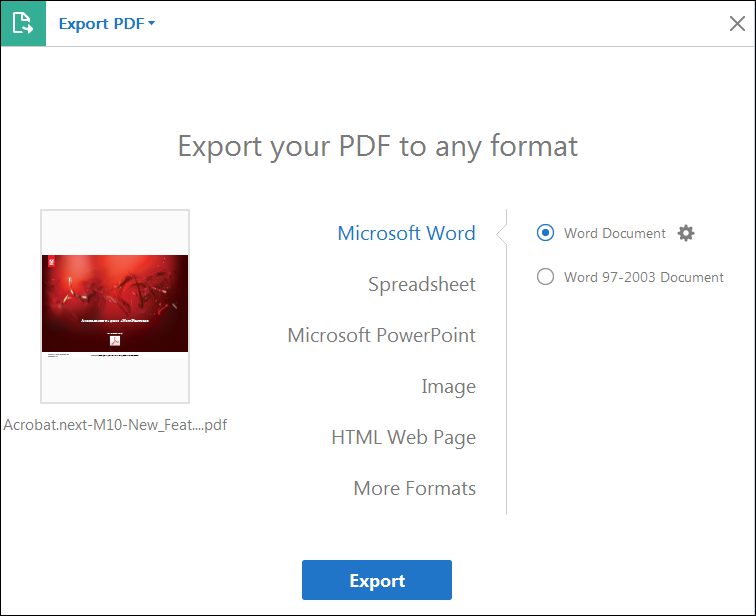
Select the file format to which you want to export the PDF file and a version (or format), if available. For example, if you choose to export the PDF file to Word format, you will get an option to export the PDF into Word Document (.docx) or Word 97-2003 Document (.doc) version.
Note:
You can configure the conversion settings by clicking the gear icon
 adjacent to the selected file format. Conversion settings can also be edited by selecting the Convert From PDF category in the Preferences dialog box.

You can configure conversion options before you save the file. By default, the conversion options specified under Preferences are used.
- Choose Edit > Preferences > Convert From PDF.
- Choose a format from the Converting From PDF list, and then click Edit Settings.
- Choose the conversion settings, and then click OK.
In addition to saving every page (all text, images, and vector objects on a page) to an image format using the File > Export To > Image > [Image Type] command, you can export each image in a PDF to a separate image file.
Note:
You can export raster images, but not vector objects.

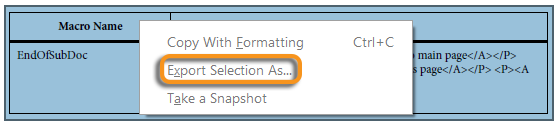
If you need just a part of the PDF file in another format, you don’t need to convert the entire file and then extract the relevant content. You can select text in a PDF file and save it in one of the supported formats: DOCX, DOC, XLSX, RTF, XML, HTML, or CSV.