


The Main purpose of these shortcuts is to get work done quicker. The most commonly used shortcuts on Windows OS undoubtedly have been Ctrl+C (copy) and Ctrl+V (paste) which allow a user to copy and paste a word, image, file or a document from one location to another.
Turn on clipboard history feature ON
Follow these steps to turn the “Clipboard History” feature on:
- Click the Start button.
- Click the Settings icon (it looks like a “gear” or “cog“).
- Click System.
- In the left-hand pane, scroll down and click Clipboard.
- Toggle the “Clipboard history” setting to On (the slider should turn from gray to blue).


After turning on the this feature, Windows will store your every copied or cut item instead of being over-written every time you copy or cut something new. But, you can’t access all those stored items by simply clicking Paste or pressing Ctrl+V.
Access Clipboard History
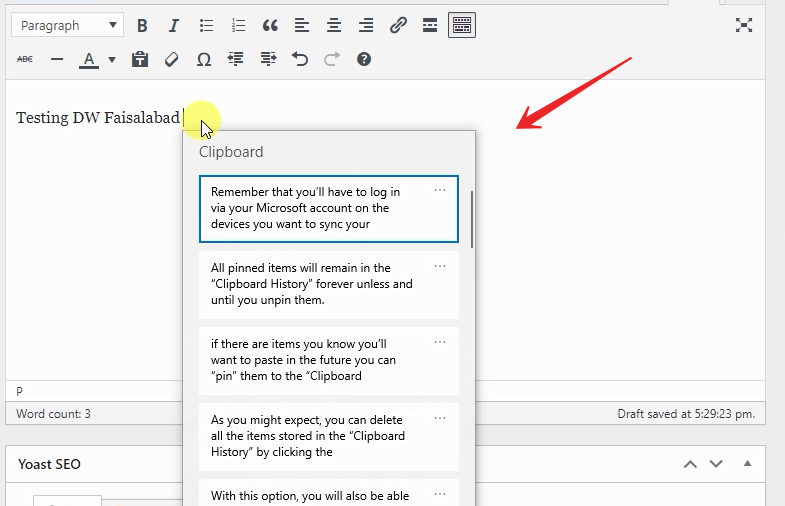
Pressing Windows+V will bring up the entire list of previously stored Clipboard items.
Using this new feature is easy. Simply make your copies and cuts the same way you always have, then follow these steps to paste any item that’s stored in the Clipboard History:
- Click inside the text box or form field where you want to paste the item.
- Press the Windows+V key combination.
- Scroll through the list of stored Clipboard items and then click on the one you want to paste.

More Features
-
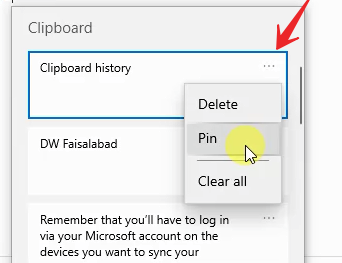
- As you might expect, you can delete all the items stored in the “Clipboard History” by clicking the Clear all link.
- Any item stored in your computer’s “Clipboard History” will be deleted when you shut down or restart your PC.
- If there are items you know you’ll want to paste in the future you can “pin” them to the “Clipboard History” to prevent them from being deleted and will remain in the “Clipboard History” forever unless and until you unpin them.
- You’ll have to log in via your Microsoft account on the devices you want to sync your Clipboard with other devices as long as your are log in.
