

The applications and features described in this tutorial require CorelDRAW Graphics Suite or newer to be installed.
The most common way to create a layout is to use guidelines to help you align all the elements in the document. But when you need to change the layout, e.g. to add an extra row of pictures, you have to do the layout all over again.
You will save much time and effort by using the table feature in CorelDRAW Graphics Suite to lay out your documents.


- Start by making a sketch of the flyer, either on paper, or as here using the Smart Drawing Tool in CorelDRAW Graphics Suite.
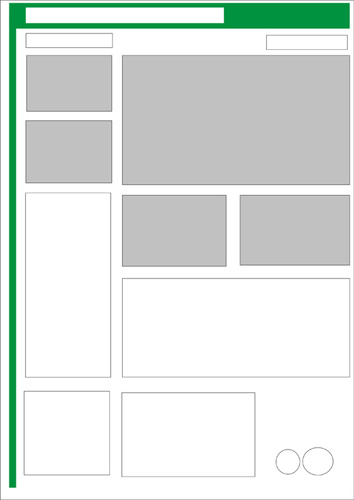

With the sketch in place, it is easy to count the number of columns and rows you need for the layout.
- You can create a table in two ways in CorelDRAW Graphics Suite:
- Select the Table Tool in the Tool box, and drag with the tool on the page to create the table.
- Or select the Table menu | Create new table. You can type the number of columns and rows, as well as the overall size of the table into the dialog box that opens.
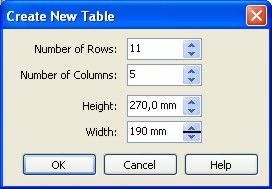

- Create a table with the settings as shown above
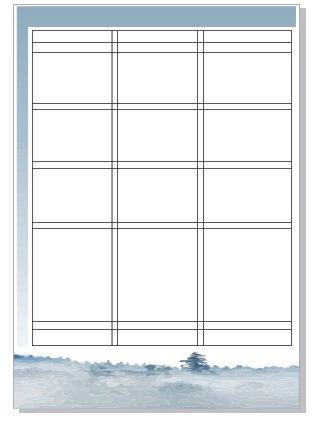

- Select the Table Tool in the tool-box and change the size of the cells in the table by dragging the lines of the cells to fit the layout. You can drag the lines, when the cursor changes to a double arrow.
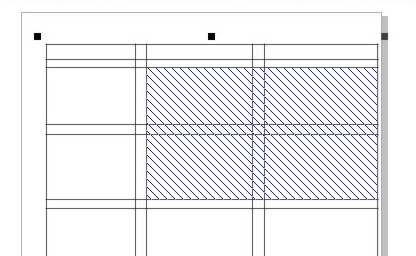
- You can also merge the cells together. Select the cells by dragging across them with the mouse. Then right-click and select Merge Cells in the popup menu. Selected cells are shown with a hatch pattern.

Now you are ready to fill the cells with pictures and text:


Some of the cells are merged to fit pictures and text
- You can write text in the different cells by selecting the Text Tool.
- To import pictures you need to deselect the Table Tool first, e.g. by clicking on the Pick Tool. Import the first picture by selecting File | Import and finding the appropriate picture on your computer.
- Insert the picture on the page, and drag it to the target cell while pressing the right mouse button.
- Select Place inside Cell in the popup menu. You can move the picture into the right position, scale it etc.
- Continue in the same way with the rest of the pictures.
Formatting the text using Live Text Preview
CorelDRAW Graphics Suite gives you the ability to preview changes to text before you make them. This feature is called Live Text Preview.
- Select the text with the Text Tool, and then scroll the Font List drop-down menu to find the most appropriate font. You will be able to instantly preview the change in the text you selected. In the image below we are previewing the font Impact.


Finally we need to remove the lines in the table.
- Select the table with the Pick Tool
- Set the border to All in the Property Bar, and then select none in the Border Width field

