

Easily turn a scanned paper form or a simple form made in Microsoft Word, Excel, or another application into an intelligent PDF form. Distribute forms to recipients and track the status of replies.
Note:
This document provides instructions for Acrobat DC and Acrobat 2017. If you’re using Acrobat XI, see Acrobat XI Help.
When you convert an existing document into a PDF form, Acrobat automatically adds interactive form fields to the form. You can then edit the form to add specialized form fields, such as a drop-down list, list box, or buttons.
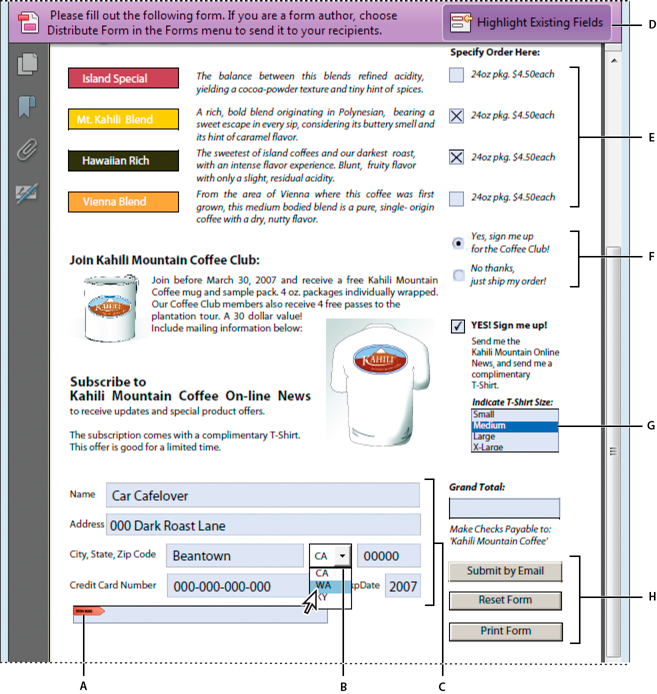
A. Certificate-based signature field B. Drop-down list box C. Text fields D. Automatic message bar E. Check boxes F.Radio buttons G. List box H. Buttons
-
Review the form fields Acrobat created. Add fields using the form field tools in the toolbar. Delete, resize, or arrange the fields as needed. You can add any of the following types of form fields:
Barcodes
Encode the input from selected fields and display it as a visual pattern that can be interpreted by decoding software or hardware (available separately).
Buttons
Initiate a change on the user’s computer, such as opening a file, playing a sound, or submitting data to a web server. These buttons can be customized with images, text, and visual changes triggered by mouse actions.
Check boxes
Present yes-or-no choices for individual items. If the form contains multiple check boxes, the user can typically select as many or few of these as wanted.
Drop-down list
Let the user either choose an item from a pop-up menu or type a value. You can set a form field property that enables the user to enter a custom value.
List boxes
Display a list of options the user can select. You can set a form field property that enables the user to Shift-click to select multiple items on the list.
Radio buttons
Present a group of choices from which the user can select only one item. All radio buttons with the same name work together as a group.
To test your form, click the Preview button in the toolbar. Previewing a form allows you to view the form the same way the form recipients will and gives you a chance to verify the form. If you are previewing a form, you can click the Edit button to go back to the edit mode.
Create forms for Adobe Sign
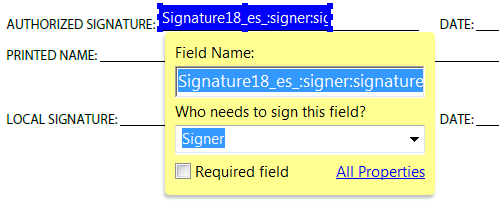
You can convert an existing form into an Adobe Sign form or easily drag-and-drop Adobe Sign fields onto a PDF. You can send the form out to be filled in and signed using Adobe Sign. Not all fields convert to Adobe Sign fields, such as List Box, Dropdown, or Button fields. You can add additional Adobe Sign fields from the toolbar.

Enable Reader users to save form data
Ordinarily, users of Reader X and earlier can’t save filled-in copies of forms that they complete. However, you can extend the rights of a PDF to allow these users to save form data. If you have Acrobat Pro, you can include additional capabilities for Reader users, such as adding text to non-interactive forms.
Note:
Unlike earlier versions of Reader, Reader XI and higher versions of Reader include both the Add Text tool and the ability to save form data. Acrobat users can type in non-fillable forms, add comments, and digitally sign PDFs without extending special rights.
Both Acrobat Standard and Acrobat Pro allow Adobe Reader 8 or later users to fill in and save PDF forms locally. Note the following two points about the use of the Reader Extensions capability for local saving of PDF forms (called extended documents):
Number of deployed extended documents
An Acrobat Standard or Acrobat Pro customer can send an extended document to an unlimited number of recipients for them to fill in. For example, an Acrobat customer can post an empty form template on a web page that allows users to fill in and save PDF forms locally. An unlimited number of people can access the template. Also, the Acrobat customer can collect unlimited number of responses from the filled-in form.
Number of recipients of the extended document
An Acrobat Standard or Acrobat Pro customer can send an extended document to unlimited number of recipients. The Acrobat customer can send unlimited number of copies of the extended document to unlimited number of recipients and collect unlimited number of responses from the filled-in form.
The JavaScript language lets you create interactive web pages. Adobe has enhanced JavaScript so that you can easily integrate interactivity into PDF forms. The most common uses for JavaScript in Acrobat forms are formatting, calculating, validating data, and assigning an action. In Windows, you can also configure Adobe PDF forms to connect directly to databases using Open Database Connection (ODBC).
Note:
If you’re creating dynamic forms, keep in mind that Acrobat Reader doesn’t support some custom JavaScripts. The form may not function properly when viewed in Acrobat Reader unless additional usage rights are added to the PDF.
-
- Enter the email addresses separated with a semi-colon, or click the To button to select email addresses from your address book.
- Edit the default message.
- Select the option Collect Name & Email from Recipients To Provide Optimal Tracking. The system prompts recipients to provide their name and email address when they submit the form. This guarantees that in Tracker, you see exactly who has and hasn’t replied, and when.
- Deselect the option if you want to receive anonymous submissions, or you don’t care about that level of tracking.
Note:
If you don’t know the email addresses of your recipients, enter your own email address. The system sends you a link to the form, which you can email to recipients as desired.
To track the status of the distributed form, click Track in the lower-right corner of the right hand pane.
After you create an Adobe Sign form, you can use Adobe Sign service for sending it to recipients for filling in and signing.
-
Click Send.
You receive an email from Adobe Sign which states that the documents are sent to the first user for signature. The first user also receives an email to sign the document. When the user adds his or her signature in the Signature field, and then click the Click to sign button, the document is sent to the next user for signature and so on.
Everyone gets a copy of the signed document, and the file is stored securely in Adobe Document Cloud.

