

This tip has been written for CorelDRAW® Graphics Suite X3. While similar features might be available in previous releases the tip will be fully applicable to CorelDRAW Graphics Suite X3 and newer versions only.
With CorelDRAW®, drawing basic shapes — such as rectangles, ellipses, polygons, and stars — is quick and easy. All the tools you need are easily accessible from the following flyouts in the toolbox: the Rectangle flyout, the Ellipse flyout, and the Object flyout.


Top to bottom: the Rectangle flyout, the Ellipse flyout, and the Object flyout
Drawing rectangles and squares
You can draw a rectangle or a square by dragging diagonally with the Rectangle tool or by specifying the width and height with the 3 point rectangle tool. You’ll find the 3 point rectangle tool very useful for creating rectangles at an angle. Both tools are located on the Rectangle flyout.


- To draw a rectangle, open the Rectangle flyout, click the Rectangle tool

- To draw a square, click the Rectangle tool, hold down Ctrl, and drag in the drawing window until the square is the size you want.
- To draw a rectangle at an angle, click the 3 point rectangle tool


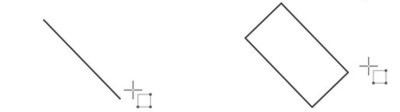

Drawing a rectangle at an angle with the 3 point rectangle tool
- You can draw a rectangle from its center outward by holding down Shift as you drag with the Rectangle tool.
- You can draw a square from its center outward by holding down Shift + Ctrl as you drag with the Rectangle tool.
- You can draw a rectangle that covers the drawing page by double-clicking the Rectangle tool.
Drawing ellipses, circles, arcs, and pie shapes
You can draw an ellipse or a circle by dragging diagonally with the Ellipse tool, or you can draw an ellipse by using the 3 point ellipse tool to specify its width and height. The 3 point ellipse tool lets you quickly create an ellipse at an angle, eliminating the need to rotate the ellipse. Both tools are located on the Ellipse flyout.

After you draw an ellipse or a circle, you can easily change it into a pie shape or an arc.


Left to right: a circle, a pie shape, and an arc
- To draw an ellipse, open the Ellipse flyout, click the Ellipse tool
- To change the ellipse into a pie shape or an arc, click the Pie button

- To draw an ellipse at an angle, click the 3 point ellipse tool

Note: The centerline runs through the center of the ellipse and determines its width.
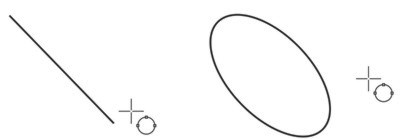
Drawing an ellipse at an angle with the 3 point ellipse tool

Left to right: a circle, a pie shape, and an arc
Drawing polygons and stars
You can draw polygons and two types of stars: perfect stars, which have a traditional star appearance and complex stars, which have intersecting sides. With perfect stars, you can apply a fill to the entire star shape. With complex stars, you can produce unique results when you apply a fill.


Left to right: a polygon, a perfect star, and a complex star, each with a fountain fill applied
The tools you need to create polygons and stars are located on the Object flyout.


- To draw a polygon, open the Object flyout, click the Polygon tool

- To draw a perfect star, click the Star tool

- To draw a complex star, click the Complex star tool
