Acrobat can easily turn your scanned documents into editable PDFs.
When you open a scanned document for editing, Acrobat automatically runs OCR (optical character recognition) in the background and converts the document into editable image and text with correctly recognized fonts in the document. Also, a prompt on upper-right corner appears showing you the recognized OCR language. It also points you to the settings button if you want to change the OCR language.
By default, only the current page is converted to editable text instead of the entire document in one go. As you move from one page to another, the page in focus is made editable.
Steps for editing text in a scanned document
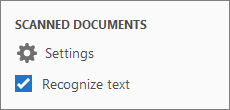
When you open a scanned document for editing, the two scan-specific options are displayed in the right pane under Scanned Documents:
Use the settings to change OCR language, choose whether to use system fonts, and make all pages editable at one go. In the right pane, click Settings under Scanned Documents. The dialog box shows the following three settings:
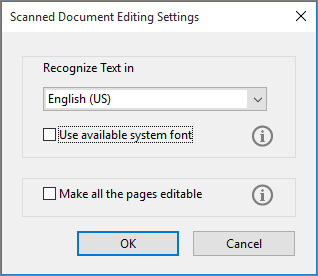
- Recognize Text in (OCR language): By default the OCR language is picked from default locale.
- Use available system font: If this option is checked, during the process of scanned to editable text conversion, the converted text is displayed in a font that is installed on the system and is a closest match to the original font in the scanned page.
- Make all the pages editable: if this option is checked, then all pages of the current document are converted to editable text in one go. It is a relatively slower option. Use this option only if you want to edit all pages or convert all pages to editable text.
Initially, the language is set to the default locale and the other options are disabled. Any changes to these settings remain persistent and are applied when you enter in the edit mode (Tools > Edit PDF).
The OCR is turned on by default. Therefore, when you open a scanned document for editing, the current page is converted to editable text. Depending on whether you want to convert your scanned documents to editable text or not, you can turn off/on the automatic OCR option.
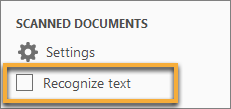
- In the right pane, clear the Recognize text check box. From next time, Acrobat won’t automatically run OCR and convert a scanned document to editable text.
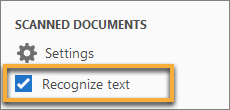
- In the right pane, select the Recognize text check box. From next time, Acrobat will automatically run OCR and convert a scanned document to editable text.