Without Array Formula | With Array Formula | F9 Key | Count Errors | Count Unique Values | Count with Or Criteria | Sum with Or Criteria |
This chapter helps you understand array formulas in Excel. Single cell array formulas perform multiple calculations in one cell.
Without Array Formula
Without using an array formula, we would execute the following steps to find the greatest progress.
1. First, we would calculate the progress of each student.
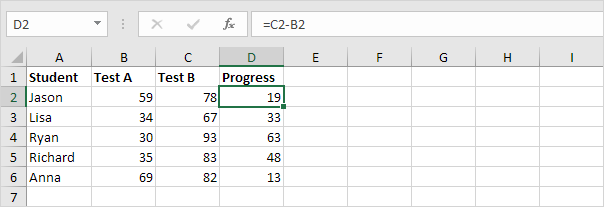

2. Next, we would use the MAX function to find the greatest progress.
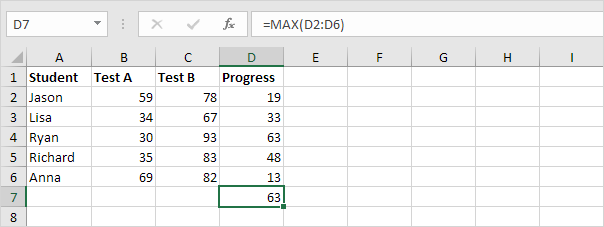

With Array Formula
We don’t need to store the range in column D. Excel can store this range in its memory. A range stored in Excel’s memory is called an array constant.
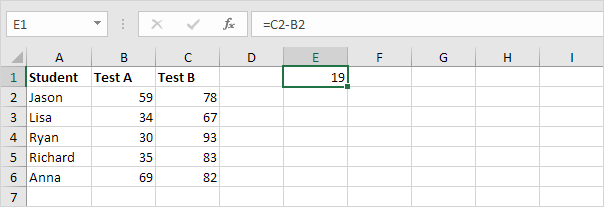
1. We already know that we can find the progress of the first student by using the formula below.
2. To find the greatest progress (don’t be overwhelmed), we add the MAX function, replace C2 with C2:C6 and B2 with B2:B6.
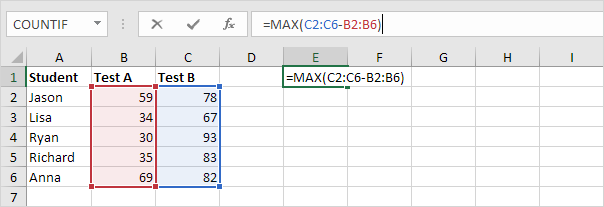
3. Finish by pressing CTRL + SHIFT + ENTER.
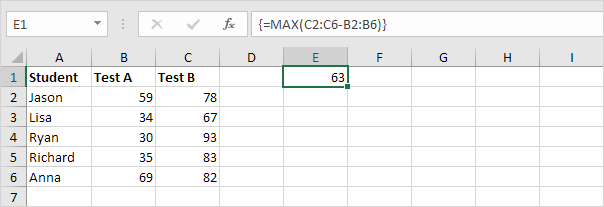
Note: The formula bar indicates that this is an array formula by enclosing it in curly braces {}. Do not type these yourself. They will disappear when you edit the formula.
Explanation: The range (array constant) is stored in Excel’s memory, not in a range. The array constant looks as follows:
{19;33;63;48;13}
This array constant is used as an argument for the MAX function, giving a result of 63.
F9 Key
When working with array formulas, you can have a look at these array constants yourself.
1. Select C2:C6-B2:B6 in the formula.
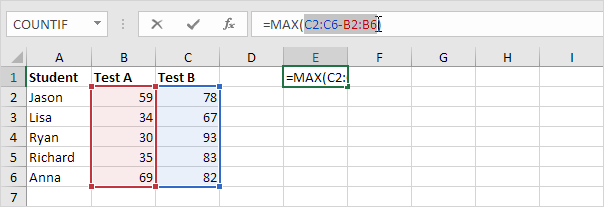
2. Press F9.
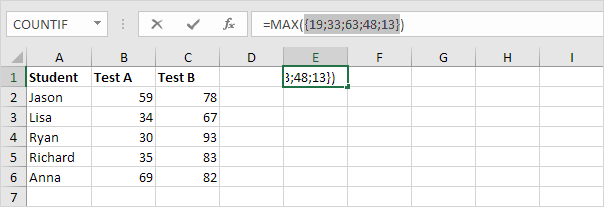
That looks good. Elements in a vertical array constant are separated by semicolons. Elements in a horizontal array constant are separated by commas.
Count Errors
This example shows you how to create an array formula that counts the number of errors in a range.
1. We use the IF function and the ISERROR function to check for an error.
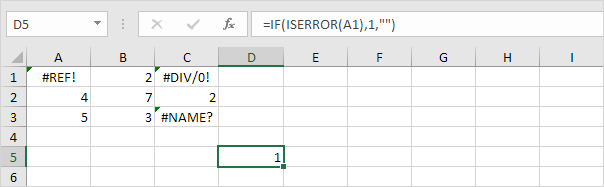

Explanation: the IF function returns 1, if an error is found. If not, it returns an empty string.
2. To count the errors (don’t be overwhelmed), we add the COUNT function and replace A1 with A1:C3.
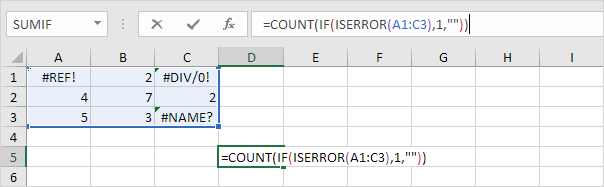
3. Finish by pressing CTRL + SHIFT + ENTER.
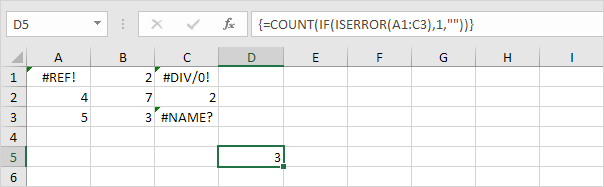
Note: The formula bar indicates that this is an array formula by enclosing it in curly braces {}. Do not type these yourself. They will disappear when you edit the formula.
Explanation: The range (array constant) created by the IF function is stored in Excel’s memory, not in a range. The array constant looks as follows:
{1,””,1;””,””,””;””,””,1}
This array constant is used as an argument for the COUNT function, giving a result of 3.
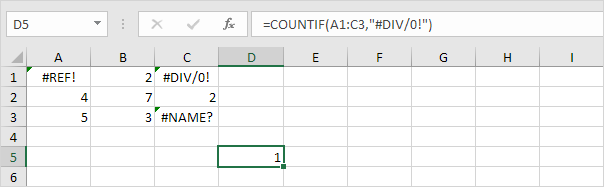
4. To count specific errors, use the COUNTIF function. For example, to count the number of cells that contain the #DIV/0! error.
Count Unique Values
This example shows you how to create an array formula that counts unique values.
1. We use the COUNTIF function. For example, to count the number of 5’s, use the following function.
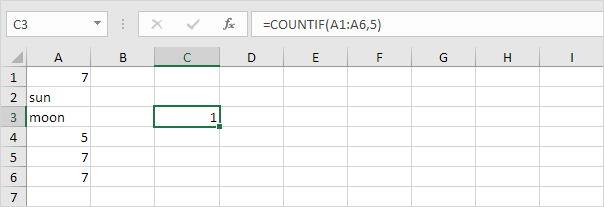
2. To count the unique values (don’t be overwhelmed), we add the SUM function, 1/, and replace 5 with A1:A6.
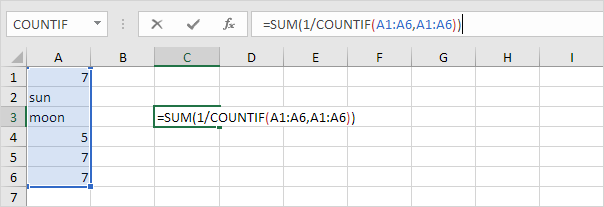
3. Finish by pressing CTRL + SHIFT + ENTER.
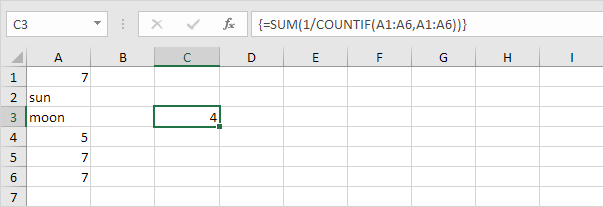
Note: The formula bar indicates that this is an array formula by enclosing it in curly braces {}. Do not type these yourself. They will disappear when you edit the formula.
Explanation: The range (array constant) created by the COUNTIF function is stored in Excel’s memory, not in a range. The array constant looks as follows:
{3;1;1;1;3;3} – (three 7’s, one sun, one moon, one 5, three 7’s, three 7’s)
This reduces to:
{1/3;1/1;1/1;1/1;1/3;1/3}
This array constant is used as an argument for the SUM function, giving a result of 1/3+1+1+1+1/3+1/3 = 4.
Count with Or Criteria
Counting with Or criteria in Excel can be tricky. This article shows several easy to follow examples.
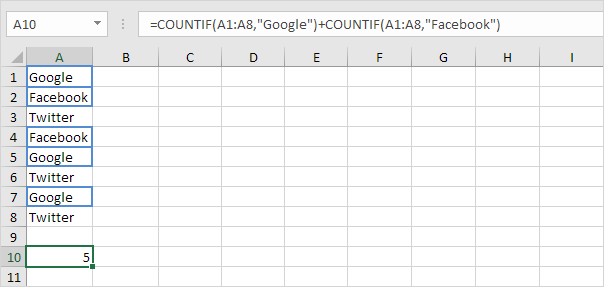
1. We start simple. For example, we want to count the number of cells that contain Google or Facebook (one column).

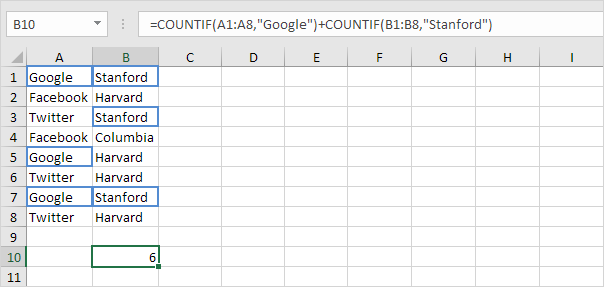
2a. However, if we want to count the number of rows that contain Google or Stanford (two columns), we cannot simply use the COUNTIF function twice (see the picture below). Rows that contain Google and Stanford are counted twice, but they should only be counted once. 4 is the answer we are looking for.
2b. What we need is an array formula. We use the IF function to check if Google or Stanford occurs.
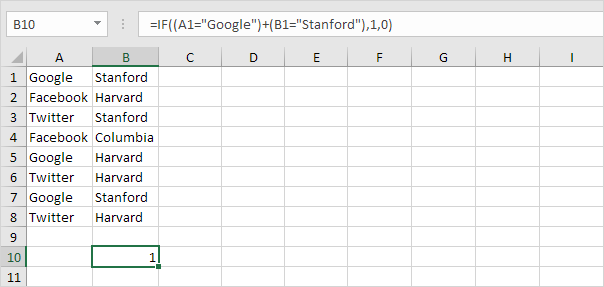
Explanation: TRUE = 1, FALSE = 0. For row 1, the IF function evaluates to IF(TRUE+TRUE,1,0), IF(2,1,0), 1. So the first row will be counted. For row 2, the IF function evaluates to IF(FALSE+FALSE,1,0), IF(0,1,0), 0. So the second row will not be counted. For row 3, the IF function evaluates to IF(FALSE+TRUE,1,0), IF(1,1,0), 1. So the third row will be counted, etc.
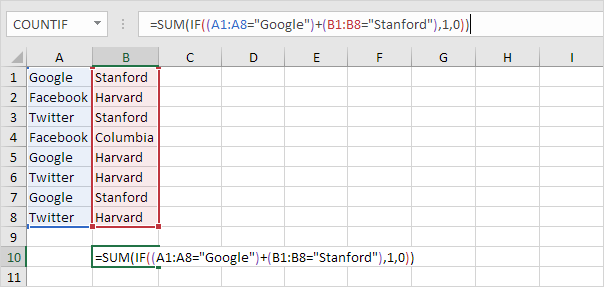
2c. All we need is a SUM function that counts these 1’s. To achieve this (don’t be overwhelmed), we add the SUM function and replace A1 with A1:A8 and B1 with B1:B8.
2d. Finish by pressing CTRL + SHIFT + ENTER.
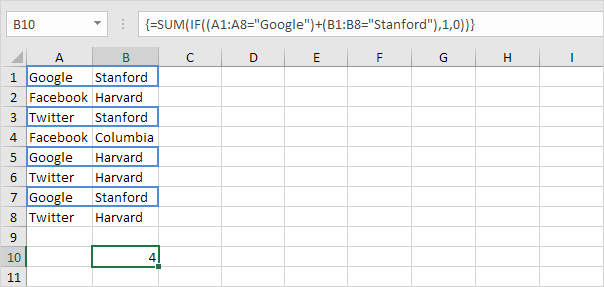
Note: The formula bar indicates that this is an array formula by enclosing it in curly braces {}. Do not type these yourself. They will disappear when you edit the formula.
Explanation: The range (array constant) created by the IF function is stored in Excel’s memory, not in a range. The array constant looks as follows:
{1;0;1;0;1;0;1;0}
This array constant is used as an argument for the SUM function, giving a result of 4.
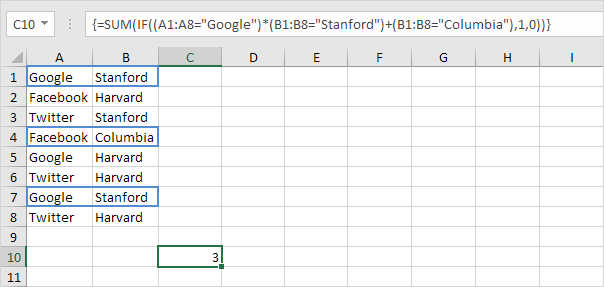
3. We can go one step further. For example, we want to count the number of rows that contain (Google and Stanford) or Columbia.
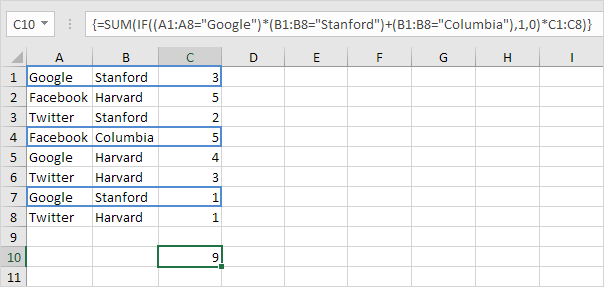
Sum with Or Criteria
Summing with Or criteria in Excel can be tricky. This article shows several easy to follow examples.
1. We start simple. For example, we want to sum the cells that meet the following criteria: Google or Facebook (one criteria range).
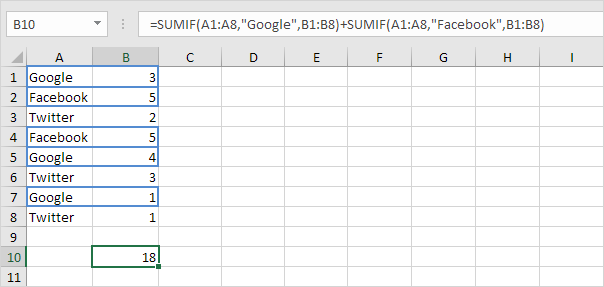
2a. However, if we want to sum the cells that meet the following criteria: Google or Stanford (two criteria ranges), we cannot simply use the SUMIF function twice (see the picture below). Cells that meet the criteria Google and Stanford are added twice, but they should only be added once. 10 is the answer we are looking for.
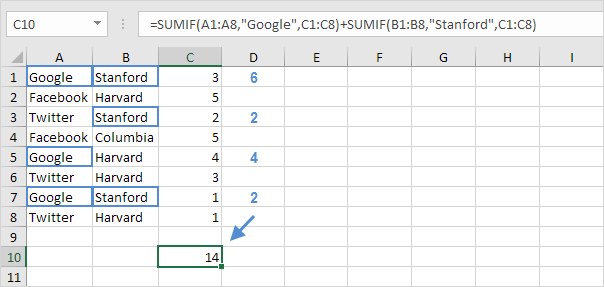
2b. We need an array formula. We use the IF function to check if Google or Stanford occurs.
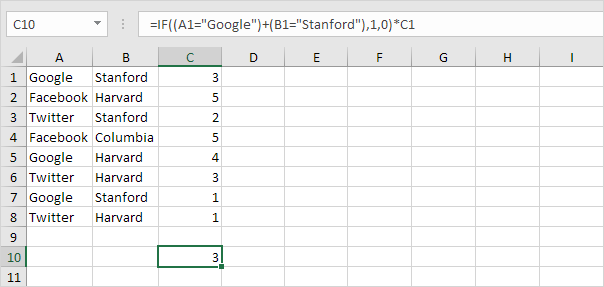
Explanation: TRUE = 1, FALSE = 0. For row 1, the IF function evaluates to IF(TRUE+TRUE,1,0)*3, IF(2,1,0)*3, 3. So the value 3 will be added. For row 2, the IF function evaluates to IF(FALSE+FALSE,1,0)*5, IF(0,1,0)*5, 0. So the value 5 will not be added. For row 3, the IF function evaluates to IF(FALSE+TRUE,1,0)*2, IF(1,1,0)*2, 2. So the value 2 will be added, etc.
2c. All we need is a SUM function that sums these values. To achieve this (don’t be overwhelmed), we add the SUM function and replace A1 with A1:A8, B1 with B1:B8 and C1 with C1:C8.
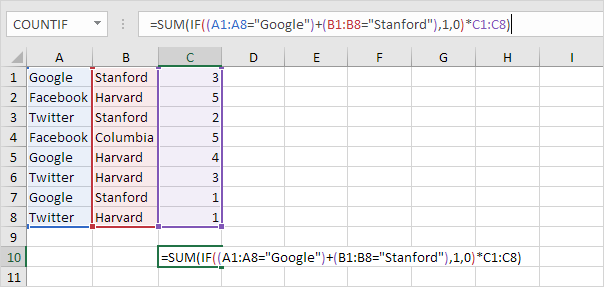
2d. Finish by pressing CTRL + SHIFT + ENTER.
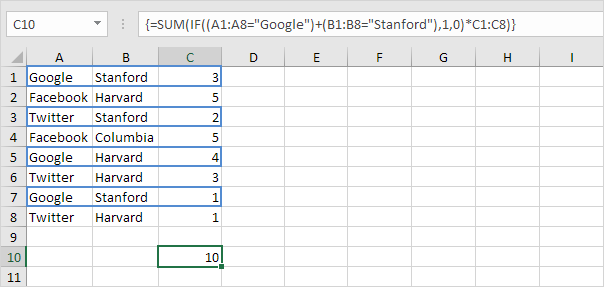
Note: The formula bar indicates that this is an array formula by enclosing it in curly braces {}. Do not type these yourself. They will disappear when you edit the formula.
Explanation: The range (array constant) created by the IF function is stored in Excel’s memory, not in a range. The array constant looks as follows:
{1;0;1;0;1;0;1;0}
multiplied by C1:C8 this yields:
{3;0;2;0;4;0;1;0}
This latter array constant is used as an argument for the SUM function, giving a result of 10.
3. We can go one step further. For example, we want to sum the cells that meet the following criteria: (Google and Stanford) or Columbia.