

Easily fill, sign, and send forms fast from your desktop, browser, or tablet device.
An interactive or fillable form contains fields that you can select or fill in. For such forms, the Fill & Sign tool displays only the Sign option.
A flat form does not have interactive fields. It could be a paper form or PDF that hasn’t been optimized for form filling. However, you can use the Fill & Sign tools to add text and other symbols anywhere on the form. You can save frequently used information securely in your personal autofill collection. Next time, just drag and drop information to complete forms faster.
Sign your form by typing or drawing your signature, or using an image. Send your completed forms to others and store the forms securely in Adobe Document Cloud.
Note:
This document provides instructions on how to fill & sign your forms electronically from your desktop using Acrobat or Acrobat Reader. Refer to the related links section at the bottom of this page for how to do the same using a browser or the tablet app.

-
To fill or add text, click Add Text
 in the toolbar. Click at the place in the document where you want to add the text, and then start typing.
Use the field toolbar to make appropriate changes:
- To resize a field, use the font up or down button in the toolbar – the first two buttons from left.
- To move a field, move your mouse pointer closer to field border until you see the drag handle, and then hold and move the field as required.
- To delete a field or typed text, click the trash button.
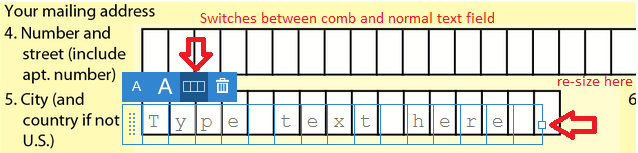
- To convert a normal text field into comb field or vice versa, click the comb button – the second button from the right.
Use Comb fields to fill or add text in continuous boxes in a line/row. The Comb field spreads the user-entered text evenly across the width of the text field, as shown below.
-
Fill personal data from the right-hand panel. In the panel, your personal information is displayed. Some of the fields are populated for you based on your Adobe ID, which you can edit.

a.) Drag and drop labels from the panel onto the form: mouse over the label exposes the drag handle on the left of the label.
b.) Click and hold to drag out the item and drop it over the place onto the form where you want this label to appear. Resize or move the label as appropriate.
Note:
You can fill out the rest of the information in the right-hand panel, so it is easier to add to your form. The added information is saved automatically and made available for future use.
-
Add annotations or symbols: Annotations tools are displayed in the toolbar – Crossmark, Checkmark, Circle, Line, and Dot. You can use these annotation tools to fill in check boxes and radio buttons, as well as use the Circle to circle text or the line to strike out text.

Click an annotation in the toolbar to select it, and then click on the form where you want to place the annotation. (Each click will place the selected annotation at the respective location on the form.)
Note:
Resize the first annotation you place to fit the check box or radio button in the document, and the next annotations you add will be of the same size and will fit the rest of the box/circle fields.
To sign a PDF form, you can type, draw, or insert an image of your handwritten signature or initials.
-
To add text, such as your name, company, title, or date, drag and drop your personal saved information from the right hand pane onto a form field.
Alternatively, you can use Add Text
in the toolbar. Click at the place in your document where you want to add the text, and start typing. Use the field toolbar to make appropriate changes.
 in the toolbar, and then choose whether you want to add your signature or just initials.
-
If you’ve already added your signature or initials, just select it from the Sign options, and then click at the place in the PDF where you want to add your signature. Skip to the next step.
If your are signing for the first time, you see the Signature or Initials panel. Below is an example of the Signature panel.
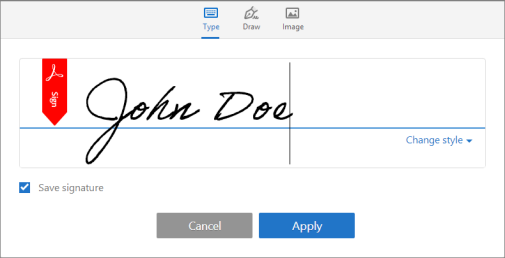 You can choose to type, draw, or import a signature image. Added signatures and initials are saved for future use.
Type
Type your name in the field. You can choose from a small selection of signature styles; click Change Style to view a different style.
Save Signature
When this check box is selected, and you’re signed in to Acrobat Reader or Acrobat, the added signature is saved securely in Adobe Document Cloud for reuse.
Note:
If you want to use an image as your signature:
- Sign your name in black ink on a clean, blank sheet of white paper. Sign in the middle of the paper so you don’t photograph or scan the edges.
- Photograph or scan your signature. If you are taking a picture of your signature, make sure that the page is lit and that no shadows fall across the signature.
- Transfer the photo or scan to your computer. Acrobat/Reader accpets JPG, JPEG, PNG, GIF, TIFF, TIF, and BMP files. You do not need to crop the image. Acrobat/Reader imports just the signature if the photo or scan is fairly clean.

