

How to remove PDF password. This question is being searched daily by thousands of the people on internet in different styles like How to Remove Password Protection from PDF or How to Remove a PDF Permission Password or Unlock PDF: An easy-to-use PDF password remover or How to Remove or Bypass PDF Permissions Password (Owner Password)


- Bypass/Remove PDF permissions password through Chrome browser
- Remove PDF permissions password with a third-party tool
- Remove PDF Password by itself
- Remove PDF Password Protection with PDFelement
- How to Remove Password Security from PDF
- How to Remove Password from PDFs without Software
- Remove Password from PDF Using Adobe Reader
- How to Unlock PDF online.
When a PDF document is secured with a ”Permissions Password”, which also can be called ”Owner Password”, ”Master Password” or ”Restriction Password”, some certain actions are restricted, such as printing, content copying, commenting, etc.
Now you can imagine, if you download a PDF file from the web, but you have no permissions to edit or print the file due to security settings, or if you forgot the permissions password so that you can’t perform actions on your secured PDF file, how can you remove or bypass the permissions password?
Option 1: Bypass/Remove PDF permissions password through Chrome browser
A web browser’s Print function can bypass PDF restrictions. Steps are as follows.
Step 1: Start the Google Chrome browser, then drag and drop the PDF file into a new tab.
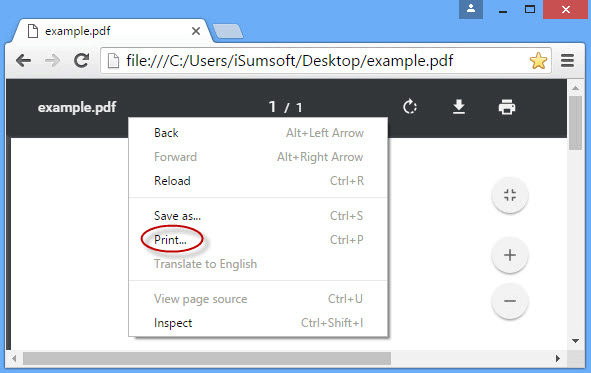
Step 2: Right click on the title bar of the PDF document, and select Print from the context menu.

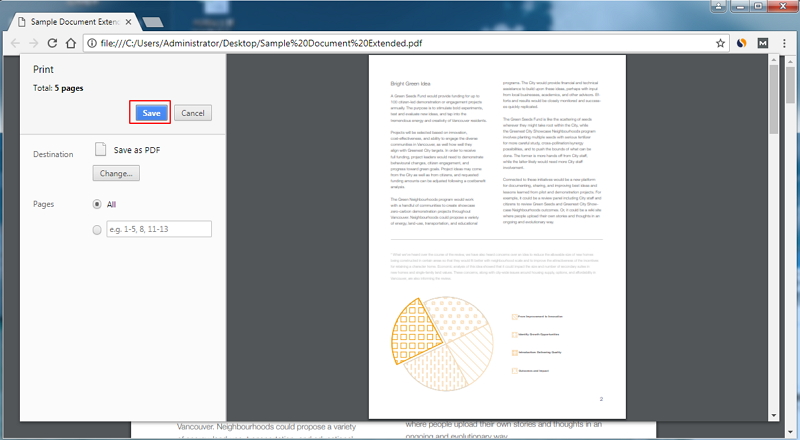
Step 3: After the Print page opens, click the ”Change” button and select ”Save as PDF”, and then click the ”Save” button.
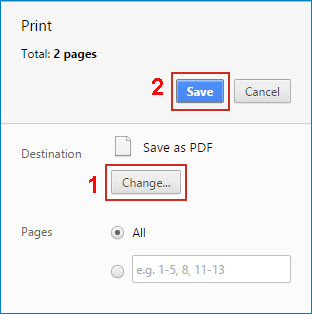

Step 4: In the ”Save As” dialog, select one destination, type a file name, and then click Save. The Chrome browser will bypass the PDF permissions Password and save the original PDF file without security.
Tips: If for some reason the option doesn’t work for you, try to use another web browser on your computer, such as Internet Explorer, Firefox, Microsoft Edge, etc. If the web browser still doesn’t work for you, choose the second option below.
Option 2: Remove PDF permissions password with a third-party tool
We recommend you ”PDF Password Refixer” tool, which can recover forgotten/lost PDF User Password or Owner Password. Use the tool to retrieve the PDF permissions password and then remove it. Steps are as follows.
Step 1: Get PDF Password Refixer tool. Install it on your computer and then launch it.
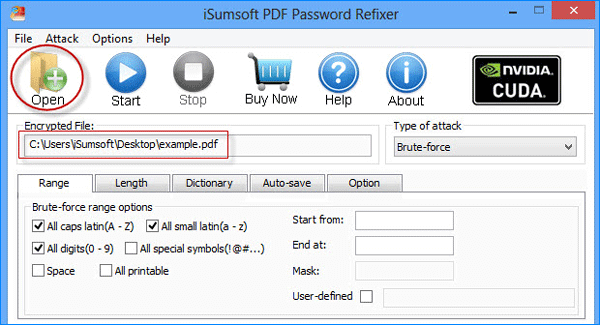
Step 2: Click Open, navigate to the PDF file that is protected with permissions password, and add the file path to the tool.

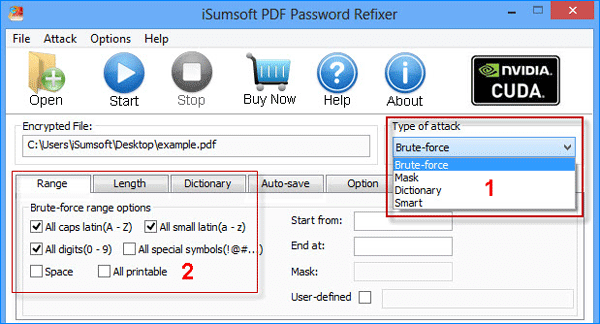
Step 3: Select an attack type and choose parameter options.

Step 4: Click Start to start discovering PDF owner password.
Step 5: When the password is recovered successfully, note it down. You will use it in Step 9 to remove the permissions password from the PDF document.
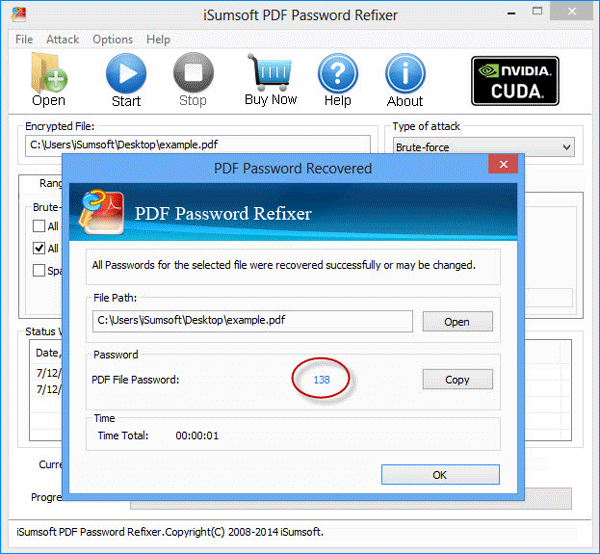

Step 6: Open the secured PDF file with Adobe Acrobat.
Step 7: Click File -> Properties.
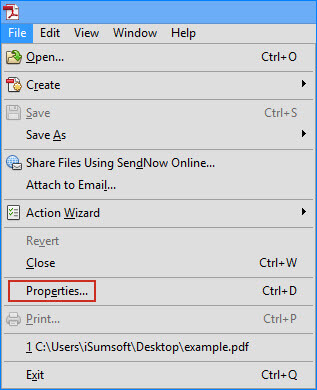

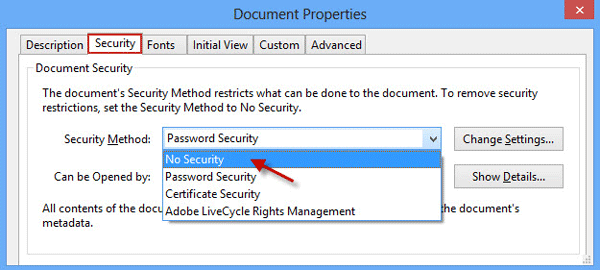
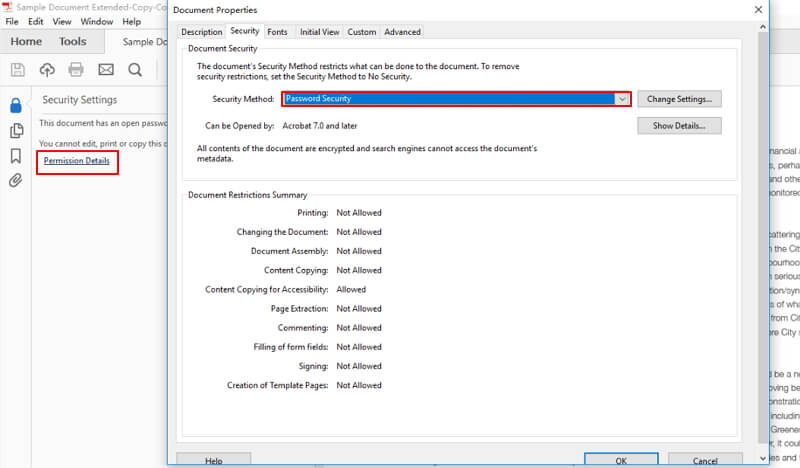
Step 8: In the Document Properties dialog, select the Security tab, and then select No Security in the drop-down button next to Security Method.

Step 9: When you are asked for a ”Permissions Password”, enter it and click OK.
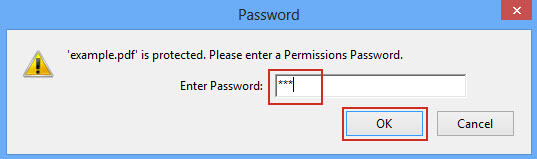

Step 10: When you are asked if you want to remove the security, click OK.
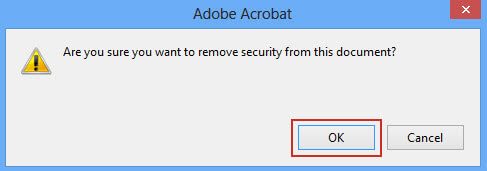

Step 11: Press Ctrl + S to save the PDF document for the changes to take effect. Then the Permissions Password (Owner Password) is removed from the PDF document.
3. Remove PDF Password by itself
Standard and professional versions of Adobe Acrobat allow users to secure their PDF files in several ways depending on the preferred level of confidentiality. In addition to setting a password to open the PDF, users can also apply passwords to restrict others from modifying or printing their PDFs. Removing these passwords is a simple process; however, you cannot set or remove security settings using Adobe Reader.
- Open the PDF file whose security settings you wish to remove.
- Click on “Document” on the main menu bar and select “Security.” A second menu will open.
- Select “Show Security Settings for This Document” and click on the “Security” tab.
- Click on the “down” arrow on the “Security Method” box and adjust the “Password Security” setting to “No Security.”
- Click “OK” when prompted to assert that you want to remove the password. This will delete all other security settings as well.
- Click on “File” on the main menu bar and then select “Save” to save the document. The next time you or anyone else opens or edits the document, you will not be prompted to enter a password. The PDF will retain its security settings if you do not save the document before closing it.
4. Remove PDF Password Protection with PDFelement
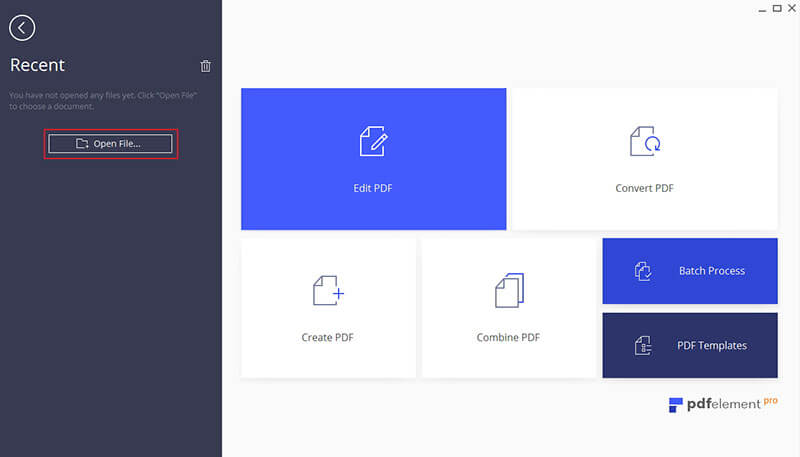
Step 1: Load a Password Protected PDF
Launch PDFelement, then drag and drop a PDF file in the program window to open it. If the PDF file is protected with an open password, you’ll need to enter the open password before the file will open.

Step 2: Begin to Remove Password Protection
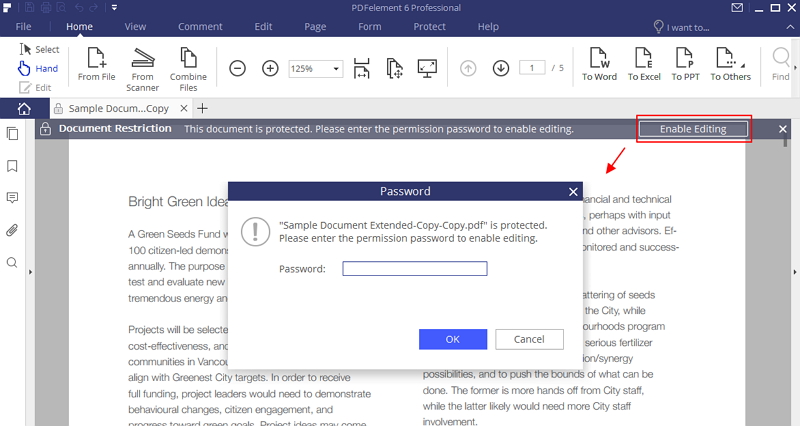
If the PDF file is protected with a permission password, then click the “Enable Editing” button to get editing permissions. This is the first step to remove password protection.

Step 3: Remove Password Protection
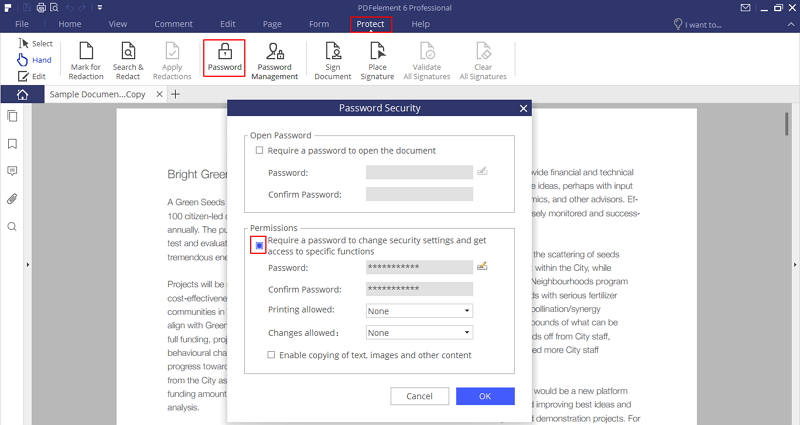
Go to the “Protect” tab, and click on the “Password” button. You can deselect the open password or permission password option to remove password restrictions from your PDF document.

5. How to Remove Password Security from PDF
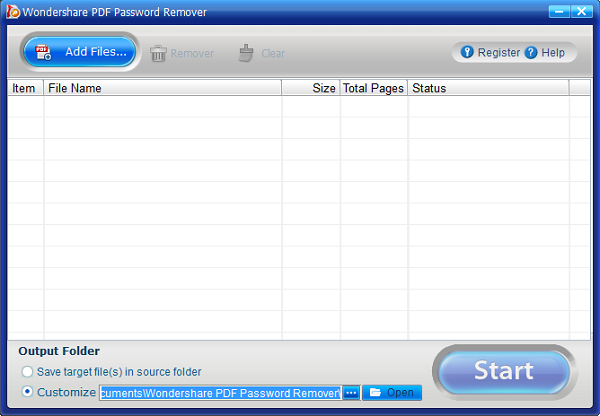
In the rare instance you need to remove a password from PDF files because you don’t have access to the correct password, you can do so using PDF Password Remover. This is one of the best methods to remove password from PDF files because it removes protections as well as restrictions on editing, printing and copying. Here is the PDF password remover free download.
Step 1: Import PDF Files
You can import up to 200 PDF files at a time! To import the PDF files, click the icon in the middle of the interface. If you want to upload files in batches, you can click the folder icon and import all files within the folder. You can also use the drag and drop option to import the encrypted files.

Step 2: Remove PDF Password
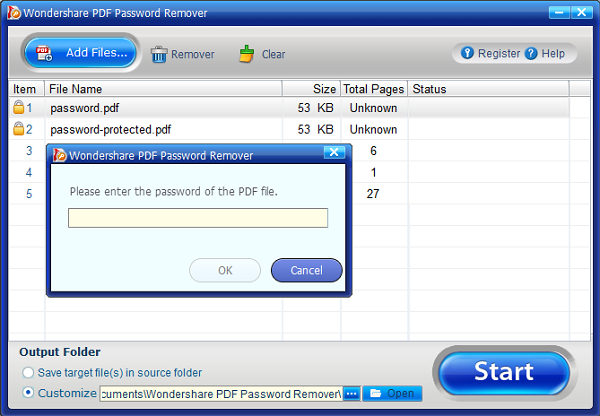
There are two things to note here: when no lock icon appears on the PDF item bar, then the PDF is protected from editing, copying, and printing only. Click the “Start” button to remove these restrictions. On the other hand, if there is a lock icon that appears, then the PDF has an open password, which prevents the file from being opened. You’ll need to enter the password first to unlock the PDF file before you click on the “Start” button.
6. How to Remove Password from PDFs without Software
If you do not have a program installed to remove passwords from PDF documents, then Google Chrome is a good alternative to remove password protection from a PDF file.
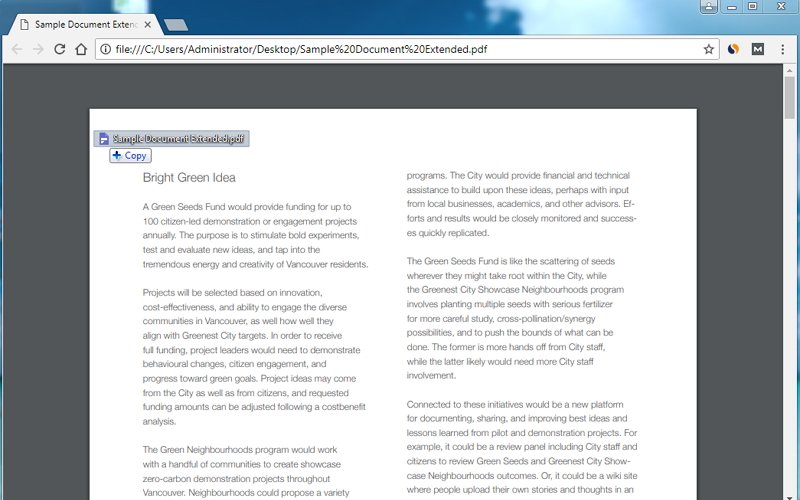
Step 1. Open a PDF with Password in Google Chrome
Make sure you install the latest version of Google Chrome. Then drag and drop the password protected PDF into the Chrome tab to open it.

Step 2. Delete Password from PDF
Use the “Print” option in Chrome to print the password protected PDF file to a PDF. This is the most important step when you are trying to learn how to remove a password from PDF files without software.
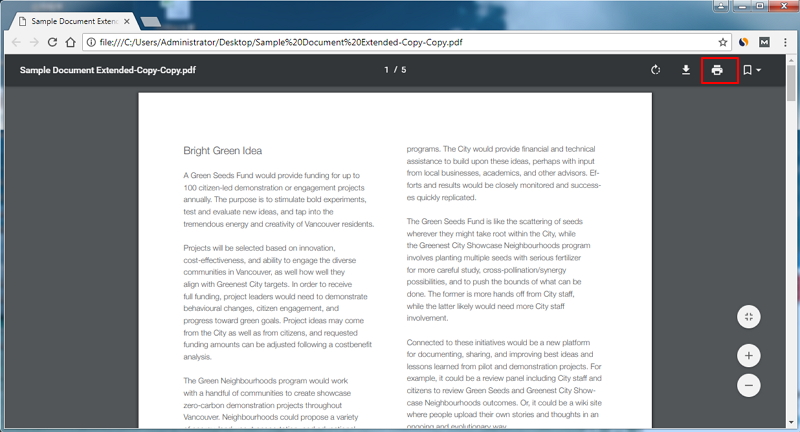

Step 3. Save the PDF without Password
You can save the PDF file without password protection using the “Save” button. You can find this newly saved PDF file in your local drive.

7. Remove Password from PDF Using Adobe Reader
Adobe Acrobat Pro also supports the ability to remove password protection from Adobe PDFs. Here are the two required steps.
Step 1: Open a PDF in Adobe
Install Adobe Acrobat Pro and open your password protected PDF file in the program. Go to “File” > “Properties” or you can click “Permission Details” in the left panel.

Step 2: Delete Password from PDF
In the “Security” tab, select “No Security” in the “Security Method” drop down menu to remove the password. Then you can save the PDF without password protection.