



Some time we face text having some superscript and subscript text like H2O or E=mc2, In this scenario we need to edit html code by inserting <sub> and <sup> scripts i.e
H2O = H<sub>2</sub>O
E=mc2 = E=mc<sup>2</sup>
But its difficult to change code by jumping into text editor again and again.
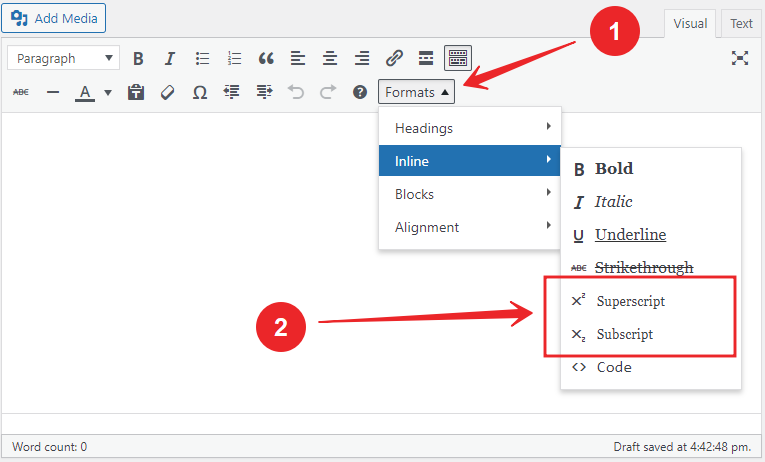

In above picture you can see a button having HEADING, INLINE, BLOCKS and ALIGNMENT options. Here you an enjoy complete formating range for your text including Superscript and Subscript option.
Follow these steps to insert this button in WordPress Visual Editor
Add the following code in wordpress theme’s functions.php file.
$buttons[] = ‘styleselect’;
return $buttons;}add_filter(“mce_buttons_2”, “crunchify_show_extra_editor_buttons”);
In abode code you can see mce_button_3 that means the format button(s) will appear in third row in visual text editor. You can place these buttons in second row by inserting mce_button_2.
Click Save Button to save functions.php file.
Create new post and enjoyu FORMAT Button
You can also add more buttons like Font Style and Fonmt Size by inserting the following code in function.php File.
$buttons[] = ‘sub’;
$buttons[] = ‘sup’;
$buttons[] = ‘fontselect’;
$buttons[] = ‘fontsizeselect’;
$buttons[] = ‘styleselect’;
return $buttons;}add_filter(“mce_buttons_3”, “crunchify_show_extra_editor_buttons”);