

Illustrator’s Type Tool: A Comprehensive Introduction
A few times a each month we revisit some of our reader’s favorite posts from throughout the history of Vectortuts+. This tutorial by Ian Yates was first published on October 4th 2008.
Type is an essential part of Illustrator; whether you’re desktop publishing, designing logos, or using type for image building, you’ll be reaching for the Type Tool. This guide comprehensively covers the essentials of what is a huge amount of Illustrator functionality, which is type.
Functions
- Type Tool: Click on the artboard to begin a Point Text object, alternatively click and drag, or click on a Closed Path to create an Area Type object.


- Area Type Tool: Click on a Closed Path to create an Area Type object, which constrains text within that path.

- Type on a Path Tool: Click on a path to constrain text along that path.

- Vertical Type Tool: Click on the artboard to begin a Point Text object with vertically flowing text.

- Vertical Area Type Tool: Click on a Closed Path to create an Area Type object containing vertically flowing text.

- Vertical Type on a Path Tool: Click on a path to constrain vertically flowing text along that path.

Keyboard Shortcuts
- Select the Type Tool (T)
- Show/Hide Character Panel (Command + T)
- Show/Hide Open Type Panel (Alt + Shift + Command + T)
- Show/Hide Paragraph Panel (Alt + Command + T)
- Show/Hide Tabs Panel (Shift + Command + T)
- Create Outlines (Shift + Command + O)
- Show/Hide Hidden Characters (Alt + Command + I)
Cursors


Keyboard Controls
- Hold Shift whilst Type tool is selected to switch between vertical and horizontal orientation.
- Press Esc whilst Typing to release from Type object. Selection tool is chosen and Type object remains selected.
The Panels
Type is a huge part of what Illustrator does and as a result the list of options for defining text is immense. The most appropriate panels when working on text-based documents can be revealed by going to Window > Workspace > [Type]. This default workspace will give you all the essential type-editing panels. Further panels can be found under Window > Type, and the most crucial are listed below with brief descriptions.
The Character Panel (Window > Type > Character)
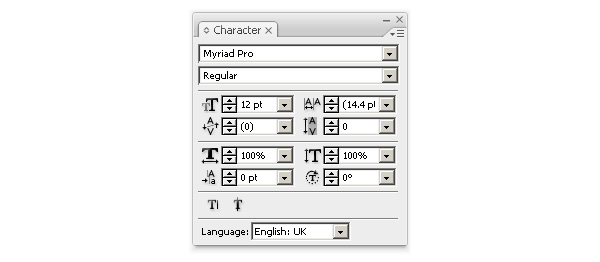
Your text-editing work-horse. Here you can alter the appearance of your type, character by character. Here are some useful terms found in the Character panel :
- Font family (self-explanatory, in this case Myriad Pro)
- Font style (version of the font such as Regular, Bold, Light, Condensed etc.)
- Leading (line-height)
- Kerning (spacing between two characters)
- Tracking (character spacing across a selection)
- Horizontal scale (character width)
- Vertical scale (character height)
- Baseline shift (height of baseline upon which text sits)
- Character rotation (rotation in degrees of specified characters)

The Paragraph Panel (Window > Type > Paragraph)
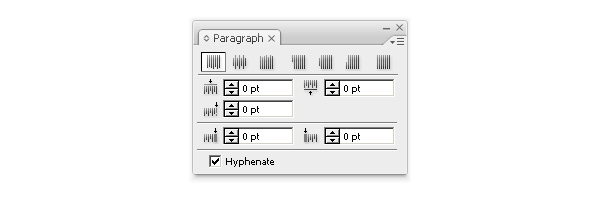
All your basic options for defining paragraphs (sections of text separated by line breaks). Options here include indentation, alignment, and spacing above and below paragraphs.
Also worth noting is the Hyphenation option. When selected this allows words to be hyphenated (-) should they be too long for the text area and need wrapping to the following line. Where exactly the words become hyphenated is defined by the current selected language (see Character Panel). Make sure therefore that if you choose Hyphenation that the selected language corresponds with the language of the text.

The Open Type Panel (Window > Type > Open Type)
This Panel is used to define how you wish to display alternate Open Typecharacters within your document. Alternative characters available for the selected font family can be seen in the Glyphs Panel (see below).


The Glyph Panel (Window > Type > Glyphs)
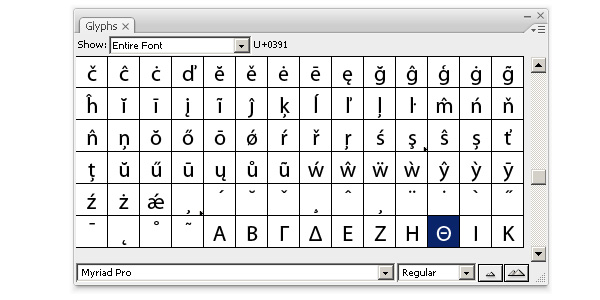
The Glyphs Panel displays alternative characters available for any given font. With the type cursor prepared for typing on your artboard, click on a glyph to insert it into your document. This panel allows different sized thumbnails for ease of viewing, selection menu to display only certain glyphs, and drop-down menus for alternatives.

The Character Styles Panel (Window > Type > Character Styles)
Invaluable when building a document with recurring styles. In the same way that InDesign uses defined styles and CSS defines element styles, here you can predefine styles to apply to multiple instances of type. For example, you have a header which you set to 18pt, Bold, and underlined.
Use the New Character Style from the panel submenu and set these attributes as a style. Future instances of text to which you apply this style will adopt this appearance. Should you edit the style with Redefine Character Style, then all text instances with the style will be automatically updated.

The Paragraph Styles Panel (Window > Type > Paragraph Styles)
This acts in the same way as the Character Styles Panel but (obviously) applies styles to paragraphs.

The Tabs Panel (Window > Type > Tabs)
Whilst text is selected, open this panel to have it appear directly above your text. Add and edit tabs applying immediate results on the selected text.


The Type Toolbar
Simple, yet effective. All your fundamental type options are on the toolbar above your artboard. (Paragraph alignment options shown here apply to vertically orientated text as the vertical type tool is currently selected.)


Preferences
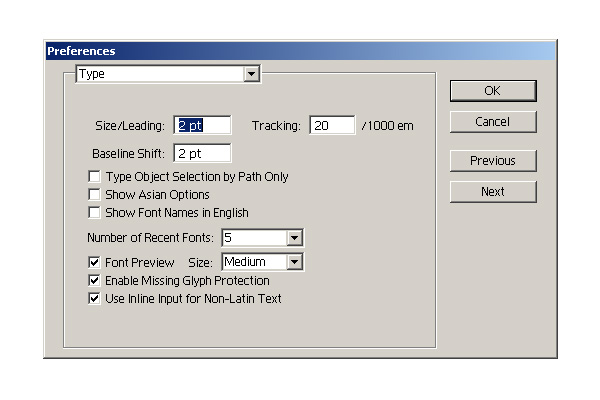
Go to Illustrator > Preferences > Type. Listed here are some of the more important options under the Type Preferences dialogue:
- Size / Leading (line-height)
- Tracking (character spacing across a selection)
- Baseline shift (height of baseline upon which text sits)
- Type object selection by path only (allows selection of type only by clicking on the object’s path, not the text)
- Number of Recent Fonts (determines how many recently used fonts are shown under Type > Recent Fonts for quick selection
- Font Preview (determines whether or not font previews are displayed under Type > Font and at what size)

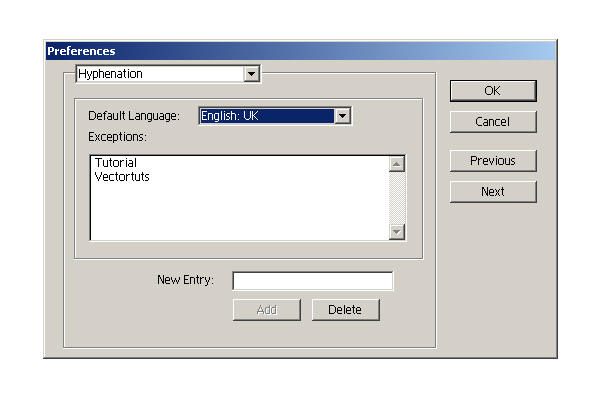
Go to Illustrator > Preferences > Hyphenation. Just as explained under The Paragraph Panel this determines the base language of your text for hyphenation purposes. Exceptions are also allowed, which won’t be hyphenated when text wrapping is needed. In this example, Vectortuts and Tutorial are made exempt from hyphenation.
Other Hints and Tips
Text Flow Between Containers
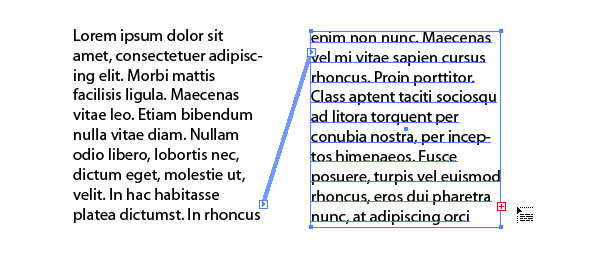
With the Direct Selection Tool, click on the small red cross icon on an Area Type Object (this appears when text is too large for the container). Clicking again on the artboard will create a container of equal dimensions, clicking and dragging will create a container of whatever dimensions you determine. Your text will automatically flow between the newly linked containers.

Deleting Empty Type Objects
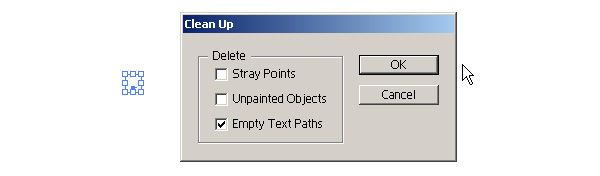
Go to Object > Path > Clean Up and select Empty Text Paths to remove unwanted empty type objects which may have slipped your attention.

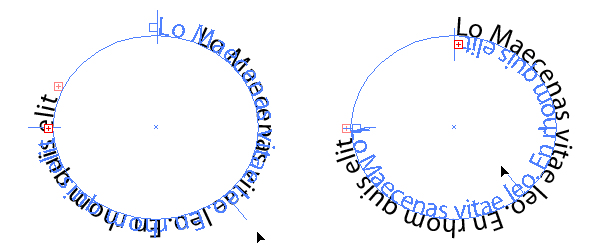
Use the Direct Selection tool to edit handle positions along a Type Path. Handles affect start points, end points, position, and the baseline (whether above or below a path). Use the central handle to flip the baseline or go to Type > Type On A Path > Type On A Path Options, select Flip, and click OK.

Conclusion
The Type functionality which Illustrator offers is a massive topic. This guide gives a comprehensive introduction to the type tools. Play around with the many options on offer and watch out for further type tutorials here.