Step 1: Open The Creative Cloud Desktop App
To install Adobe Bridge CC, we use the Creative Cloud desktop app. If you’ve already downloaded and installed Photoshop CC, you’ll have the Creative Cloud app on your computer. It should be running in the background. We can open the app by clicking on its icon. On a Windows PC, you’ll find the Creative Cloud icon in the notification area on the right of your taskbar along the bottom of the screen:
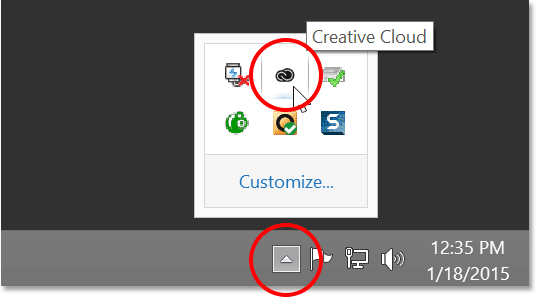

On a Mac, the Creative Cloud icon is located on the right of the menu bar along the top of the screen:


Step 2: Switch To The Apps Section
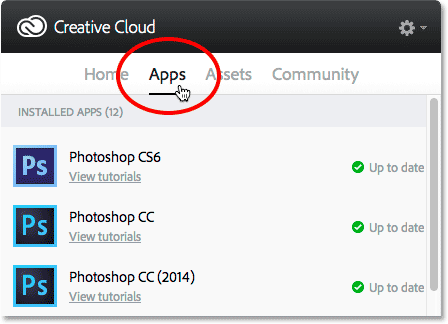
Clicking the icon opens the Creative Cloud desktop app. Select the Apps category from the menu along the top:

Step 3: Scroll Down To Bridge CC And Click “Install”
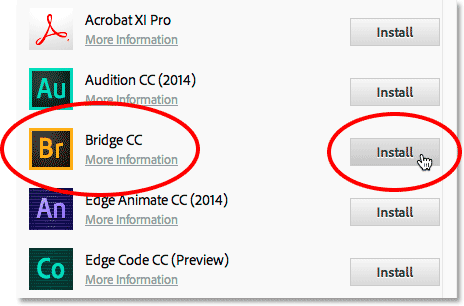
This opens a list of Creative Cloud apps already installed on your computer, as well as apps that are not yet installed but are available to download. The apps you see in your list will depend on your Creative Cloud subscription plan, but Adobe Bridge is included with every subscription. Scroll down through the list until you find Bridge CC. Then, click the Installbutton:

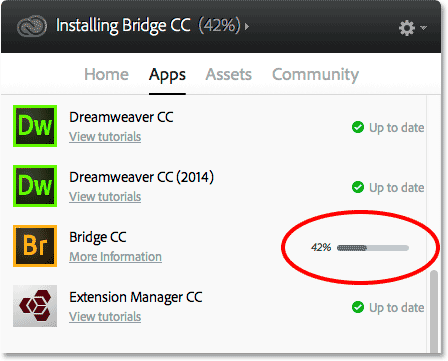
Bridge CC will immediately begin downloading and installing. A progress bar lets you know how it’s going:

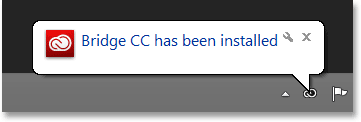
When Bridge has finished installing, a message will pop up telling you that Bridge CC has been installed. To close the Creative Cloud app, click anywhere outside of it on your screen to collapse it back into its icon: