



Step 1. Select a file to encrypt
Open the document you want to password protect. Select Protect from the right hand pane to load the toolbar.


Step 2. Customize Security Settings
Open the Password Security Settings to customize how this document can be viewed or edited.
- Select Encrypt > Encrypt with Password.
- Click Yes when Acrobat asks you to confirm whether you want to change the document.

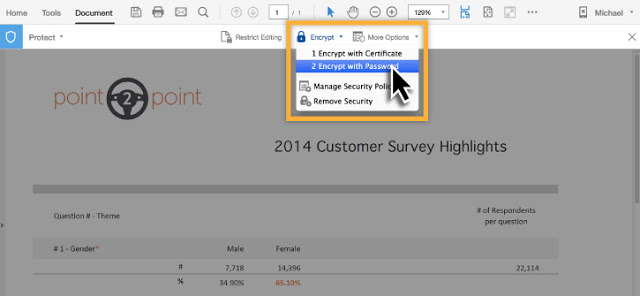
Set a Document Open password to prevent the file from being opened and viewed by anyone who finds the PDF.
- To set a password for opening the document, select Require a password to open the document.
- Next, type in a password that others will need to open the document.


Step 3. Customize Permissions
Permissions increase the flexibility of your document security. By customizing the permission settings, you can enable or disable users from performing certains actions (such as printing, editing the document, or copying text).
To customize permissions, click Restrict editing and printing of the document.
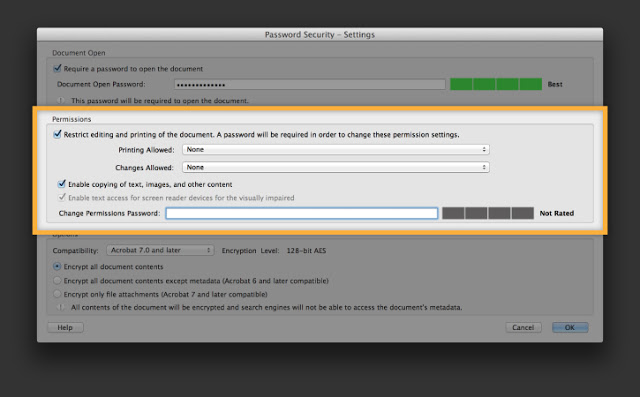
To restrict printing, select the Printing Allowed drop down.
- Choose None to prevent printing altogether.
- Select Low Resolution printing if your document contains information that you don’t want replicated at high quality (such as copyrighted text or artwork).
- Select High Resolution printing if you want your users to be able to print a clear copy of your document.


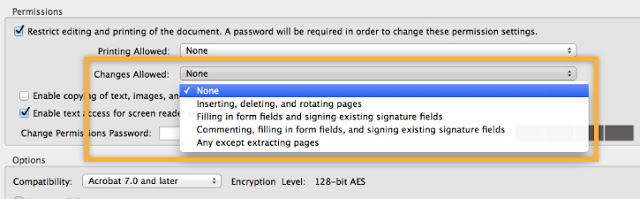
If your document requires participation by someone else (a fillable form, for example), you might want to limit the amount of editing control they have while still allowing them to make approved changes. To restrict editing, select the Changes Allowed drop down.
- For the greatest protection, choose None.
- Choose Inserting, deleting, and rotating pages if you want users to be able to manipulate the pages in the document.
- Choose Filling in form fields and signing existing signature fields if you only want users to fill out and sign your form.
- Choose Commenting, filling in form fields, and signing existing signature fields if you want to get user input or feedback on a form.
- Choose Any except extracting pages when you want to keep your document pages together.
To allow users to copy content out of the document, even if they can’t make any changes to the document itself, select Enable copying of text, images, and other content.
To allow access to content by screen readers for users with disabilities, select Enable text access for screen reader devices for the visually impaired.

Step 4. Set permissions password
Add a permissions password in order to be able to change the security settings in the future. Think of this as a “master” password that grants you, or another trusted user, the ability to change security settings, edit the PDF, or do anything else that has been restricted to other users. You can also enter the Permissions password to bypass the Open password when opening the document.
- Type your password in the Change Permissions Password field.
- Define additional settings in the Options section as necessary and click OK.

It’s necessary to confirm each of the passwords you set in the Security Settings.
- Confirm the Document Open Password and click OK.
- Then, confirm the Permissions Password and click OK.
Remember to save the file before you share it; these security settings won’t be applied until you save your PDF file.

Step 5. Review and test security settings
Before you share a protected document and relevant password information, you can review and test the security settings.
Select More Options >
Security Properties from the top toolbar to review the details of the security settings and make changes as necessary. Click OK to close the document.

Reopen the document and enter the Document Open Password to test the settings you applied. For example:
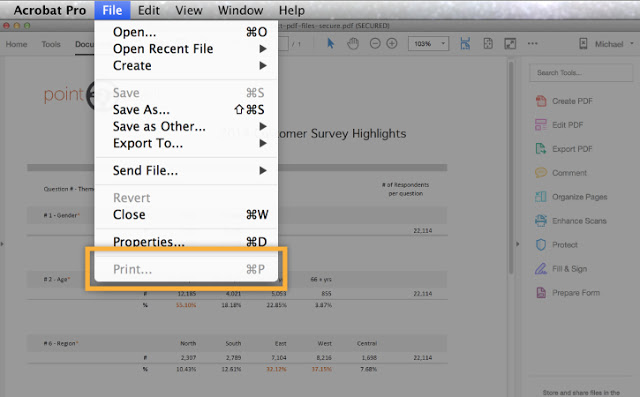
- If you disabled printing for a document, the Print option should be grayed out.
- If you disabled editing text or images, you will be prompted for a permissions password, or shown a message indicating that the document is secured and editing is not permitted.
Note: Be sure to keep the Permissions Password private from everyone except those who are allowed to modify the document.

Alternate method
Another convenient way to apply a password can be found while using the Edit PDF tool.
Click the Restrict Editing checkbox at the bottom of the right hand pane to open the Password dialog box.
Create a Permissions Password and confirm it, then click OK.
Remember to save the file to apply the security settings.
Note: This method will apply Acrobat’s default security settings. Choose File > Properties, and click the Security tab to further customize the settings.
