

Why redact or remove sensitive content?<
Before you distribute a PDF, you may want to examine the document for sensitive content or private information that can trace the document to you. Use the Redact tools to remove or redact sensitive images and text that are visible in a PDF.
Use the Remove Hidden Information feature to find and remove hidden content from a PDF. For example, if you created the PDF, the document metadata normally lists your name as the author. You may also want to remove content that can inadvertently change and modify the document’s appearance. JavaScript, actions, and form fields are types of content that are subject to change.
Redaction is the process of permanently removing visible text and graphics from a document. You use the Redact tools to remove content. In place of the removed items, you can have redaction marks that appear as colored boxes, or you can leave the area blank. You can specify custom text or redaction codes to appear over the redaction marks.
Note:
If you want to locate and remove specific words, characters, or phrases, use the Find Text tool  instead.
Use the Find Text tool to find and remove words or phrases in one or more PDFs that contain searchable text.
Note:
The Find Text tool doesn’t search secured (encrypted) PDFs.
-
- To search for only one word or phrase, choose Single Word Or Phrase and type the word or phrase in the text field.
- To search for multiple words, select Multiple Words Or Phrase, and then click Select Words. Type each word in the New Word Or Phrase text field and click Add. You can also import a text file with the list of words or phrases to search for.
- To search for a pattern (for example, phone numbers, credit card numbers, email addresses, social security numbers, or dates), click Patterns. Choose one of the available patterns.
-
In the search results, click the plus sign (+) next to the document name to see all occurrences of the word or phrase. Then, select the occurrences you want to mark for redaction:
- To select all occurrences in the list, click Check All.
- To select individual occurrences, click the check box for each one you want to redact. Click the text next to a check box to view the occurrence on the page.
- To mark none of the occurrences, close the Search dialog box or click New Search to start over.
- To mark whole words or partial words (characters) for redaction, select the option under Redaction Mark Options. For partial words, select Mark Partial Word(s) For Redaction the Settings dialog box appears. In the Settings dialog box, specify the number and location of the characters for redaction. Character redaction is useful if you’re searching for a pattern, like credit card numbers, and want to leave part of the number visible for identification purposes.
Use the Remove Hidden Information feature to find and remove content from a document that you don’t want, such as hidden text, metadata, comments, and attachments. When you remove items, additional items are automatically removed from the document. Items that are removed include digital signatures, document information added by third-party plug-ins and applications, and special features that enable Adobe Reader users to review, sign, and fill PDF documents.
Note:
To examine every PDF for hidden content before you close it or send it in email, specify that option in the Documentspreferences using the Preferences dialog box.
-
Make sure that the check boxes are selected only for the items that you want to remove from the document. (See Remove Hidden Information options.)
The selected content is permanently removed when you save the file. If you close the file without saving it, repeat this process, making sure to save the file.
Metadata
Metadata includes information about the document and its contents, such as the author’s name, keywords, and copyright information. To view metadata, choose File > Properties.
File Attachments
Files of any format can be attached to the PDF as an attachment. To view attachments, choose View > Show/Hide > Navigation Panes > Attachments.
Bookmarks
Bookmarks are links with representational text that open specific pages in the PDF. To view bookmarks, choose View > Show/Hide > Navigation Panes > Bookmarks.
Comments And Markups
This item includes all comments that were added to the PDF using the comment and markup tool, including files attached as comments. To view comments, choose Tools > Comments.
Form Fields
This item includes Form Fields (including Signature fields), and all Actions and calculations associated with form fields. If you remove this item, all form fields are flattened and can no longer be filled out, edited, or signed.
Hidden Text
This item indicates text in the PDF that is either transparent, covered up by other content, or the same color as the background.
Hidden Layers
PDFs can contain multiple layers that can be shown or hidden. Removing hidden layers removes these layers from the PDF and flattens remaining layers into a single layer. To view layers, choose View > Show/Hide > Navigation Panes > Layers.
Embedded Search Index
An embedded search index speeds up searches in the PDF file. To determine if the PDF contains a search index, choose Tools > Index and then click Manage Embedded Index in the secondary toolbar. Removing indexes decreases file size but increases search time for the PDF.
Deleted Or Cropped Content
PDFs sometimes retain content that has been removed and no longer visible, such as cropped or deleted pages, or deleted images.
Links, Actions And JavaScripts
This item includes web links, actions added by the Actions wizard, and JavaScripts throughout the document.
Overlapping Objects
This item includes objects that overlap one another. The objects can be images (composed of pixels), vector graphics (composed of paths), gradients, or patterns.
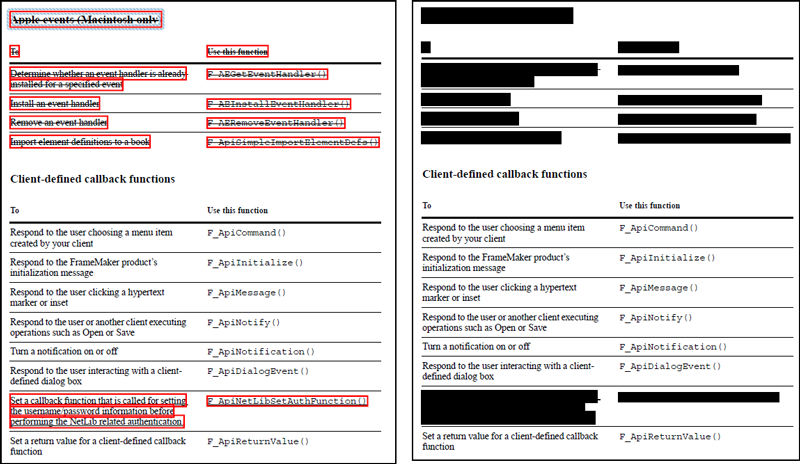
By default, thin red outlines appear around images and text you mark for redaction, and black boxes appear in place of redacted images and text. You can set the default appearance of redaction marks before you mark items for redaction. You can also change the look of redaction marks before you apply the redactions.
-
- Click the Redacted Area Fill Color icon and select a fill color from the color palette for the boxes that replace removed items. Choose No Color to leave the redacted area blank.
- Select Use Overlay Text if you want to select the custom text or redaction code options. Select the font, size, and text alignment.
- Select Custom Text, and type the text you want to appear in the redacted area.
- Select Redaction Code, and then either select a code within an existing set, or click Edit Code to define a new code set or a new code. (See Create redaction codes and code sets.)
- In the Redaction Mark Appearance area, click the Outline Color icon or Fill Color icon or both. Select a color from the color palette for the images and text you mark for redaction. Move the slider to adjust the opacity of the color. Choose No Color to leave the selected area blank.
Auto-Size Text To Fit Redaction Region
Resizes custom text to fit within the redacted area. When selected, this option overrides the Font Size setting for the overlay text.
Font Color
Displays custom text in the selected color, which you can change by clicking the color swatch.
Repeat Overlay Text
Fills the redacted area with as many instances of the custom text as needed, without changing the font size. For example, if you specify the letter x or a hyphen (-) as the custom text, these characters are repeated throughout the redacted area.
Acrobat uses overlay text to overprint areas selected for redaction. One example of overlay text is a redaction code, which consists of one or more code entries from a code set. Acrobat includes the U.S. FOIA and U.S. Privacy Act code sets that you can use. You can use either codes or custom text to create overlay text. The difference is that redaction codes are text entries that you can save, export, and import. One code set can contain multiple codes.
Note:
Codes don’t save the current attributes for overlay text as part of the code definition, such as colors, font characteristics, and repetition or size of text. Codes only make the overlay text itself reusable in future sessions and by other users with whom you share code sets. You set other attributes for the code in the Redaction Tool Properties dialog box.

-
- To remove a code set and all of the code entries within it, select an entry form the Code Set and click Remove Set.
- To export a code set to a separate XML file that you can reuse in other PDFs or share with others, select the code set. Then click Export Set, specify a filename and location, and click Save.
- To import a previously saved code set, click Import Set, locate and select that file, and click Open.
- To rename a code set, select an entry from the Code Set, type a new name in the box below the list and click Rename Set.
Note:
To apply the same code to multiple redactions, set the redaction properties before you mark the content. In the secondary toolbar, click Properties. Select Use Overlay Text, then select Redaction Code. Select a Code Set and a code entry, then click Add Selected Entry.

