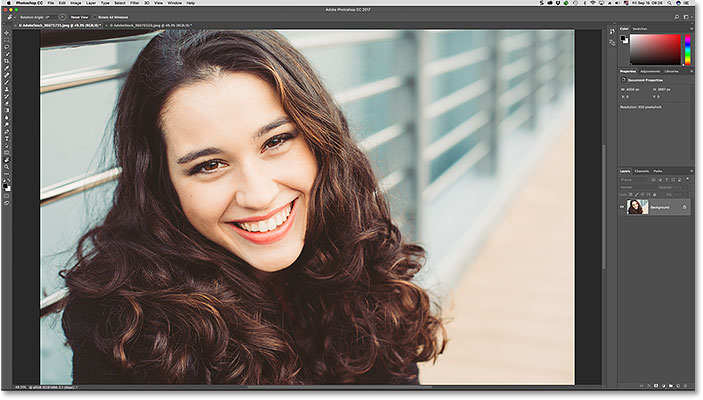
To follow along, you can open any image in Photoshop. Here’s the photo I’ll be using. I’ve actually opened two images, but we’ll save the second one for later (portrait photo from Adobe Stock):

Selecting The Rotate View Tool
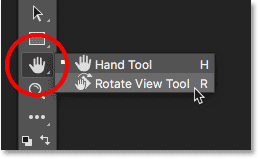
Photoshop’s Rotate View Tool is located in the same spot as the Hand Tool in the Toolbar. By default, the Hand Tool is the tool that’s visible, and the Rotate View Tool is hiding behind it. To select the Rotate View Tool, click and hold on the Hand Tool’s icon until a fly-out menu appears. Then, choose the Rotate View Tool from the menu. Notice that the Rotate View Tool has a keyboard shortcut of R. This will become important in a few moments:

How To Rotate Your View
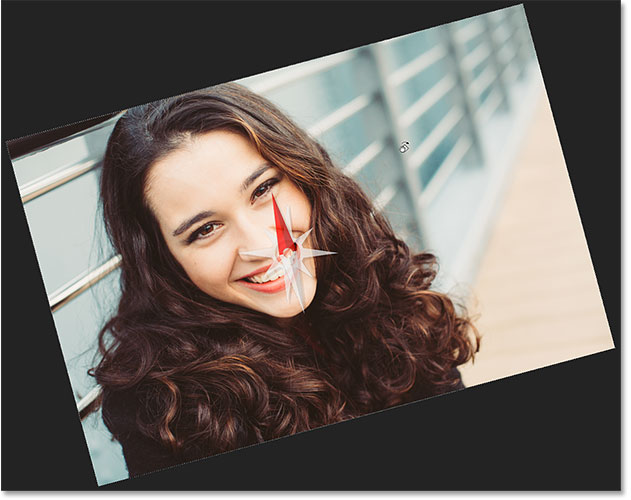
With the Rotate View Tool selected, the easiest way to rotate your view of the image is to simply click and drag inside the document window. Click on the image with the Rotate View Tool and keep your mouse button held down. A compassappears in the center. The red direction marker at the top of the compass always points to the actual top of the image, so that even when you’ve rotated the angle, you’ll always know which way is up:




Entering A Specific Rotation Angle
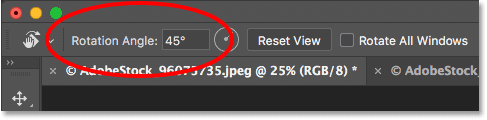
If you know the exact angle you need, you can enter it directly into the Rotation Angle box in the Options Bar. Click inside the box to highlight the current angle, and then type in your new value. Don’t worry about the degrees symbol ( ° ) because Photoshop will include it automatically. Press Enter (Win) / Return (Mac) on your keyboard when you’re done to accept it. Or, press Shift+Enter (Win) / Shift+Return (Mac) to keep the new value highlighted. This lets you quickly type in different angles without needing to click inside the box each time:

Changing The Rotation Angle With The Scrubby Slider
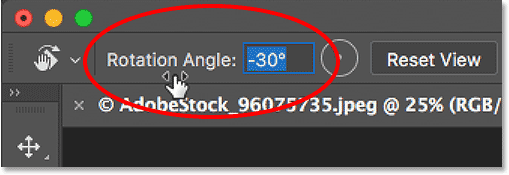
Another way to rotate your view of the image is by using Photoshop’s Scrubby Slider. Hover your mouse cursor directly over the words “Rotation Angle” in the Options Bar. Your cursor will change into a hand icon with direction arrows pointing left and right. This is the Scrubby Slider cursor. Click and drag to the right to increase the rotation angle, or drag to the left to decrease it. By default, you’ll increase or decrease the angle in 1 degree increments. Press and hold your Shift key as you drag with the Scrubby Slider to change the angle in steps of 10 degrees:

Resetting The View
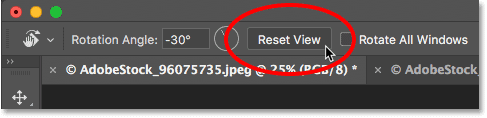
To reset your view and restore the image to its upright position, click the Reset View button in the Options Bar. Or, press the Esc key on your keyboard. You can also reset the view by double-clicking on the Rotate View Tool in the Toolbar:

Using The “Spring-Loaded” Rotate View Tool
Photoshop has a great feature known as spring-loaded tools. If you know the keyboard shortcut for a specific tool, pressing and holding that key on your keyboard will temporarily switch you to that tool for as long as the key is held down. When you release the key, you’ll switch back to the previously-active tool. Using the “spring-loaded” version of the Rotate View Tool is the fastest way to work.
Earlier, when we learned how to select the Rotate View Tool from the Toolbar, we saw that the tool has a keyboard shortcut of R. When any other tool is active, press and hold the “R” key on your keyboard to temporarily switch to the Rotate View Tool. Click and drag the image to rotate your view, and then release the “R” key to return to the previous tool. In “spring-loaded” mode, you won’t have access to any of the Rotate View Tool’s options in the Options Bar. So to reset your view when you’re done, press the Esc key on your keyboard:

Rotating The View For All Open Images At Once
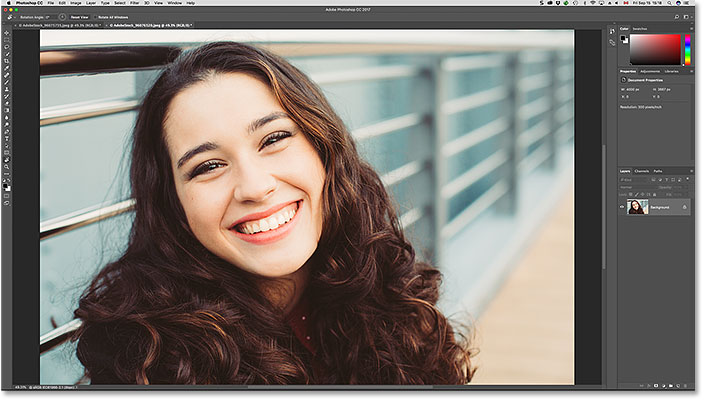
So far, we’ve learned how to rotate the view for a single image. But Photoshop makes it just as easy to rotate the view for multiple images at the same time. Here’s a second image from the same series that I’ve opened. Photoshop opens each image in its own separate document. I switched to this second image by clicking on its tab above the document window (portrait photo from Adobe Stock):

Viewing Multiple Images On The Screen
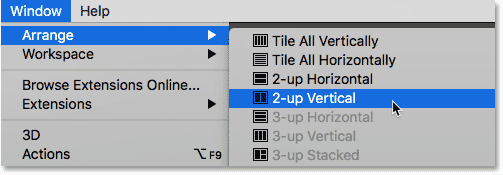
By default, we can only view one document at a time. But it’s easy to view two or more documents at once using Photoshop’s multi-document layouts. You’ll find them by going up to the Window menu in the Menu Bar and choosing Arrange. From there, choose a layout based on the number of images you’ve opened. I’ve opened two photos, so I’ll select the 2-up Vertical layout:

With the “2-up Vertical” layout selected, my images now appear side-by-side on the screen. To switch back to Photoshop’s default layout when you’re done, go back up to the Window menu, choose Arrange, and then choose Consolidate All to Tabs:
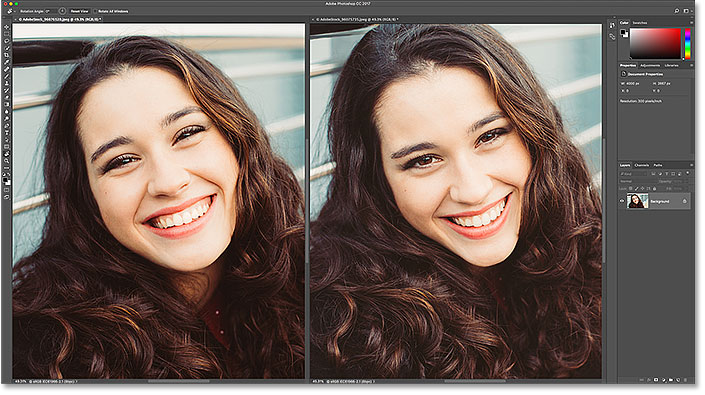

The “Rotate All Windows” Option
To rotate all open images at once, make sure you’ve selected the Rotate View Tool from the Toolbar, since the “spring-loaded” method won’t give you access to the tool’s options. Then, select the Rotate All Windows option in the Options Bar:


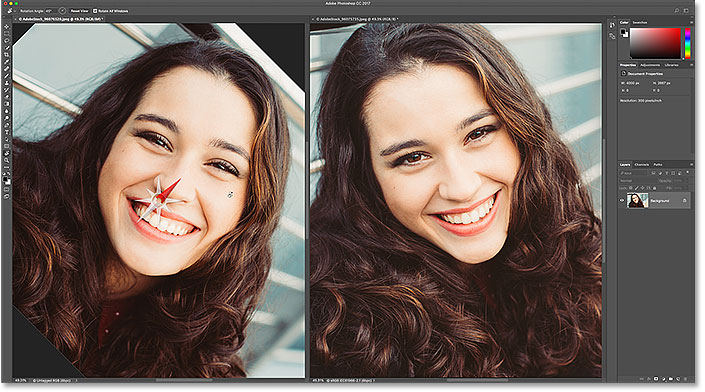
Click and hold on any image and then drag to rotate its view. At first, it will look like the view for only that one image is being rotated. Here, I’m rotating the image on the left. The image on the right hasn’t yet moved:

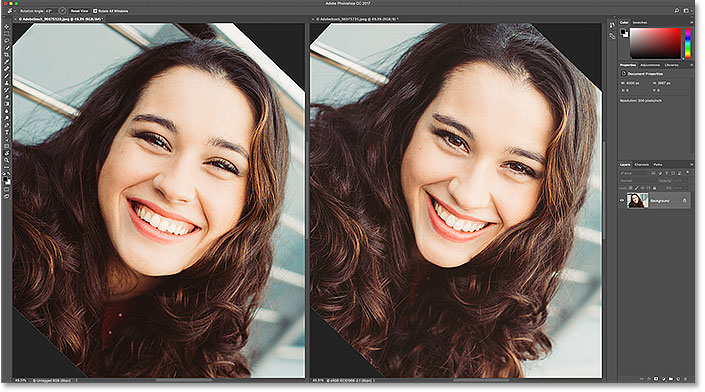
As soon as you release your mouse button, the view for the other image(s) will instantly rotate to the same angle:
Resetting The View For All Open Images
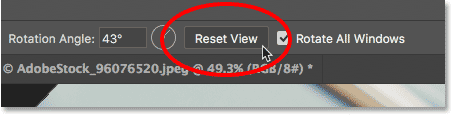
To reset the view for all open images, make sure you still have the Rotate All Windows option selected in the Options Bar. Then, click the Reset View button:

The “Match Rotation” Option
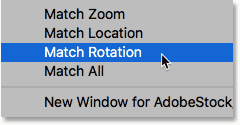
Finally, if you’re viewing multiple open images at different angles, you can instantly match them all to the same angle. First, select the document with the rotation angle you want the others to match. Then, go up to the Window menu, choose Arrange, and then choose Match Rotation. All documents will jump to the same viewing angle as the document you selected: