SPSS Syntax, Data and Output
The previous tutorials explored SPSS’ three main windows. These are
- SPSS Data Editor window
 ;
; - SPSS Syntax Editor window
 ;
; - SPSS output viewer window
 .
.
Now that we have a basic understanding of what they’re for, let’s take a look at the big picture: the figure below proposes a typical flowchart for proceeding through a research project, switching between the Syntax Editor, Data Editor and Output viewer windows.

SPSS – Keeping Your Work Organized
How people organize their project work is a rather personal matter. However, we’d like to share how we typically keep our SPSS data, syntax and output files organized in a single folder. Let’s first take a careful look at the screenshot below and then we’ll walk through some main points.
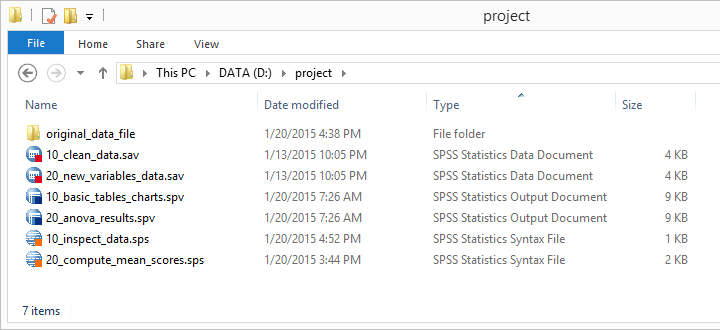
- First, try and keep all SPSS files in a single folder. Like so, you can nicely shorten some syntax by running a CD command.
- Make sure that regular backup copies of the entire project folder are made, especially if it’s located on a local hard disk.
- Never edit your original data file. In order to keep it apart from the other files, we suggest putting it in its own subfolder. You can further protect it by saving it as a read-only file.
- Number your syntax, data and output files in the order in which they occur in the project. Put the number in front of the filename so that sorting files according to file name corresponds to their chronological order.
- Using tenfolds for numbering (10, 20, 30…) allows you to insert files without breaking their order. For example, you can prefix a syntax file with 15 to indicate it should be run between the syntax files prefixed with 10 and 20.
- Try to use descriptive file names that provide at least a good clue of what’s in there.
Final Note
Admittedly, keeping your work organized will cost you some time and effort. However, not keeping your work organized will eventually cost you much more time and effort. We really hope you don’t have to learn this the hard way.