This article contains Count | Countif | Countifs | Sum | Sumifs | Count Text Occurrences | Count Logical Values | Count Blank/Nonblank Cells | Sumproduct
The most used functions in Excel are the functions that count and sum. You can count and sum based on one criteria or multiple criteria.
Count
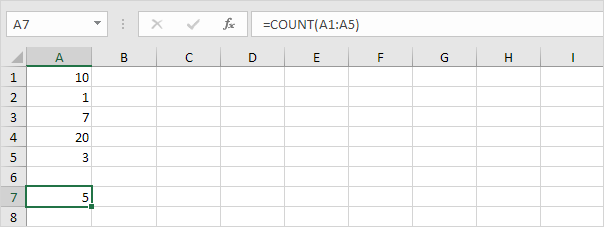
To count the number of cells that contain numbers, use the COUNT function.
Countif
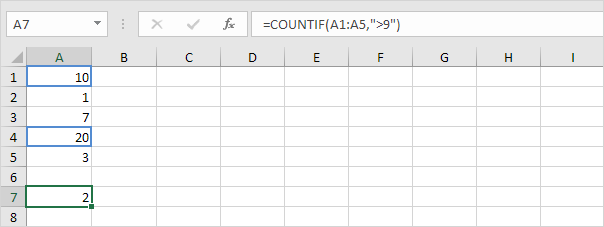
To count cells based on one criteria (for example, higher than 9), use the following COUNTIF function.
Countifs
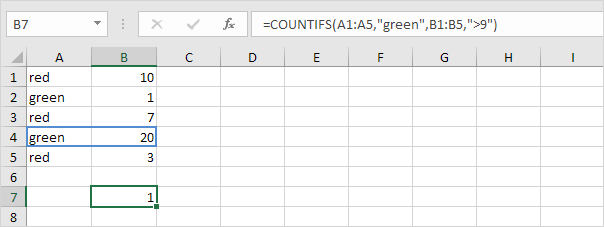
To count cells based on multiple criteria (for example, green and higher than 9), use the following COUNTIFS function.
Sum
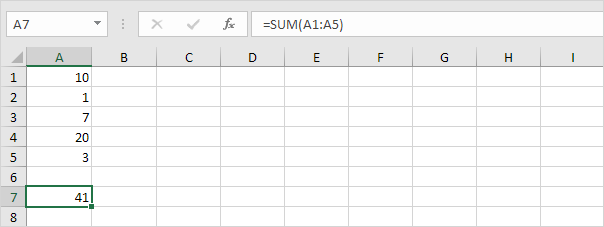
To sum a range of cells, use the SUM function.
Sumif
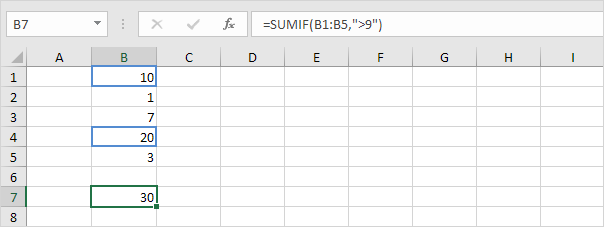
To sum cells based on one criteria (for example, higher than 9), use the following SUMIF function (two arguments).
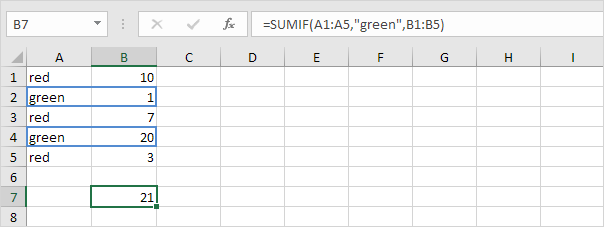
To sum cells based on one criteria (for example, green), use the following SUMIF function (three arguments, last argument is the range to sum).
Sumifs
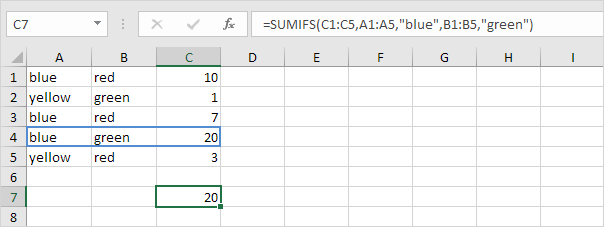
To sum cells based on multiple criteria (for example, blue and green), use the following SUMIFS function (first argument is the range to sum).
General note: in a similar way, you can use the AVERAGEIF and AVERAGEIFS function to average cells based on one or multiple criteria.
Count Text Occurrences
This example teaches you how to count the number of occurrences of text in a range.
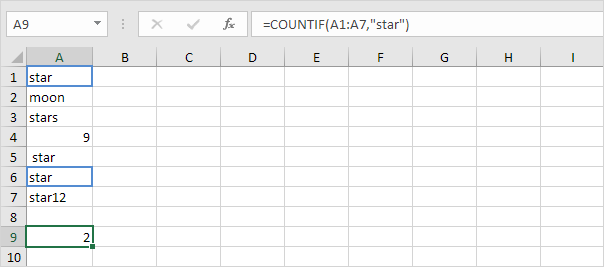
1. For example, to count the number of cells that contain exactly star.
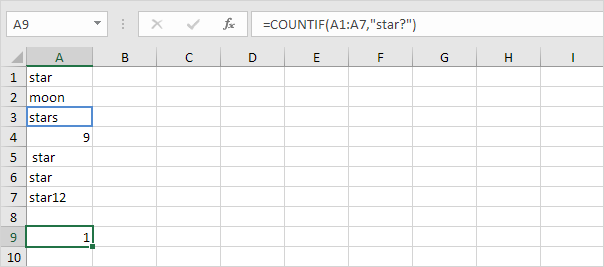
2. For example, to count the number of cells that contain exactly star + 1 character. A question mark (?) matches exactly one character.
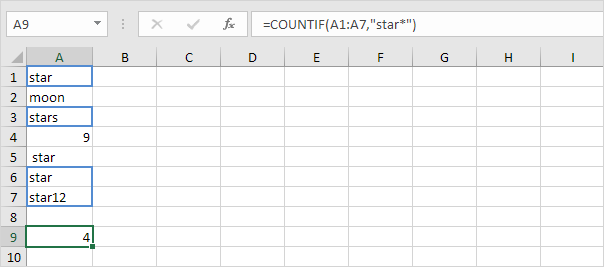
3. For example, to count the number of cells that contain exactly star + a series of zero or more characters. An asterisk (*) matches a series of zero or more characters.
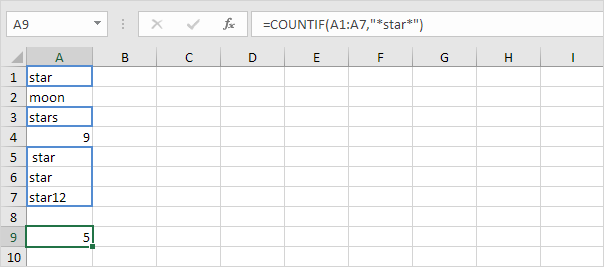
4. For example, to count the number of cells that contain star in any way. No matter what is before or after star, this function finds all the cells that contain star in any way.
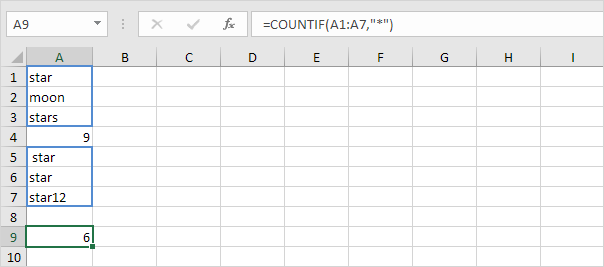
5. For example, to count the number of cells that contain text.
Count Logical Values
Learn how to count the number of cells that contain logical values (TRUE and FALSE) in Excel.
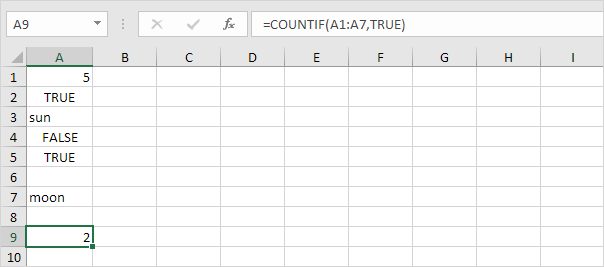
1. For example, to count the number of cells that contain TRUE.
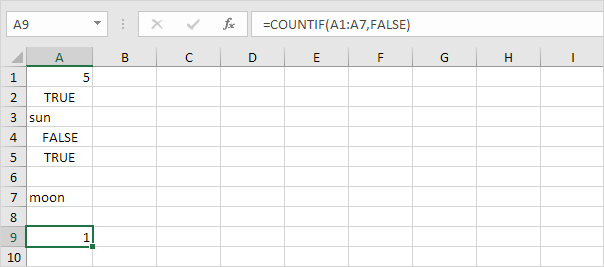
2. For example, to count the number of cells that contain FALSE.
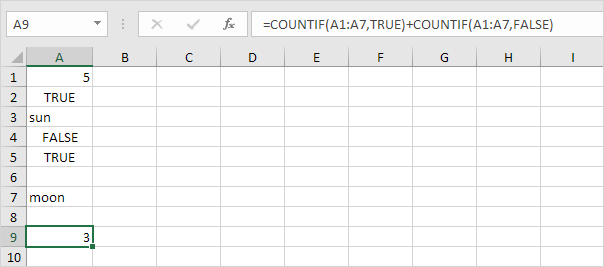
3. For example, to count the number of cells that contain TRUE or FALSE.
Count Blank/Nonblank Cells
This example shows you how to count the number of blank and nonblank cells in Excel.
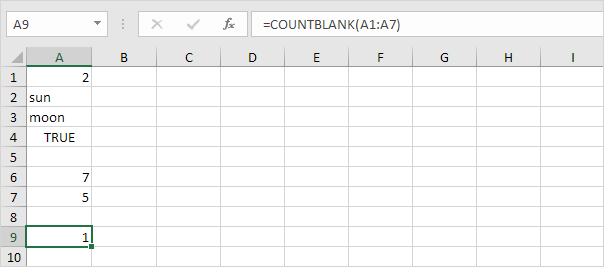
1. The COUNTBLANK function counts the number of blank cells.
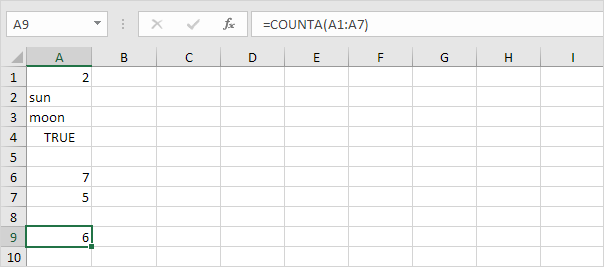
2. The COUNTA function counts the number of nonblank cells. COUNTA stands for count all.
Sumproduct
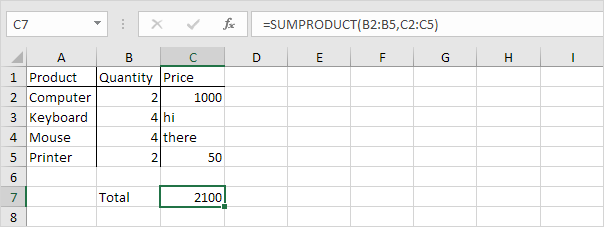
To calculate the sum of the products of corresponding numbers in one or more ranges, use Excel’s powerful SUMPRODUCT function.
1. For example, the SUMPRODUCT function below calculates the total amount spent.
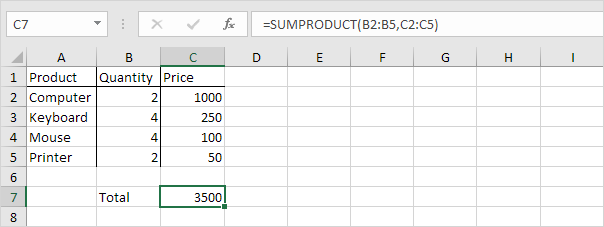
Note: the SUMPRODUCT function performs this calculation: (2 * 1000) + (4 * 250) + (4 * 100) + (2 * 50) = 3500.
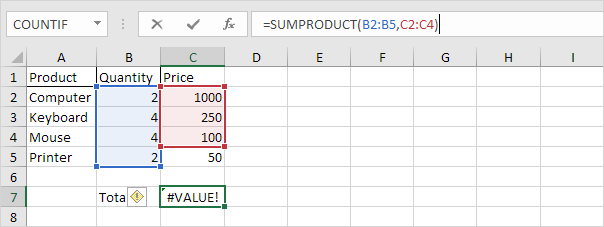
2. The ranges must have the same dimensions or Excel will display the #VALUE! error.
3. The SUMPRODUCT function treats any entries that are not numeric as if they were zeros.