Today we’re going to show you exactly how to use the YouTube Community Tab.
The YouTube Community Tab is a powerful way to grow your channel and engage with your audience. It allows you to reach not just your current subscribers but also new non-subscribers incredibly easily with Community posts.

In this ultimate guide we’ll cover:
- How to enable the Community Tab on YouTube
- How to create YouTube Community posts
- How to navigate all the latest YouTube Community Tab features
- How to grow your channel faster using the Community tab
- Lots more!
We’ve found that heaps of content creators are loving the Community tab, with reports that it’s increasing subscribers and channel visitors.
So if you want to increase your YouTube engagement and gain more organic traffic, you’ll love this YouTube Community Tab tutorial. You’ll learn exactly how and why Community posts should be a part of your YouTube marketing strategy.
What Are Community Posts
With the Community Tab, you can post heaps of different content on YouTube. While you used to only be able to post videos, you can now post text, polls, images, GIFs and videos (you can even link to your own YouTube videos). Community posts are almost like Facebook posts!
Who Has Access to Community Posts
Right now, channels with less than 500 subscribers don’t have access to Community posts. YouTube has said they’re looking at expanding this to make the feature accessible to more people, so keep an eye out if you fall in that threshold.
But at the moment you won’t have access until your channel passes 500 subscribers.
What Can You Post on YouTube Community
Community posts are a great way for you to connect and engage with your audience on a deeper level, outside of your regular YouTube videos.
Here are a few ideas of what you could post:
- Behind the scenes content of things you’re working on, giving viewers a more intimate look into your channel
- Ask questions or feedback on what you’re covering in your regular videos
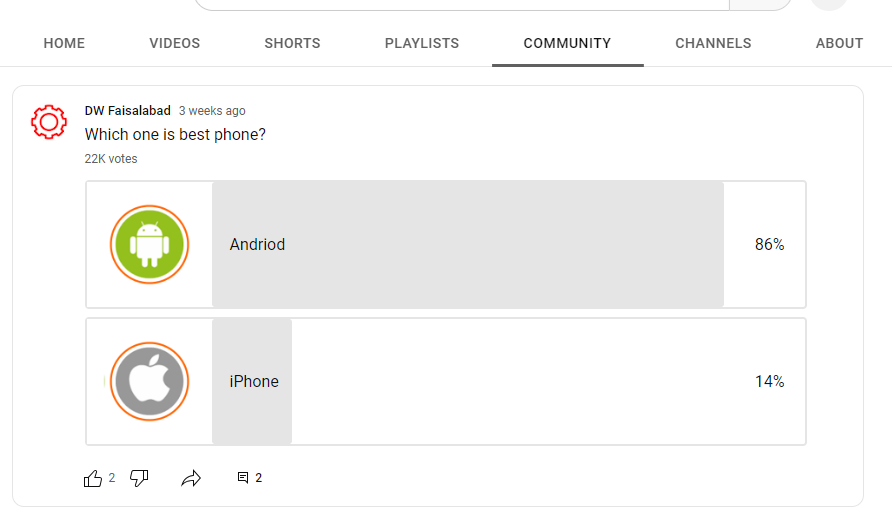
- Run polls and survey your audience to find out what they like, what they’re up to, or maybe even what direction they see your channel going
- Share your latest YouTube videos in case your viewers haven’t seen them yet
- Build anticipation for your future content with text posts or video snippets
- Promote old videos to give them an engagement boost
Who Can Find Community Posts
One of the most exciting things about Community posts is that they get some awesome organic reach. This means people outside your current subscriber base can find and interact with you through your Community posts.
Obviously this isn’t guaranteed but it’s definitely something that can help with increasing your reach on the platform. It can mean that people are coming across your posts before they’ve even seen any of your YouTube videos.
It also seems like once someone has interacted with one of your Community posts, they’re much more likely to come across your regular content even if they haven’t seen any of your content before. This is because now they’ve interacted with your channel.
How To Create A Community Post On Desktop
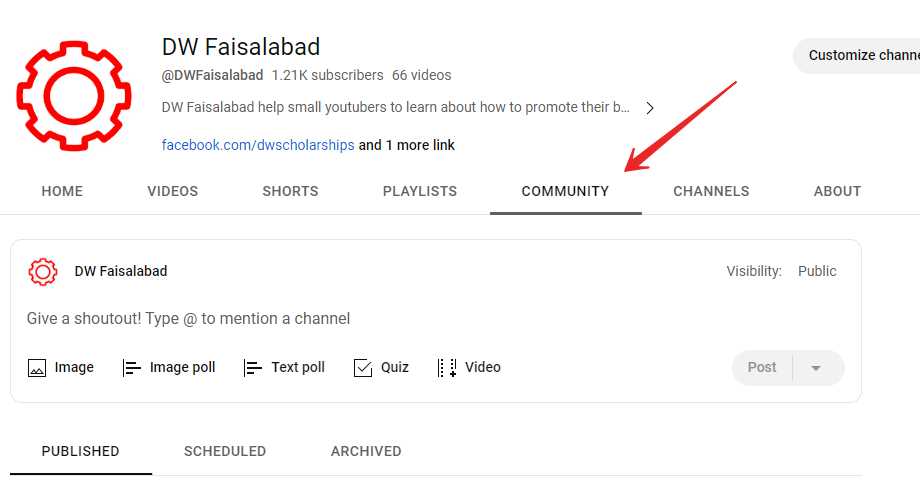
Creating and sharing posts in the Community Tab is super easy on desktop. On the YouTube website, press the Create button (the little camera with a plus) and then select Create post. This will take you over to your Community Tab page on your channel. Inside the top text box is where you can create your post.

YouTube Community Tab Features
- You can enter text for a text post
- You can select Video and choose a video on YouTube by searching, pasting the URL, or selecting from your channel
- You can create a poll by selecting Poll, typing your question in the top box and then adding up to five responses that viewers can choose from
- You can insert an image or GIF by selecting Image but it must have an aspect ratio between two by five or five by two (Also remember to only select images and GIFs that you have permission to use)
How To Mention People In Community Posts
Another great feature is that you can @ mention people in the text box. When you mention a person, they will get a notification and it’s also a clickable link so other people can check out their channel.
How To Publish Your Community Post
Once you’ve created an epic Community post, simply press the Post button and your post will be visible on your Community page.
More YouTube Community Post ideas
YouTube will give you great little suggestions inside the text box about the different things you can post, so if you need some more inspiration jump on there and take a look. Some of the suggestions include ‘Share a sneak peek of your next video’ and ‘Share an image to start a caption contest’ – both awesome ideas.
How to Schedule Community Posts on Desktop
To schedule a Community post for a later time, select the little down arrow button next to Post and press Schedule post. You can choose the date, time and time zone.
Once you’ve filled those out, select Schedule. This is awesome because it allows you to bulk create Community posts and then schedule up your content so you don’t have to constantly think about creating and posting.
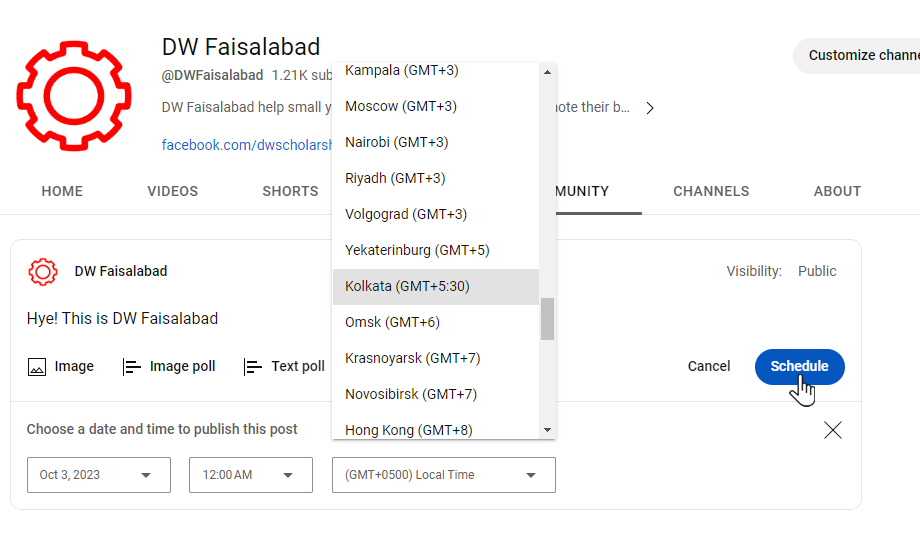

One note to make here is that once you’ve hit Schedule, you can no longer edit that post. So make sure you double and triple check each post before scheduling. Otherwise you’ll need to delete the post and start again.
How To Create A Community Post On Mobile
Now, let’s go over how to create a community post on your smartphone.
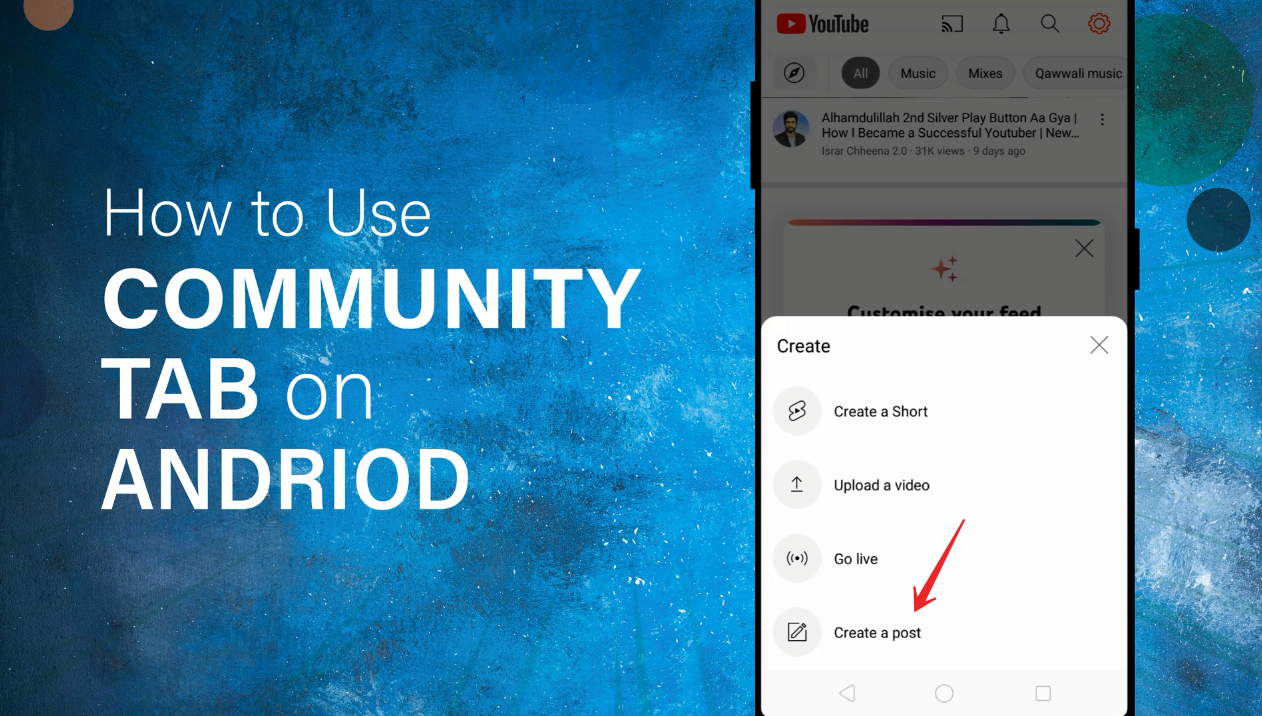
Open the YouTube app on your iOS or Android device and select the + button in the bottom middle of the screen. Press Create a post.
From there, you can type in the top field to create a text post. To create a poll, select the poll button in the bottom left corner of the screen. To upload an image or GIF, select the image button next to the poll button.

Sharing a YouTube video on the app is a bit different than on desktop. You’ll need to find the video you want to share on YouTube, select the Share button and then select Create post. This will embed the video into your post. Alternatively, you can copy and paste the URL into the text field of your post.
If you want to share your awesome Community post right away, you can hit the Post button in the top right corner.
How To Schedule A Community Post On Your Smartphone
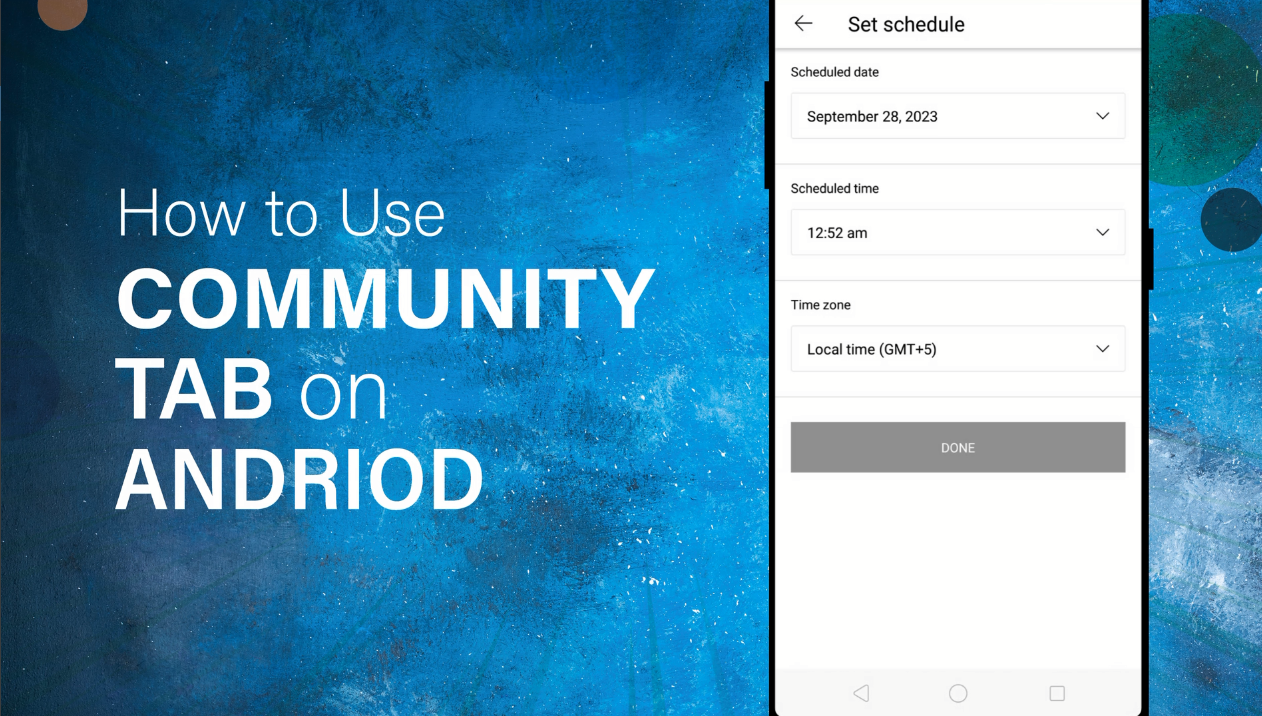
To schedule a Community post on your smartphone, select the clock button in the top right corner (just below the Post button). Once again, you can choose the date, time and time zone for when you want the post to be sent out.
Which Community Posts Work The Best
So, at this point you’re probably wondering which posts work the best to increase your YouTube engagement. Is it text posts, polls, images, GIFs or videos? Well, our testing has shown a clear winner…
Polls! These have fostered the most viewer engagement for us by far. People love connecting, engaging and answering questions. We think the simplicity of the poll is the reason behind its popularity – it’s simple, fast, a little rewarding, and then people can continue scrolling.
So polls are the clear stand out right now but you can also get awesome results with images, GIFs and even text posts where you’re writing a paragraph and sharing an update.