Opening The Color Settings Dialog Box
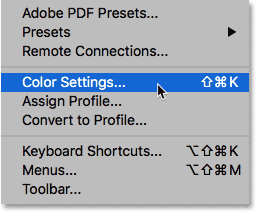
Let’s quickly recap the color settings we changed in the previous tutorial. To access Photoshop’s color settings, go up to the Edit menu at the the top of the screen and choose Color Settings:
Choosing Your Custom Preset
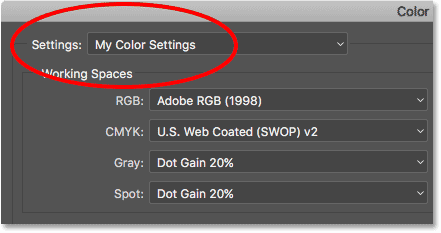
The Color Settings dialog box will open. If you followed along with the previous tutorial, your Settings option at the top should already be set to your custom preset. In my case, I named my preset “My Color Settings”:
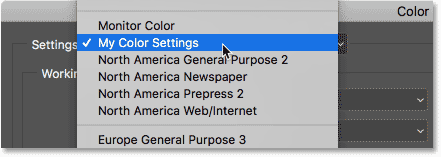
If, for some reason, your custom preset is not already selected, click on the name of the current preset. Then choose your custom preset from the list:
The RGB Working Space
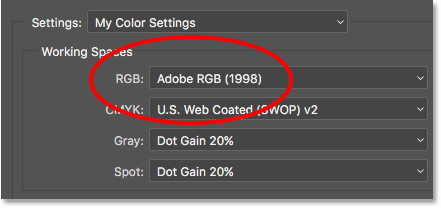
With the custom preset active, we see that our RGB working space has been changed from sRGB to Adobe RGB:
The Color Management Policies
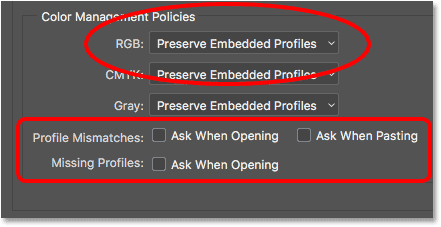
And in the Color Management Policies section, we’ve made sure that the RGB option (along with CMYK and Gray) is set to Preserve Embedded Profiles. Also, the Profile Mismatches and Missing Profiles checkboxes are all unchecked. We learned about these options in the previous tutorial:
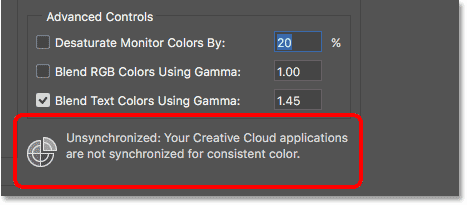
Notice that the Color Settings dialog box is telling us that, at the moment, our custom settings only apply to Photoshop. They have not yet been synchronized with our other Creative Cloud or Creative Suite apps:
Closing The Color Settings Dialog Box
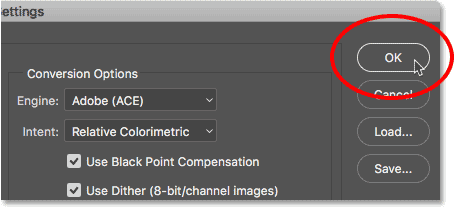
To close Photoshop’s Color Settings dialog box, click OK:
How To Sync Your Color Settings
Step 1: Open Adobe Bridge
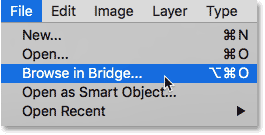
Let’s synch our custom Photoshop color settings with the rest of the Creative Cloud or Creative Suite. To do that, we’ll need Adobe Bridge. To open Adobe Bridge from within Photoshop, go up to the File menu at the top of the screen and choose Browse in Bridge:
Step 2: Open The Color Settings Dialog Box
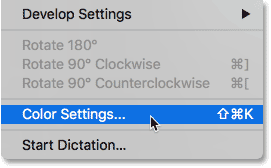
Then in Bridge CC, go up to the Edit menu and choose Color Settings. In Bridge CS6, go up to the Edit menu and choose Creative Suite Color Settings. This opens the Color Settings dialog box:
Step 3: Choose Your Custom Color Settings Preset
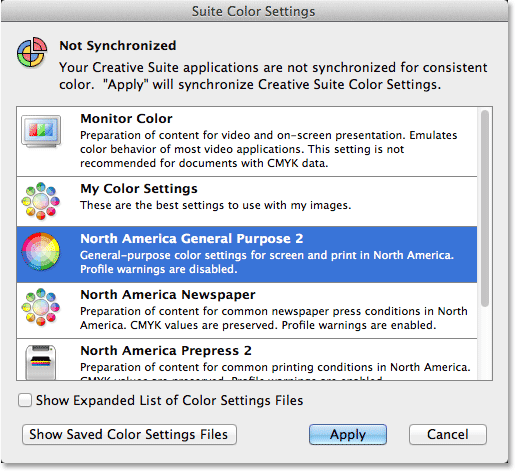
Notice that the Color Settings dialog box in Bridge looks different from the one we saw back in Photoshop. Rather than choosing individual color settings, here we choose a color settings preset. The preset will then be synchronized across every app in the Creative Cloud or Creative Suite. By default, the North America General Purpose 2 preset is selected. This is the same preset Photoshop was using before we changed it. At the top of the dialog box, we see another message telling us that our color settings are not yet synchronized:
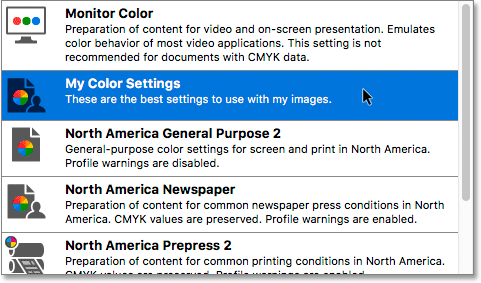
Choose your custom preset (the one you created in Photoshop) from the list. I’ll choose the “My Color Settings” preset. Notice that the description we added for the preset back in Photoshop appears below the preset’s name:
Step 4: Click “Apply”
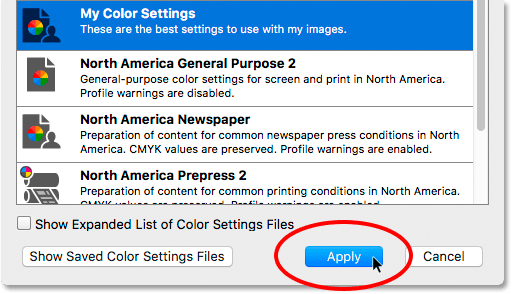
To sync your preset across every app in the Creative Cloud or Creative Suite, click Apply at the bottom of the dialog box:
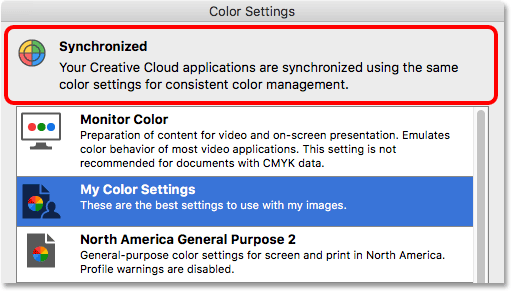
Bridge closes the Color Settings dialog box after you click the “Apply” button. To see what has actually happened, let’s quickly re-open it. Go up to the Edit menu and choose Color Settings (CC) or Creative Suite Color Settings (CS6). This time, the Color Settings dialog box opens with our custom preset already selected. And, the message at the top of the dialog box now tells us that we’ve successfully synced the preset will every app in the Creative Cloud / Creative Suite: