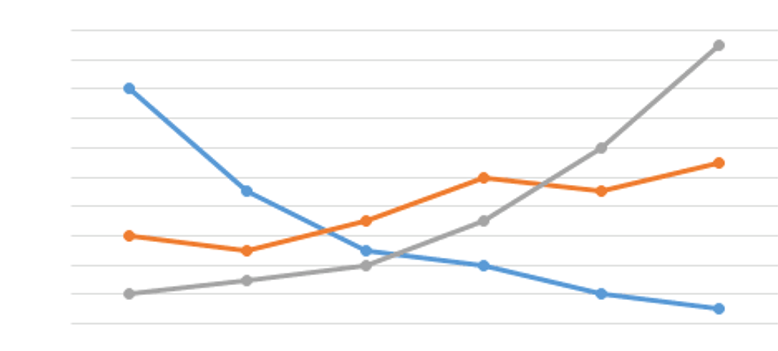
Creating a Chart in MS Excel

To create a line chart, execute the following steps. 1. Select the range A1:D7. 2. On the Insert tab, in the Charts group, click the Line symbol. 3. Click Line with Markers. Result: Note: enter a title by clicking on Chart Title. For example, Wildlife Population. Change Chart Type You can easily change to a […]

Pareto Chart

This example teaches you how to create a Pareto Chart in Excel. The Pareto principle states that, for many events, roughly 80% of the effects come from 20% of the causes. In this example, we will see that roughly 80% of the complaints come from 20% of the complaint types. To create a Pareto chart […]

Gantt Chart

Excel does not offer Gantt as chart type, but it’s easy to create a Gantt chart by customizing the stacked bar chart type. Below you can find our Gantt chart data. To create a Gantt chart, execute the following steps. 1. Select the range A3:C11. 2. On the Insert tab, in the Charts group, click […]

Thermometer Chart

This example teaches you how to create a thermometer chart in Excel. A thermometer chart shows you how much of a goal has been achieved. To create a thermometer chart, execute the following steps. 1. Select cell B16. Note: adjacent cells should be empty. 2. On the Insert tab, in the Charts group, click the […]

Gauge Chart

A gauge chart (or speedometer chart) combines a Doughnut chart and a Pie chart in a single chart. If you are in a hurry, simply download the Excel file. This is what the spreadsheet looks like. To create a gauge chart, execute the following steps. 1. Select the range H2:I6. Note: the Donut series has […]

Combination Chart

A combination chart is a chart that combines two or more chart types in a single chart. To create a combination chart, execute the following steps. 1. Select the range A1:C13. 2. On the Insert tab, in the Charts group, click the Combo symbol. 3. Click Create Custom Combo Chart. The Insert Chart dialog box […]

Sparklines

Insert Sparklines  |  Customize Sparklines Sparklines in Excel are graphs that fit in one cell and give you information about the data. Insert Sparklines To insert sparklines, execute the following steps. 1. Select the cells where you want the sparklines to appear. In this example, we select the range G2:G4. 2. On the Insert tab, […]

Error Bars

This example teaches you how to add error bars to a chart in Excel. 1. Select the chart. 2. Click the + button on the right side of the chart, click the arrow next to Error Bars and then click More Options. Notice the shortcuts to quickly display error bars using the Standard Error, a […]

Trendline

This example teaches you how to add a trendline to a chart in Excel. 1. Select the chart. 2. Click the + button on the right side of the chart, click the arrow next to Trendline and then click More Options. The Format Trendline pane appears. 3. Choose a Trend/Regression type. Click Linear. 4. Specify […]

Chart Sheet

So far we have only seen charts on the same worksheet as the source data (embedded charts). However, you can also move a chart to a separate sheet that only contains a chart (chart sheet). To move a chart to a chart sheet, execute the following steps. 1. Select the chart. 2. On the Design […]

Axes

Axis Type  |  Axis Titles  |  Axis Scale Most chart types have two axes: a horizontal axis (or x-axis) and a vertical axis (or y-axis). This example teaches you how to change the axis type, add axis titles and how to change the scale of the vertical axis. To create a column chart, execute the […]

Data Series

Select Data Source | Switch Row/Column | Add, Edit, Remove and Move A row or column of numbers that are plotted in a chart is called a data series. You can plot one or more data series in a chart. To create a column chart, execute the following steps. 1. Select the range A1:D7. 2. […]

Scatter Chart

Straight Lines  |  Only Markers Use a scatter chart (XY chart) to show scientific XY data. Scatter charts are often used to find out if there’s a relationship between variable X and Y. Straight Lines To create a scatter chart, execute the following steps. 1. Select the range A1:D22. 2. On the Insert tab, in […]

Area Chart

An area chart is a line chart with the areas below the lines filled with colors. Use a stacked area chart to display the contribution of each value to a total over time. To create an area chart, execute the following steps. 1. Select the range A1:D7. 2. On the Insert tab, in the Charts […]

Bar Chart

A bar chart is the horizontal version of a column chart. Use a bar chart if you have large text labels. To create a bar chart, execute the following steps. 1. Select the range A1:B6. 2. On the Insert tab, in the Charts group, click the Column symbol. 3. Click Clustered Bar. Result: .

Pie Chart

Pie charts are used to display the contribution of each value (slice) to a total (pie). Pie charts always use one data series. To create a pie chart of the 2017 data series, execute the following steps. 1. Select the range A1:D2. 2. On the Insert tab, in the Charts group, click the Pie symbol. […]

Line Chart

Line charts are used to display trends over time. Use a line chart if you have text labels, dates or a few numeric labels on the horizontal axis. Use a scatter chart (XY chart) to show scientific XY data. To create a line chart, execute the following steps. 1. Select the range A1:D7. 2. On […]

Column Chart

Column charts are used to compare values across categories by using vertical bars. To create a column chart, execute the following steps. 1. Select the range A1:A7, hold down CTRL, and select the range C1:D7. 2. On the Insert tab, in the Charts group, click the Column symbol. 3. Click Clustered Column. Result: Note: only […]