

By default, Excel copies both visible and hidden cells. However, it is possible to copy visible cells only.
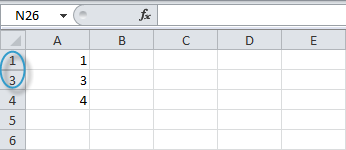
In this example, row 2 is hidden.
When you copy/paste this range, this is the result:
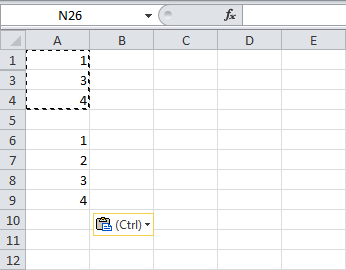
To copy visible cells only, execute the following easy steps.
1. Select the range A1:A4.
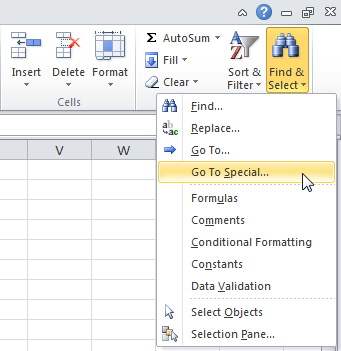
2. On the Home tab, click Find & Select, Go To Special…
3. Click Visible cells only and click OK.
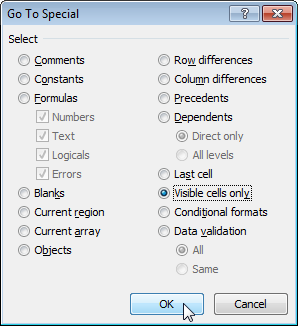
Excel selects the visible cells.
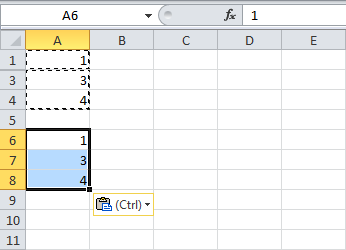
4. Press Ctrl + c to copy the range.
5. Select cell A6 and press Ctrl + v to paste the range.
Result:
.

