

Function | Sub
The difference between a function and a sub in Excel VBA is that a function can return a value while a sub cannot. Functions and subs become very useful as program size increases.
Function
If you want Excel VBA to perform a task that returns a result, you can use a function. Place a function into a module (In the Visual Basic Editor, click Insert, Module). For example, the function with name Area.
Function Area(x As Double, y As Double) As Double
Area = x * y
End Function
Explanation: This function has two arguments (of type Double) and a return type (the part after As also of type Double). You can use the name of the function (Area) in your code to indicate which result you want to return (here x * y).
You can now refer to this function (in other words call the function) from somewhere else in your code by simply using the name of the function and giving a value for each argument.
Place a command button on your worksheet and add the following code lines:
Dim z As Double
z = Area(3, 5) + 2
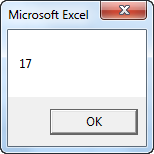
MsgBox z
Explanation: The function returns a value so you have to ‘catch’ this value in your code. You can use another variable (z) for this. Next, you can add another value to this variable (if you want). Finally, display the value using a MsgBox.
Result when you click the command button on the sheet:
Sub
If you want Excel VBA to perform some actions, you can use a sub. Place a sub into a module (In the Visual Basic Editor, click Insert, Module). For example, the sub with name Area.
Sub Area(x As Double, y As Double)
MsgBox x * y
End Sub
Explanation: This sub has two arguments (of type Double). It does not have a return type! You can refer to this sub (call the sub) from somewhere else in your code by simply using the name of the sub and giving a value for each argument.
Place a command button on your worksheet and add the following code line:
Area 3, 5
Result when you click the command button on the sheet:
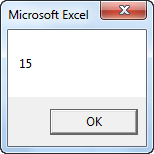
Can you see the difference between the function and the sub? The function returned the value 15. We added the value 2 to this result and displayed the final result. When we called the sub we had no more control over the result (15) because a sub cannot return a value!
User Defined Function
Below we will look at a program in Excel VBA that creates a User Defined Function. Excel has a large collection of functions. In most situations those functions are sufficient to get the job done. If not, you can create your own function called User Defined Function or custom Excel function. You can access a User Defined Function just like any other Excel function.
We want to create a function called SUMEVENNUMBERS that finds the sum of the even numbers of a randomly selected range.
Situation:
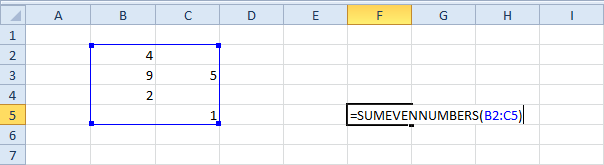
User defined functions need to be placed into a module.
1. Open the Visual Basic Editor and click Insert, Module.
2. Add the following code line:
Function SUMEVENNUMBERS(rng As Range)
The name of our Function is SUMEVENNUMBERS. The part between the brackets means we give Excel VBA a range as input. We name our range rng, but you can use any name.
3. Next, we declare a Range object and call it cell.
Dim cell As Range
4. We want to check each cell in a randomly selected range (this range can be of any size). In Excel VBA, you can use the For Each Next loop for this. Add the following code lines:
For Each cell In rng
Next cell
Note: cell is randomly chosen here, you can use any name.
5. Next, we check for each value in this range whether it is even or not. We use the Mod operator for this. The Mod operator gives the remainder of a division. So 7 mod 2 would give 1. 7 is divided by 2 (3 times) to give a remainder of 1. Having said this, it is easy to check whether a number is even or not. Only if the remainder of a number divided by 2 is 0, the number is even. 8 mod 2 gives 0, 8 is divided by 2 exactly 4 times, and therefore 8 is even. Add the following If statement to the For Each Next loop.
If cell.Value Mod 2 = 0 Then
End If
6. Only if this statement is true, we add the value to SUMEVENNUMBERS. Add the following code line in the If statement.
SUMEVENNUMBERS = SUMEVENNUMBERS + cell.Value
7. Don’t forget to end the function (outside the loop).
End Function
8. Now you can use this function, just like any other Excel function, to find the sum of the even numbers of a randomly selected range.
Result:
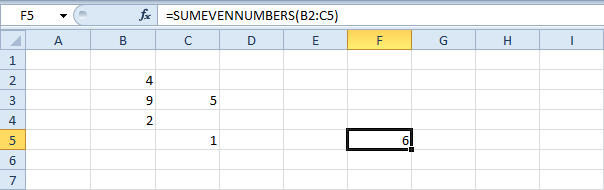
Well done! That’s how easy User Defined Functions in Excel VBA are. Note: this function is only available in this workbook.

