Several Windows users are reporting that they are unable to use the arrow keys to move between the cells in Microsoft Excel. This seems to be recurring issues that happen on a lot of different Office versions including on Excel 2010, Excel 2013 and Excel 2016
What is causing the arrow keys to stop working on Excel?
We investigated this particular issue by looking at various user reports and the repair strategies that are commonly being used to fix this behavior. As it turns out, there are several different potential culprits that might trigger this odd behavior:
- Scroll Lock Key is enabled – This is the most common culprit that will trigger this issue. In most cases, the key is accidentally enabled by the user via the FN keys. If this scenario is applicable, you can resolve the issue by using the On-screen keyboard to disable the Screen Lock.
- Glitched sticky keys – Another potential cause that will cause this behavior is if the Sticky keys are stuck in a limbo state. Several users that have been encountering this issue have reported that they managed to resolve it by temporarily enabling and then disabling the sticky keys.
- Corrupted Add-in or Add-in conflict – Certain add-ins or an add-in conflict can also be responsible for this behavior. If this scenario is applicable, you can resolve the issue by removing any suspicious add-in from your active fleet.
- Excel is in Formula Entry mode
- Freeze Panes has locked the visible area of the sheet
- Unprotect the Excel workbook
Disabling Scroll Lock Key
Disabling scroll lock with the keyboard key
On a Windows computer, to toggle scroll lock on and off, press the Scroll Lock key. On most keyboards, it’s located in the control keys section of the keyboard, above the arrow keys or right of the function keys.
Disabling Scroll Lock Key via On-Screen keyboard
If the whole worksheet is moving when you press one of the arrow keys instead of moving from cell to cell, chances are that the culprit for this behavior is the Scroll Lock Key. You probably don’t have a Scroll Lock key on your keyboard since the majority of manufacturers no longer include it on newer models, but you might have enabled it by using an FN combination.
If this scenario is applicable to your current situation, you can resolve the issue easily by using the on-screen keyboard to turn the Scroll Lock key back off. Here’s a quick guide on how to do this:
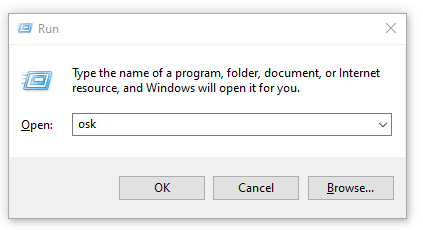
- Press Windows key + R to open up a Run dialog box. Then, type “osk” and press Enter to open up the On-Screen Keyboard.
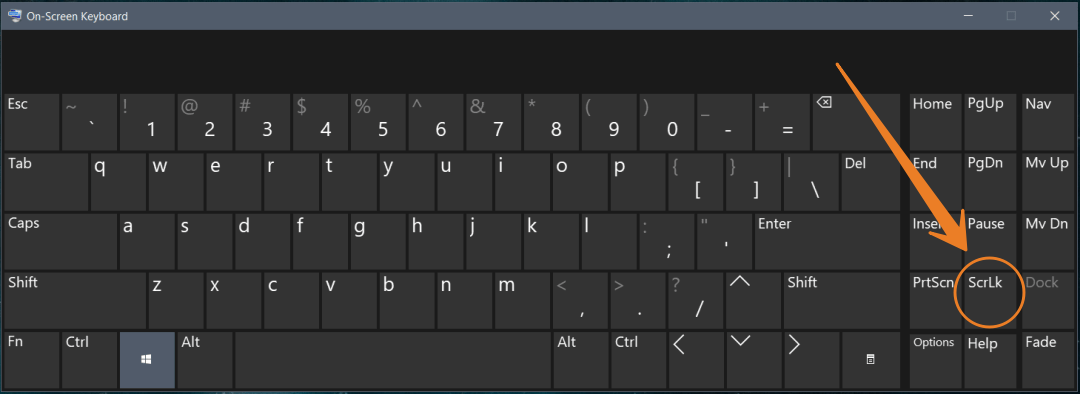
- Inside the On-Screen Keyboard interface, click on the ScrLk key once to deactivate it. If the key associated with Screen Lock returns to the color of the rest of keys, Screen Lock was successfully disabled.
- Open an Excel sheet and see if it resolved the issue.
Turn on the Sticky Key
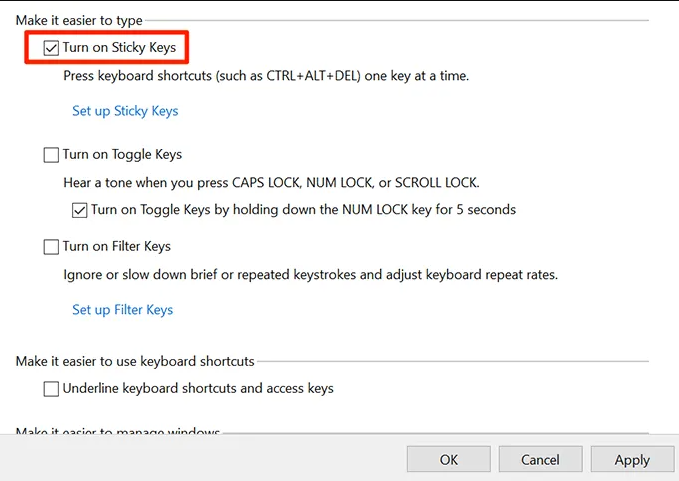
Disable Scroll Lock didn’t work? Well, try this method. Many users have reported that the Arrow Keys issue on Excel is fixed by enabling Sticky key. Follow the steps below to enable Sticky Key,
- Type Control Panel in Start Menu
- Click on Control Panel
- Select Turn On Sticky Keys option and click OK
- Go back and uncheck the Turn On Sticky Keys option
Disable Add-Ins
Disable suspicious add-ins. To find a recent add-in you installed and disable it, select File > Options > Add-ins. Then select Excel Add-ins > Go. Deselect all add-ins and select OK. If your arrow keys work again, you can go back and enable the add-ins one at a time to narrow down the culprit.
Excel is in Formula Entry mode
Exit Formula Entry mode by pressing Enter. Formula Entry mode is when you select a cell in Excel, type = and then start typing a function. If you press an arrow key in this mode, the selected cell in the formula will change, but the arrow keys won’t control the cursor in the sheet.
To get arrow keys working again, press Enter and then Ctrl-Z to undo the current formula. This behavior can be confusing so make sure you understand how to correctly enter data into Excel cells.
Freeze Panes has locked the visible area of the sheet
Unfreeze rows or columns inside the current view. If all the cells in the sheet you’re looking at are inside of a group of columns or rows you’ve frozen, it may appear as though arrow keys stopped working in Excel. This isn’t the case.
If you don’t want to unfreeze those panes, you could also try to zoom out the magnification in Excel so that you can use the arrow keys in the section of the spreadsheet that isn’t frozen.
Unprotect the Excel workbook
Unprotect the Excel workbook. When you open a protected workbook or worksheet, you won’t be able to select cells or scroll through them. Unprotect the sheet first and arrow keys will work.