Duplicate values happen when the same value or set of values appear in your data.
1. Remove duplicate values with the Remove Duplicates command
This example teaches you how to remove duplicates in Excel.
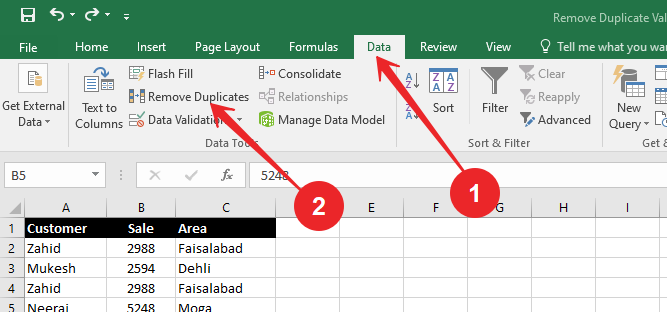
1. Click any single cell inside the data set.
2. On the Data tab, in the Data Tools group, click Remove Duplicates.
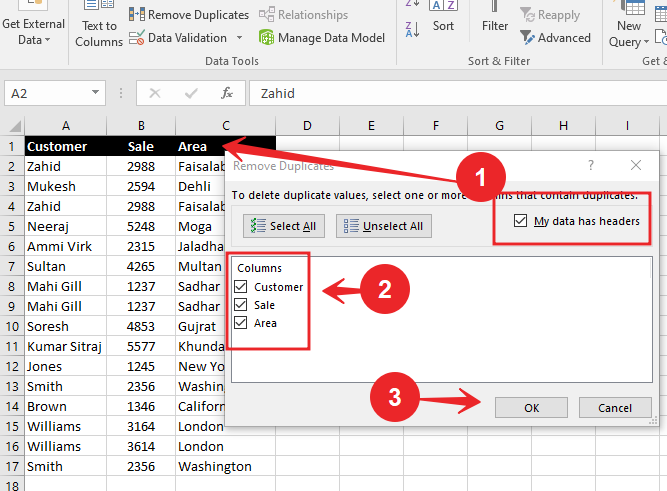
The following dialog box appears.
3. Leave all check boxes checked and click OK.
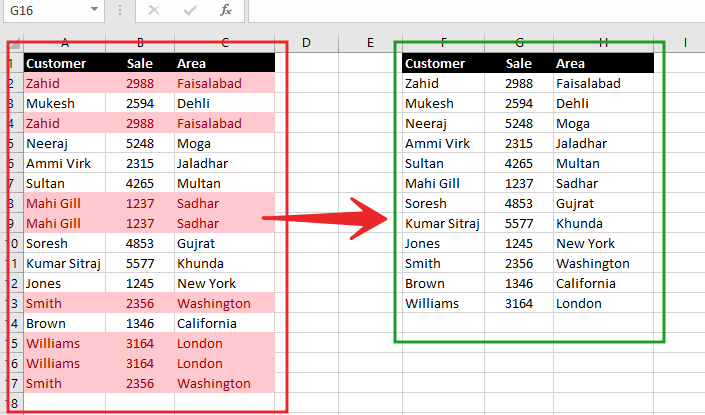
Result. Excel removes all identical rows (Red highlighted) except for the first identical row found.
Lean MS Excel step by stelp, Click here. You can also download original copy of MS Office from here
Take Another example with different trick
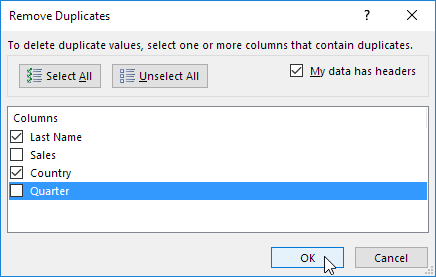
To remove rows with the same values in certain columns, execute the following steps.
1. For example, remove rows with the same Customer and Area.
2. Check Customer and Area and click OK.
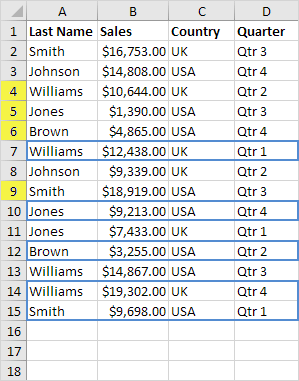
Result. Excel removes all rows with the same Last Name and Country (blue) except for the first instances found (yellow).
Remove duplicate and pick unique values in new column
Let’s take a look at one more cool Excel feature that removes duplicates. You can use the Advanced Filter to extract unique rows (or unique values in a column).
1. On the Data tab, in the Sort & Filter group, click Advanced.

The Advanced Filter dialog box appears.
2. Click Copy to another location.
3. Click in the List range box and select the range A1:A17 (see images below).
4. Click in the Copy to box and select cell F1 (see images below).
5. Check Unique records only.

6. Click OK.
Result. Excel removes all duplicate last names and sends the result to column F.
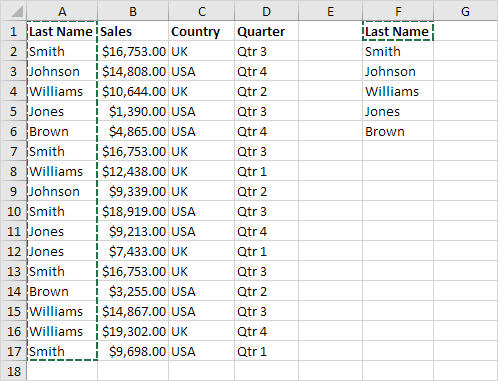
Note: at step 8, instead of selecting the range A1:A17, select the range A1:D17 to extract unique rows.