

Select and copy text and images
The Select tool  lets you select horizontal and vertical text or columns of text, images, vector objects,and tables in a PDF. The Select tool recognizes the type of content under the cursor and changes automatically. You can use the Copy, Copy with Formatting, Export Selection As, and Paste commands to copy the selected text into another application. Note the following:
- If you’re unable to select text, the text may be part of an image. In Acrobat, to export image text to text that can be selected, choose Tools > Enhance Scans > Recognize Text > In This File.
- If the Cut, Copy, Copy with Formatting, and Paste commands are unavailable when you select text, the author of the PDF may have set restrictions against copying text.
- If the text you copy uses a font that isn’t available on your system, the font will be substituted with a close match or a default font.
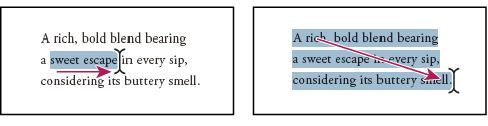
-
- Choose Edit > Copy to copy the selected text to another application.
- Right-click on the selected text, and then select Copy.
- Right-click on the selected text, and then choose Copy With Formatting.You can paste copied text into comments and bookmarks as well as into documents authored in other applications.
You convert selected content other formats by exporting a selection. For example, you can select content and save it as a Word document, Excel spreadsheet, comma-separated values.
-
Note:
To copy a table in RTF, drag the selected table into an open document in the target application.
Use the Select tool to copy and paste individual images from a PDF to the clipboard, to another application, or to a file.
If you cannot select an image because of overlapping text, open the Preferences dialog box, and under Categories, select General. Then select Make Select Tool Select Images Before Text.
 appears, and then drag a rectangle around the portion.
You can use the Snapshot tool to copy all selected content (text, images, or both) to the clipboard or to another application. Text and images are copied as an image.
You can use two methods to take a snapshop: use the Select tool or use the Snapshot tools. Using the Select tool , draw a rectangle, and then right-click and choose Take a Snapshot.
To use the Snapshot tool, do the following:
 by choosing Edit > Take a Snapshot.
-
- Click anywhere in the page to capture the entire content displayed on the screen.
- Drag a rectangle around the text or images, or a combination of both.
- Drag a rectangle within an image to copy just a portion of the image.Colors in the selected area are inverted momentarily to highlight the selection. The selection is copied automatically to the clipboard when you release the mouse button. If a document is open in another application, you can choose Edit > Paste to paste the copied selection directly into the target document.
Note:
To add the Snapshot tool to the Common Tools toolbar, right-click the toolbar and select Edit > Take Snapshot. TheCommon Tools toolbar is located to the left of the Tools, Comment, and Share panes. See Toolbars.
Note:
You can save all the images from a PDF. See Export images to another format . This feature isn’t available in Reader.

