What Is Mock Location?
Mock location is a feature in android devices that specify the different locations when using fake GPS apps. Basically, it helps with location spoofing in the android emulator, and you can easily test your GPS applications.
If you want to spoof Pokémon go or any other location-based app, you will need to enable this application settings in Android. With these settings, you can also fool your friends on Facebook or Instagram as it can fake your location to Italy while you are sitting at your home in California.
In android phones, mock location is a hidden developer setting that allows you to set any GPS location and support fake GPS apps.
There are many free location spoofing apps available in the Google Play Store.
What is the Mock Location Feature used for?
Introduced as a developer option, the mock location feature on Android has gained tremendous popularity due to its diverse use. Here are some of the major uses of Android’s mock location.
- Users can virtually set any location on their device for testing purpose and check the functioning of an app. That is, if you are a developer, then you can check how your app functions on any particular location.
- By disguising your present location, you can download apps or access app feature/content that is not available in your country.
- It can also help you get local updates, weather reports, and so on, based on any other location.
- A lot of people use this feature for location-centric gaming apps (like Pokemon Go) to access more control.
- The location feature is also used for localized dating apps (like Tinder) to unlock more profiles in other cities.
- It is also used to unlock location-specific media on streaming apps like Spotify, Netflix, Prime Video, etc.
How Mock Locations Change Your Mobile Location?
To use this application on Android, you’ll first need to enable developer options:
- On Android, go to Settings (cog icon)
- Scroll down to About phone
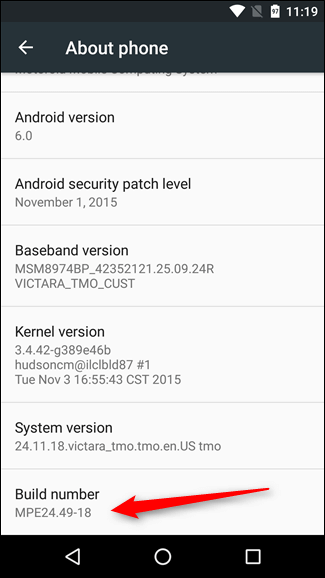
- Scroll down to the bottom and tap Build number seven times
- Go back to Settings and then to System > Advanced > Developer options
- Click Select mock location app and set it to the GPS spoofing app you chose
Step 1: Unlock your android phone and look for its Build Number. For this, go to Settings > About Phone. Depending upon the brand, you can follow Settings > Software Information
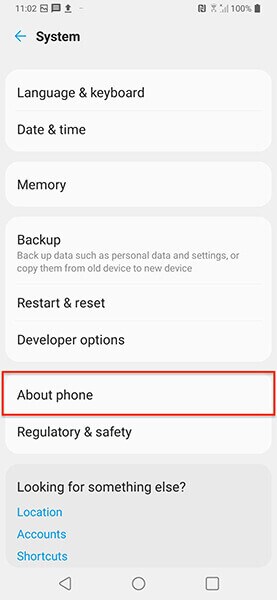
Step 2: Now, tap on the Build Number option seven times without a break to enable the developer option.
Step 3: After this, go back to Settings, and there you will newly added Developer Options.
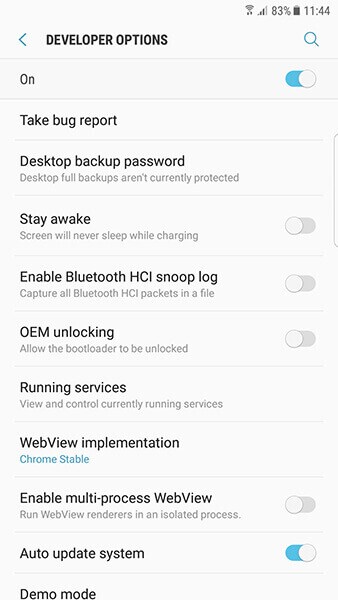
Step 4: Tap on the newly added developer option and toggle on its field.
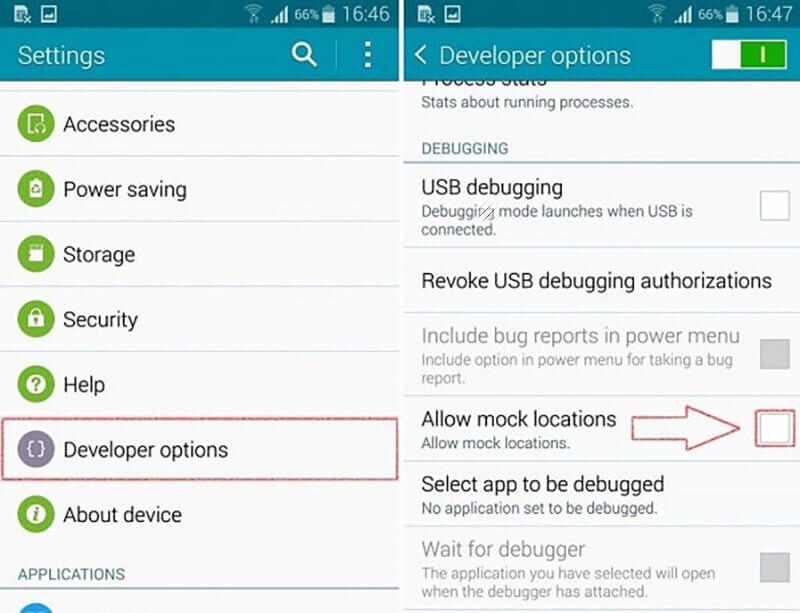
Step 5: In the list of developer options, locate the “Allow Mock Locations” feature, and enable it.
Now open your GPS spoofing app (Mock Location) and select a location. If you open up Google Maps, you’ll see your mock location displayed.