Caret Browsing is a feature in Windows 11/10 with the help of which, you can using the navigating keys on the keyboard, select the text & move it around within a webpage. You can select and copy snippets of text as short as a single character by using only the keyboard. Other content types such as tables or images can also be selected and copied. Caret browsing is not turned on by default. You have to enable or turn it on by following the procedure laid down in this post.
1. Enable Caret Browsing in Windows 11/10 using fuction key
- To turn on Caret Browsing in Microsoft Edge, Chrome, Firefox, or IE, launch the browser and press F7.
- It can be enabled on a per-tab basis or for all tabs and windows.
- Moving the cursor within the text of a webpage is like moving the cursor within the text of a Microsoft Word document.
- To select text, hold the Shift key & press the arrow keys.
Instead of using a mouse to select text and move around within a webpage, you can use standard navigation keys on your keyboard: Home, End, Page Up, Page Down & the arrow keys.
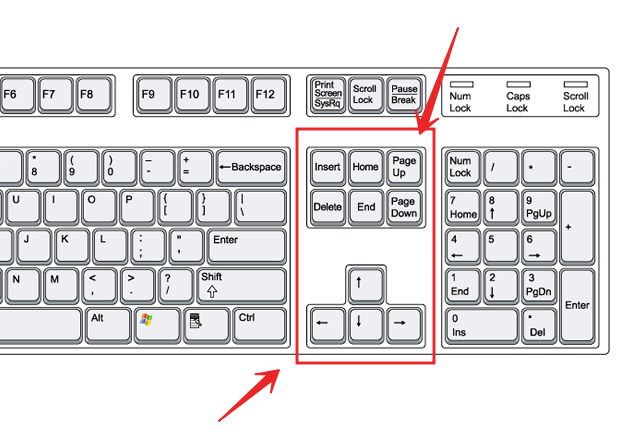
This feature is named after the caret, or cursor, that appears when you edit a document.
In Microsoft Edge, under Advanced Settings section you can opt to use Caret browsing.
If you wish to enable Caret-browsing on startup, you can tweak the setting with our Ultimate Windows Tweaker.
How do I get rid of Caret browsing?
You can use the F7 key to turn it off or on the easy way. To completely get rid of it, use the Group Policy or Registry Editor.
2. Turn On or Off Caret Browsing Support using REGEDIT
1. Press the Windows Key + R simultaneously and put regedit in Run dialog box.
2. Navigate to the following key:
HKEY_CURRENT_USER\Software\Microsoft\Internet Explorer\CaretBrowsing
3. In the right pane, create DWORD named “Enabled”, select Modify. You will get this window:
4. Now you can use the following values for Value data section:
- Turn Off Caret-Browsing Support = ‘0’ (Default setting)
- Turn On Caret-Browsing Support = ‘1’
5. Close Registry Editor and reboot to see results.
3. Turn On or Off Caret Browsing Support using GPEDIT
1. Press Windows Key + R combination and put gpedit.msc in Run dialog box.
2. In the left pane navigate to:
User Configuration -> Administrative Templates -> Windows Components -> Internet Explorer -> Internet Control Panel -> Advanced Page
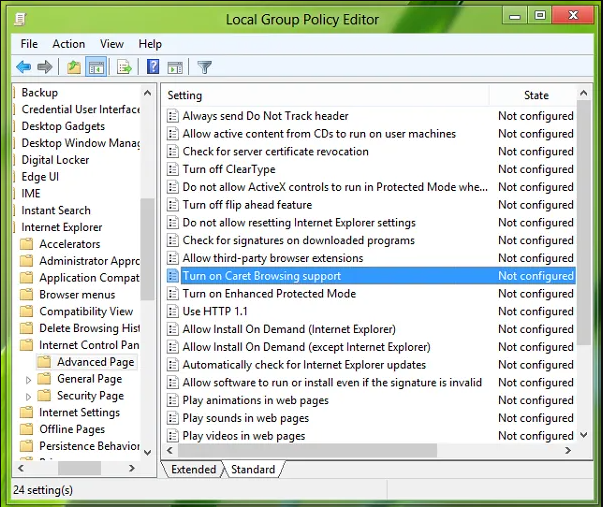
3. Now in the right pane, you’ll see a policy named Turn on Caret-Browsing support as shown above.
4. Double click on this policy to get the window shown below.
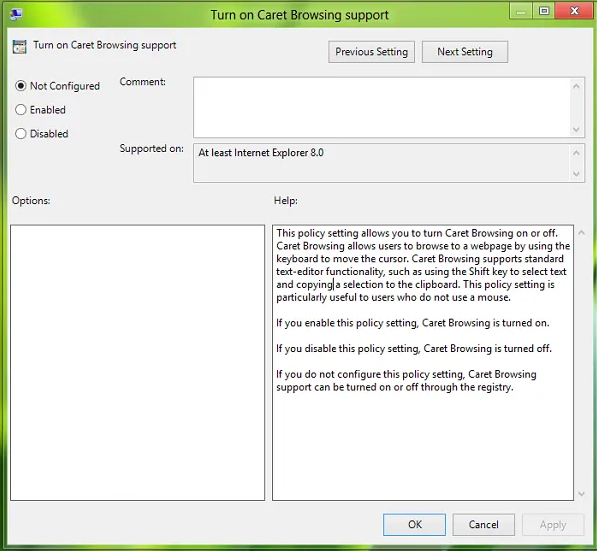
5. Now you can use the following settings:
- Turn Off Caret Browsing = Select Disabled or Not configured (Default Setting)
- Turn On Caret Browsing = Select Enabled
After making changes click Apply followed by OK.
Source: www.thewindowsclub.com