Why I don’t have sufficient right to format my USB flash drive?

1. Format the Drive from the Disk Management Tool
- In the search bar, type Disk Management and open “Create and format hard disk partition“.
- In the Disk Management window, right-click on your USB flash drive and select Format.
- Make sure the File System is set to NTFS and allocation unit size is Default.
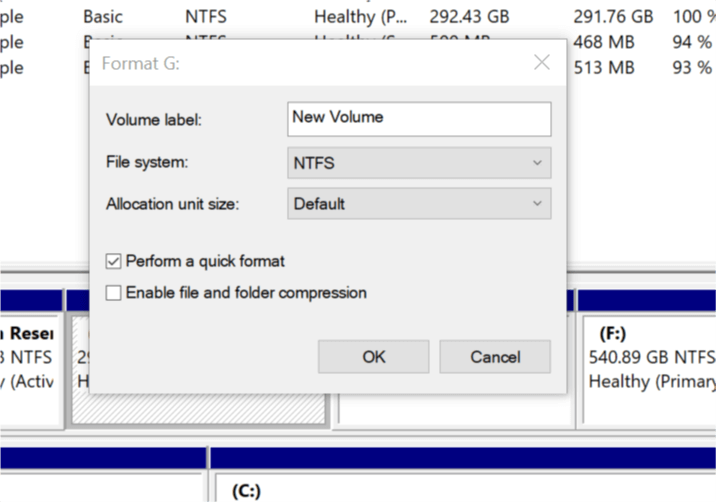
- Check “Perform a quick format” option and click OK.
- Windows should format the USB drive without any error.
2. Take Ownership of the File or Drive
- Right-click on the USB Drive or file and select “Properties”.
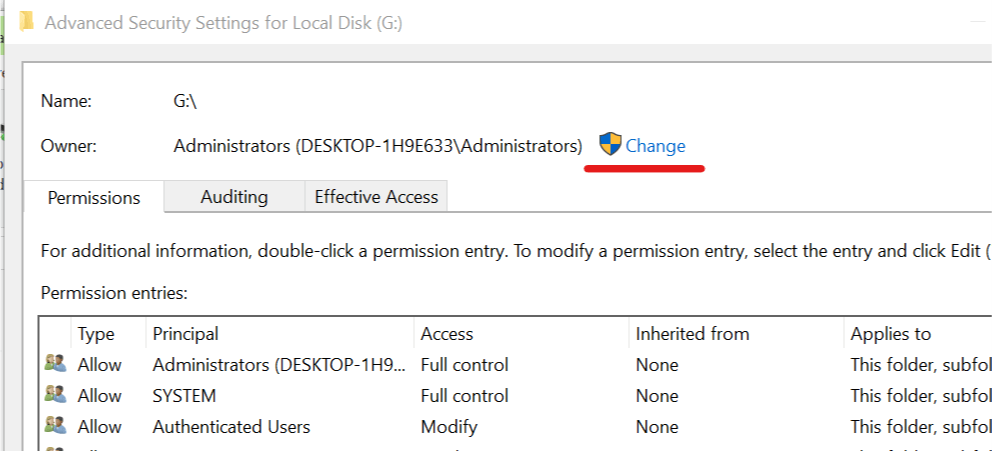
- Go to the Security tab and click on the Advanced button.
- Click the Change link in the Owner section.
- Enter your username in the give filed and click on Check names.
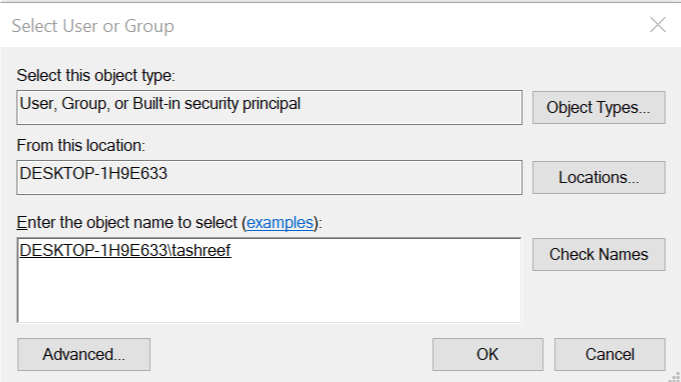
- Click OK and the owner name should have changed to your username.
- Click on Apply and OK to save the changes.
Close the Properties window and try to Format the drive again. Check for any improvements.
3. Use Command Prompt to Format the Drive
- Type cmd in the search bar. Right-click on the Command Prompt and select Run as Administrator.
- In the Command Prompt window, type the following command press enter.
Format X:/ - In the above command, replace the X with your USB drive letter. Make sure you enter the right drive letter before pressing enter.