Microsoft has introduced a new function in MS Excel – X LOOKUP; A very new and unique function which will replace V LOOKUP. Take a look at Practical Training on X LOOKUP
Use the XLOOKUP function when you need to find things in a table or a range by row. For example, look up the price of an automotive part by the part number, or find an employee name based on their employee ID. With XLOOKUP, you can look in one column for a search term, and return a result from the same row in another column, regardless of which side the return column is on.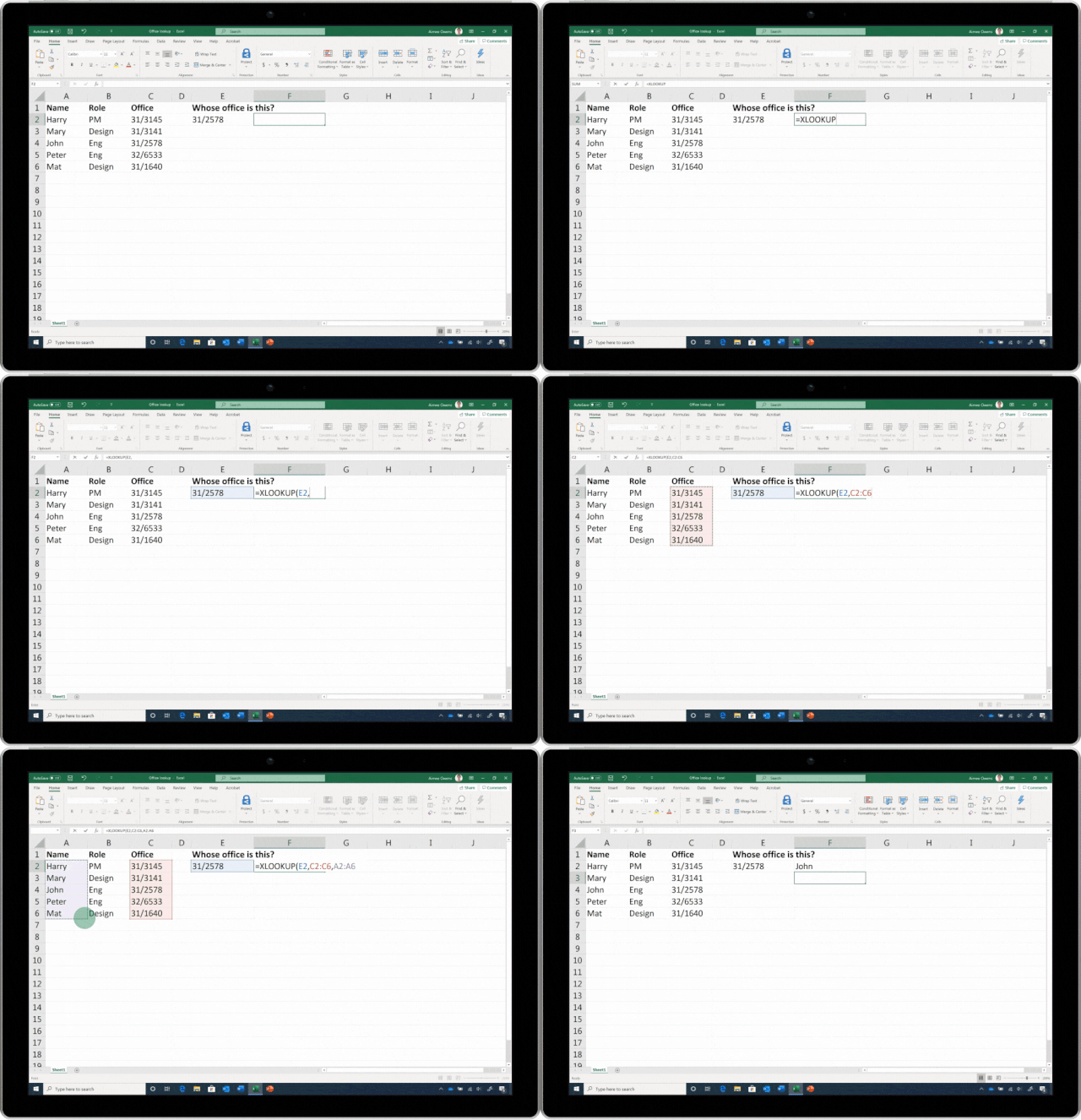
Examples
This example is from the video above, and uses a simple XLOOKUP to look up a country name, then return its telephone country code. It only includes the lookup_value (cell F2), lookup_array (range B2:B11), and return_array (range D2:D11) arguments. It does not include the match_mode argument, as XLOOKUP defaults to an exact match.
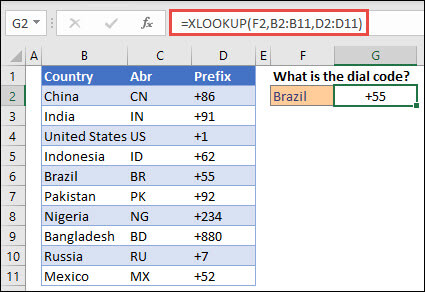
Note: XLOOKUP is different from VLOOKUP in that it uses separate lookup and return arrays, where VLOOKUP uses a single table array followed by a column index number. The equivalent VLOOKUP formula in this case would be: =VLOOKUP(F2,B2:D11,3,FALSE)
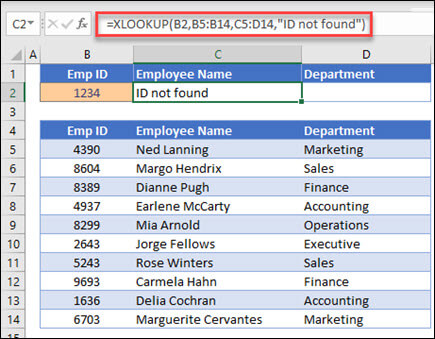
This example adds the if_not_found argument to the example above.
The following example looks in column C for the personal income entered in cell E2, and finds a matching tax rate in column B. It sets the if-not_found argument to return a 0 if nothing is found. The match_mode argument is set to 1, which means the function will look for an exact match, and if it can’t find one, it will return the next larger item. Finally, the search_mode argument is set to 1, which means the function will search from the first item to the last.
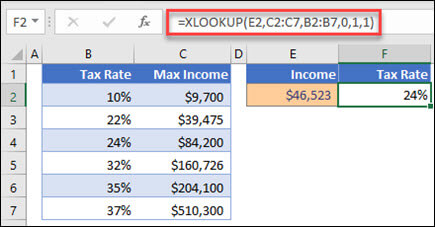
Note: Unlike VLOOKUP, the lookup_array column is to the right of the return_array column, where VLOOKUP can only look from left-to-right.
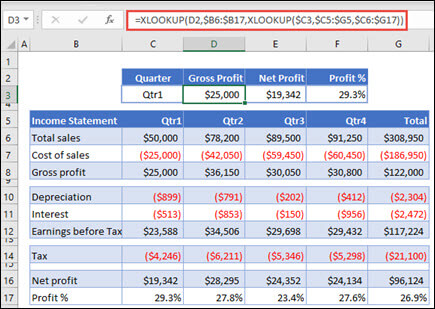 The formula in cells D3:F3 is: =XLOOKUP(D2,$B6:$B17,XLOOKUP($C3,$C5:$G5,$C6:$G17)).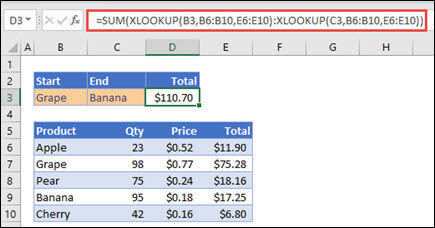
The formula in cell E3 is: =SUM(XLOOKUP(B3,B6:B10,E6:E10):XLOOKUP(C3,B6:B10,E6:E10))
How does it work? XLOOKUP returns a range, so when it calculates, the formula ends up looking like this: =SUM($E$7:$E$9). You can see how this works on your own by selecting a cell with an XLOOKUP formula similar to this one, then go to Formulas > Formula Auditing > Evaluate Formula, and press the Evaluate button to step through the calculation.
Source: MS Office | Beta News