If MS Excel formula is not working, There may be two types of issues that can be Formula error;
1. When Who sheet is not working
When All the formulas in whole sheet are not working/calculating/updating, it might be only one reason, activate automatic option; Click to learn
2. When A Specific Formula is not working
When a specific formula is not working but others are working fine, there may be a series of issues that can affect formula. MS Excel can go wrong in terms of understanding our data.
1. Formula not calculation but Showing Formula text
If your phone is not working but also showing the formula text, then John worry just follow the following steps and rectify this error.
- Select the cell where you have inserted formula
- Go to Formula and see Show Formulas in formula Auditing
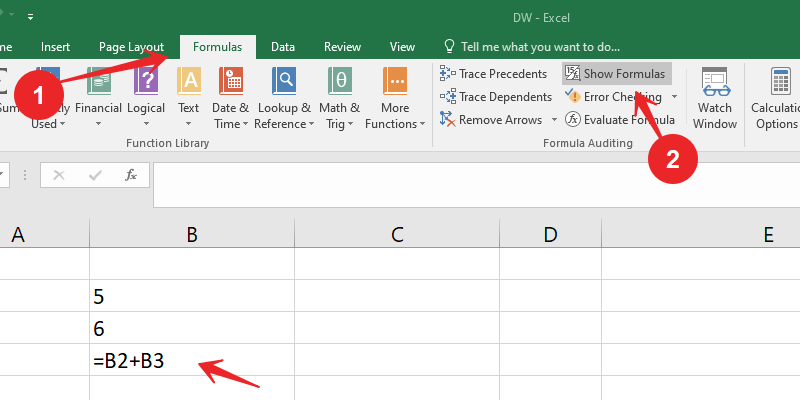
Show Formulas is an option in excel to display all the workbook formulas with a single click. This option is very useful to find out all the formulas in a worksheet. Can you see =B2+B3 code instead of showing result. Use SHOW formula for revert this formula text to Formula itself.
2. Cell is Formatted as Text
Another common reasons is accidentally formatting the cells containing formulas as text. These will not calculate whilst in this format.
To check this; click on the cell and check the Number group of the Home tab. If it displays Text. Change the format to General using the list provided.
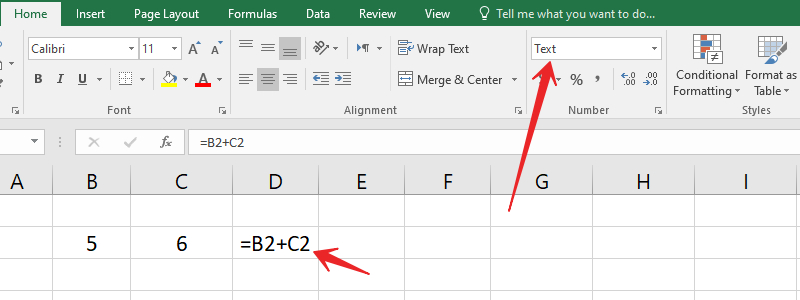
Double click the cell and press enter again. it will display result instead of showing formula text
3. Remove Extra Space from text
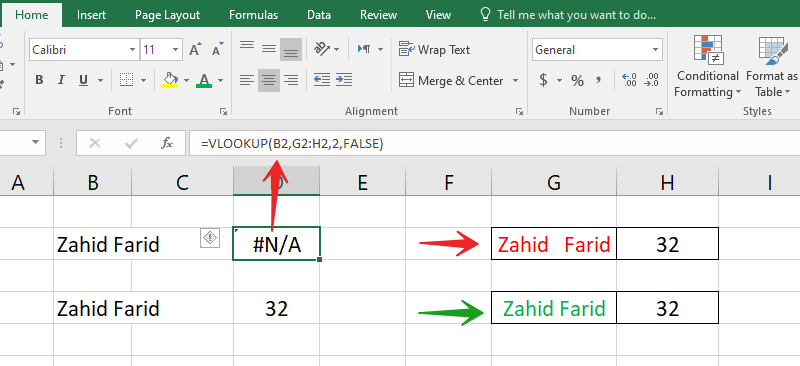
Extra spaces cause a lot of problems while using a formula like VLOOKUP. For example, let’s say if you want to do Vlookup using employee name (Zahid Farid) as a base, so your employee name looks like below
4. A space is entered before the Equals Sign in formula
When typing the formula be sure not to enter a space before the equals. This is difficult to notice so can go unrecognised, however it will prevent the formula from calculating. See below
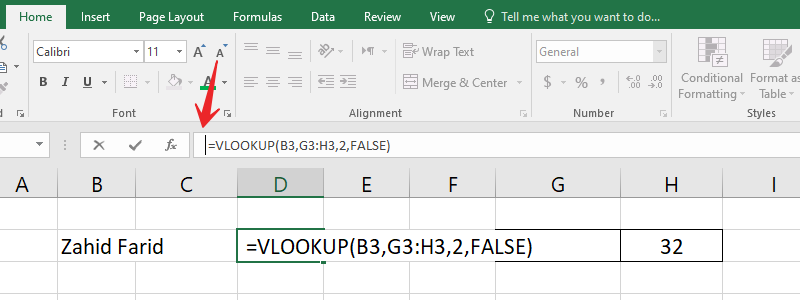
Double click the cell, or edit it in the Formula Bar. Check if there is a space and if so delete it. The formula will update.
5. Be careful in Excel Formatting
Numbers formatted as a text is one of the common reason for formulas not working in excel.
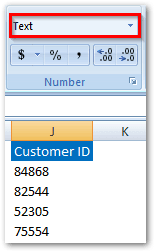 Although they look like numbers but they are not. For example, on the left-hand side, you can see Customer ID looks similar to numbers.
But, if you refer above formatting section, you could see that they have been formatted as text.
Make sure all your numbers are formatted as numbers instead of text. It’s worth to re-format the lookup column before using the Vlookup formula.
In general, numbers will always be aligned to the right side of the cell (but in our above example they are not).
Sometimes you can see a little green tip on the top left corner, that indicates something wrong with that cell.
6. Errors Due To An Endless Circle; Circular References
In simple terms, your formula range is in an endless loop or it’s in a circle. As per excel calculation rules, your formulas should not reference result cells as a range. If you do so, circular reference errors would show up.
For example, in our below sun, we need to add some plug (adjustment number) to match with the targets.
So, we have calculated the differential amount in row 11, and now we just need to put them in row 7. One simple way is by linking row 11 cells in row 7. If you do so, your link formula will not work instead, you can see zero, and possibly you could also see Blue colored arrows pointing to cell references.
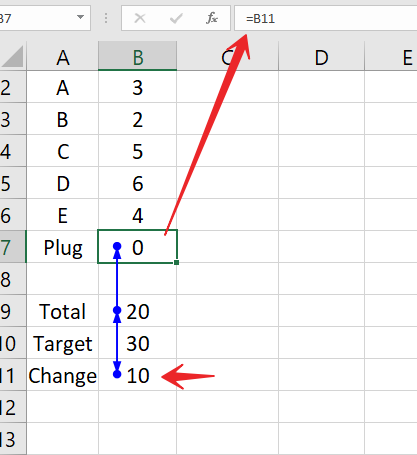
First, we need to identify Formula error cells. Go to Formulas tab → click on Error Checking drop-down arrow → place cursor on Cell references → now you will see error range(s). Second, now you know the circular references range, go to each error cell and fix the formulas.
7. Incorrect Use Of “Absolute” Referencing
Everyone who uses Excel mostly know what is absolute referencing. If not, please stop right here and learn about it. Here is a quick tutorial on cell references. With the help of absolute referencing, you can fix your formula range so that you can copy it from one cell to other. That’s indeed a very useful feature. That being said, if you don’t know how to use them then your formulas will not work as they intend to be.
Certainly, this is one of the main reasons for excel formulas not working when copied from one cell to another cell.
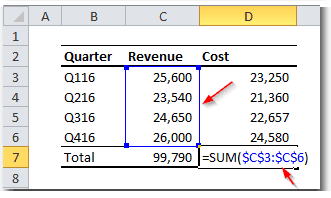
For example, in our above table, we have used absolute cell referencing to make it easy for us to copy formulas. But, we did a mistake. Instead of using partial freeze, we have used F4 shortcut key and fixed entire range.
That’s indeed resulted in incorrect results.
So, the correct way should have been using absolute reference for the only rows like this =SUM(D$3:D$6).
Source: [14] [15]