Applies To: Word 2016 Word 2013 Word 2010 Word 2007
One of the most common mistakes that people make while formatting a document in Word is to use spaces to align text. Many of us have been frustrated by things not lining up perfectly, and we’re left dissatisfied by the slightly meandering edges.
Microsoft Word 2013 provides multiple ways to align text inside a document. Alignment determines the appearance and orientation of the edges of the paragraph: left-aligned text, right-aligned text, centered text, or justified text, which is aligned evenly along the left and right margins (Microsoft Office Source)
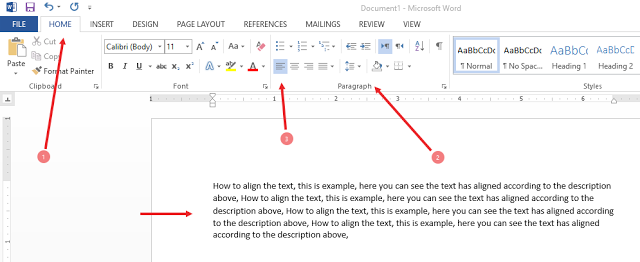
Let suppose. To align the text left
- Select the text that you want to align and Click on Home tab
- Go to Paragraph box
- Click on L Align button
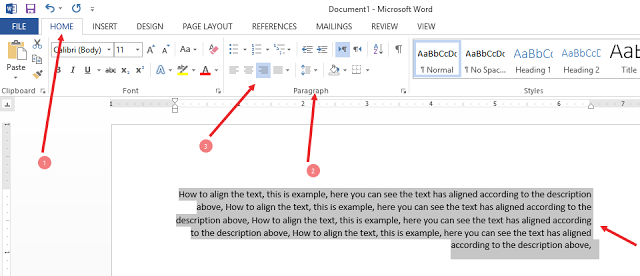
To align the text right
- Select the text that you want to align and Click on Home tab
- Go to Paragraph box
- Click on Right Align button
To align the text center
- Select the text that you want to align and Click on Home tab
- Go to Paragraph box
- Click on Center Align button

To Justify the text
- Select the text that you want to align and Click on Home tab
- Go to Paragraph box
- Click on justify button, you will see and drop down menu tab the
- click the first one Justify Button

You can also use Low Justify, Medium Justify and High Justify alignment but I recommend you to not to use these kinds of alignments, it looks the nice in text formation but difficult to read, so just use Simple Justify option
Shortcut key of alignment and justification
- Align Text to the Left (default) (Ctrl+L)
- Align Text to the Center (Ctrl+E)
- Align Text to the Right (Ctrl+R)
- Fully Justify Text (Ctrl+J)
- Distribute text between Indents (Ctrl+Shift+J)
Watch All above stuff in Video
_____________________________________________